Modules
Virtual Guard
Last verified: October 4, 2026Virtual Guard is where gate staff let visitors in. You answer a call from the touchscreen kiosk at the gate, find the property the visitor is going to, check the guest list, and log your decision. Every decision is recorded in the access log.
The left rail shows one of two items, depending on your role:
- Virtual Guard - For team members who handle gates remotely, often for several communities.
- Guard - For staff on duty at the gate itself.
You see it when your community has the Virtual Guard module and you have the Virtual Guard permission. To answer gate calls in a full call console, see VideoConnect.
Virtual Guard home
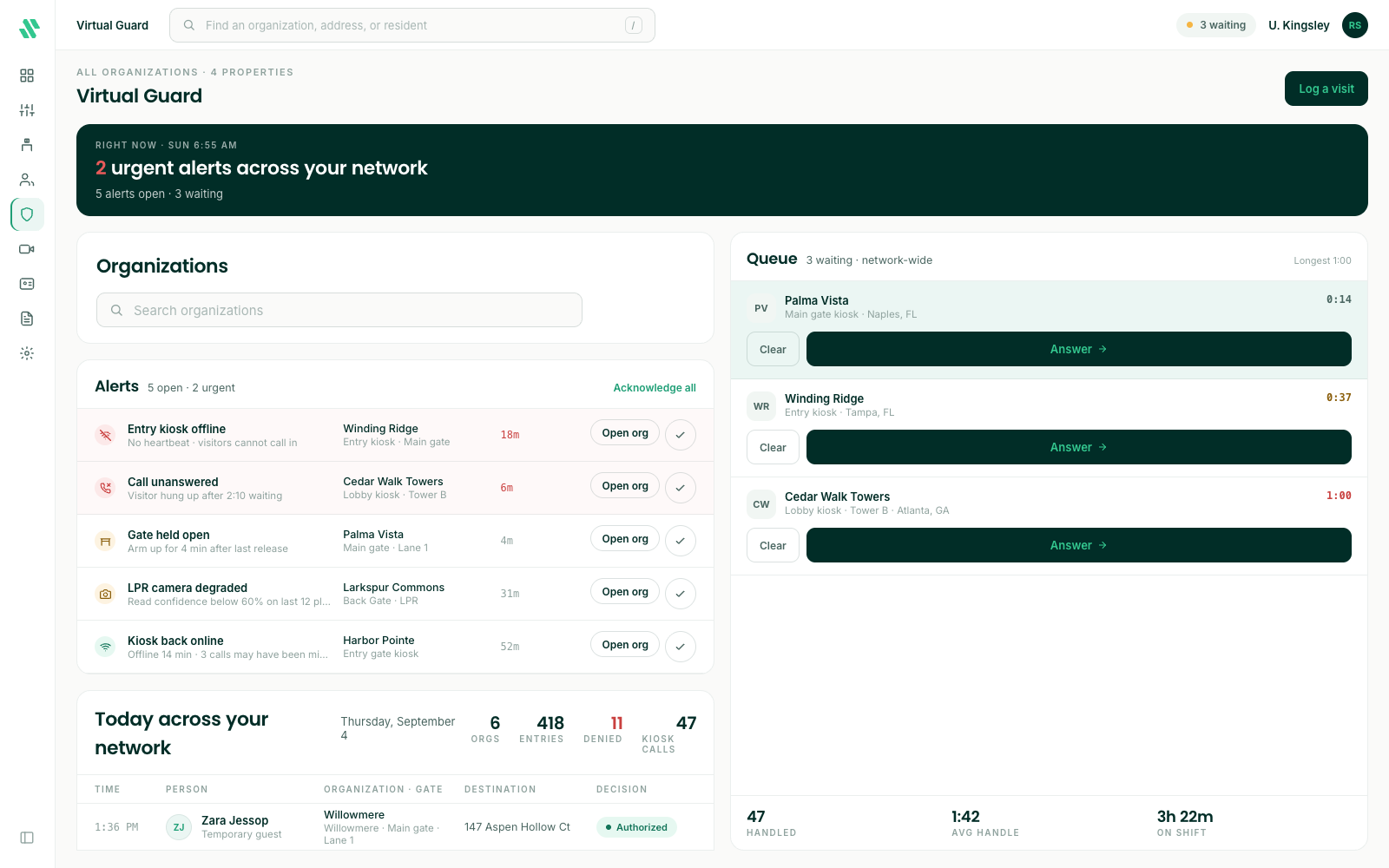
Virtual Guard opens on a home page for everything you cover.
- Queue - Calls waiting at the gate kiosks, with the community, the kiosk and how long the visitor has waited. Click Answer to take a call, or Clear to end it without answering.
- Organizations - Search for a community to open it.
- Today across your network - Today’s entries and denials at the communities you cover.
Click Log a visit at the top right to log a visitor who didn’t call in.
Answer a call
- Click Answer on a call in the queue. The property page opens with the live video at the top left and a timer.
- Ask the visitor who they’re here to see. If they named a different property, type its address or a resident’s last name in the search box at the top to switch.
- Check the guest list on the right (see below), then log the visit.
- Click the red end-call button at the bottom of the video to hang up.
The property page
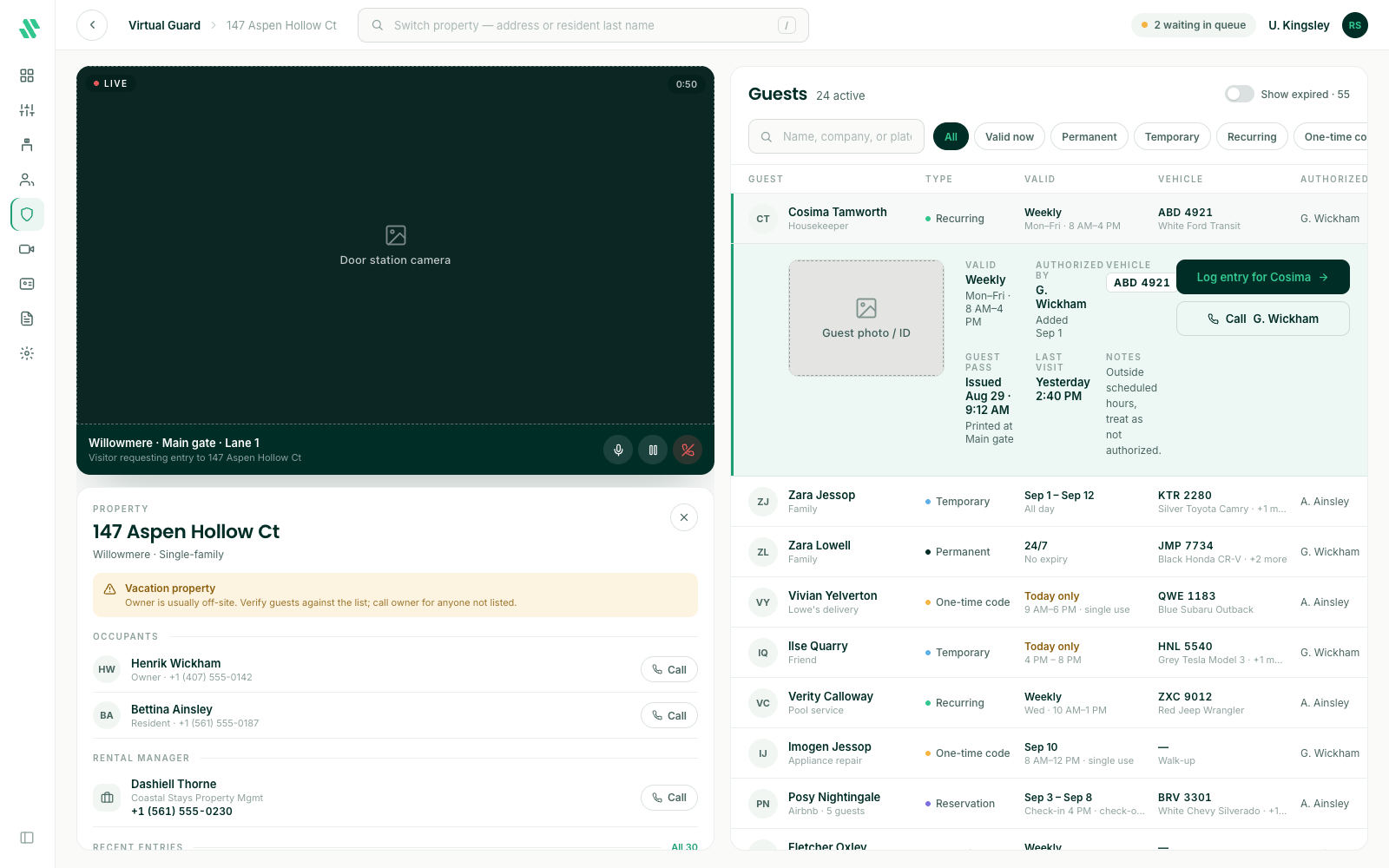
The left side shows the property: its address, any note from management (for example “Vacation property”), the Occupants with a Call button for each, and the property’s recent entries. Click Log new visitor to log someone who isn’t on the guest list.
The right side lists the property’s Guests. Search by name, company or plate, or click a chip to show only the guests who are Valid now or one kind of guest. Turn on Show expired to see guests whose access has ended.
Click a guest to see when their access is valid, who authorized them, their vehicle and any guest pass. From there, click Log entry for the guest, or Call the person who authorized them.
Log a visitor and let them in or turn them away
- Open the log form with Log entry for a guest, Log new visitor, or Log a visit.
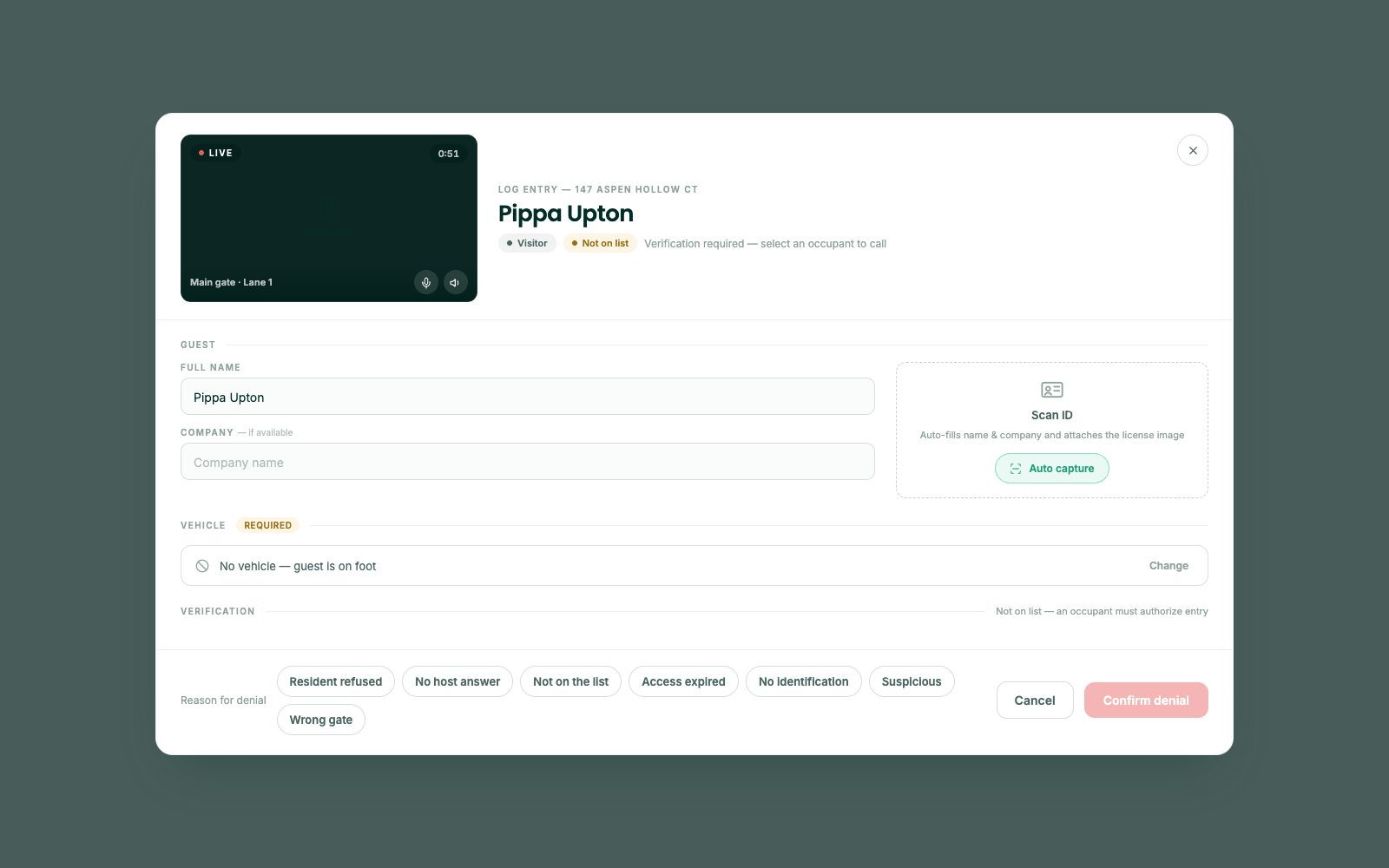
- Type the visitor’s Full name, and their Company if they have one.
- Under Vehicle, click Add vehicle and enter the plate and vehicle details, or click No vehicle — walk-up.
- If the visitor isn’t on the guest list, pick the occupant who authorizes the visit under Verification. Their phone number shows so you can call them.
- Click Grant access · Open gate to let them in, or Deny access to turn them away.
The line at the bottom left tells you what’s still missing before you can grant access, for example the guest’s name or the occupant who authorizes them.
To turn someone away, click Deny access, pick a Reason for denial, then click Confirm denial. Every denial is logged with a reason:
- Resident refused
- No host answer
- Not on the list
- Access expired
- No identification
- Suspicious
- Wrong gate
Grant access · Open gate sends the open command to the gate. Most gates don’t report back when they open, so check the video to see the gate open.
Print a visitor pass
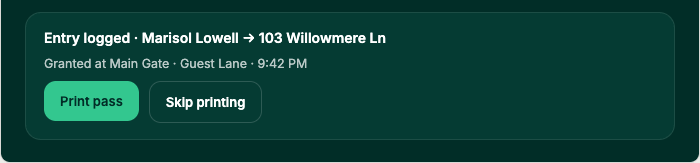
After you grant access, the log receipt offers Print pass. The pass is a card for the visitor’s dashboard with their name, your community, the time and entrance they came in by, where they’re going, their vehicle, and a barcode guards can scan.
- Click Print pass on the receipt. To go on without a pass, click Skip printing.
- Check the pass in the preview and pick the Printer. SAGE remembers the printer for this computer.
- Click Print.
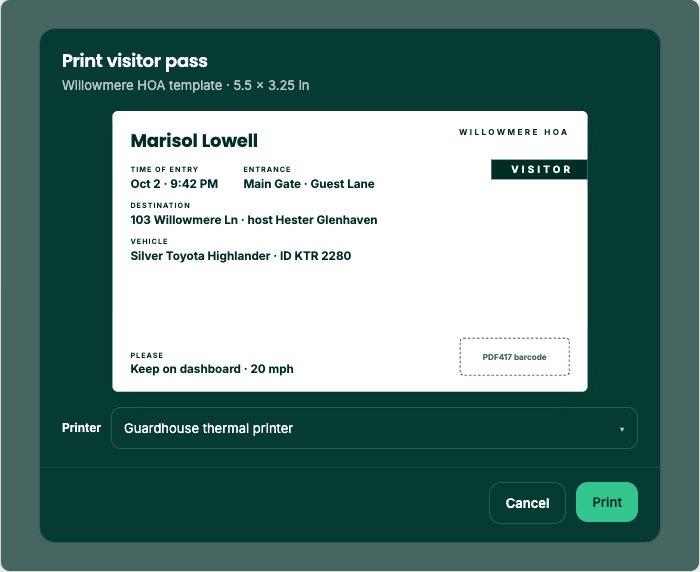
A pass has to be printed or cancelled before you log the next visitor. If one is waiting, SAGE says whose it is: click Print pass, or Cancel pass. To print a pass again later, use Reprint pass on the guest’s entry in the log.
If the printer doesn’t respond, check its paper and power, then click Try again. The entry is already logged either way. To print somewhere else, click Download PDF.
Open a gate in an emergency
Virtual Guard operators can open a gate for an emergency, such as a fire truck or an ambulance, without logging a person.
- Click Emergency open on Virtual Guard home, or in the call controls in VideoConnect.
- Pick the gate.
- Click Open with the gate’s name, for example Open Main gate now.
The access log records it as an emergency entry with the gate and your name, and no person attached.
An emergency open can’t be undone. Use it only for real emergencies, and check the video to see the gate open.
Guard home for on-site staff
Staff on duty at the gate see Guard in the left rail instead. Guard home has the same tools, laid out for one gate:
- Find a property - Search by address or a resident’s last name.
- One-time code - Type the visitor’s 6-digit code and click Check.
- Scan guest pass - Scan the pass, or type the pass ID printed under the barcode and press Enter.
- Incoming - A visitor calling from a kiosk. Click Answer or Clear.
- Quick access - Log a delivery or service visit to the community instead of a property: pick FedEx, UPS, Amazon or USPS, or click Quick access log.
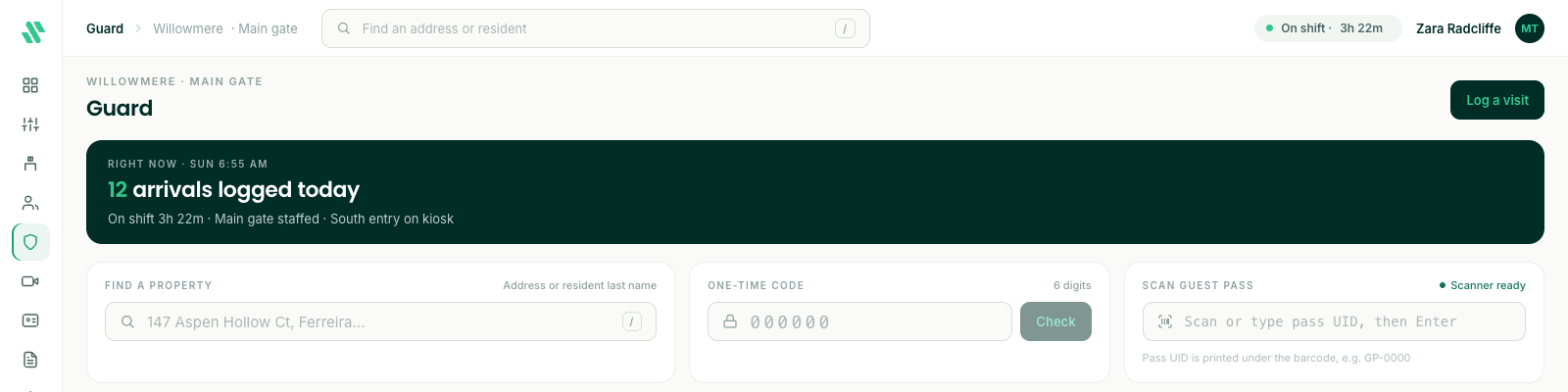
If the internet drops, Guard home tells you you’re offline. Call the resident to confirm visitors, and log entries when the connection is back.
Calls ring for team members who are assigned to the station that the gate kiosk calls. Stations are set up for your community by SAGE administrators, so if calls aren’t reaching you, contact support@sagesystems.io.
Need help?
Questions? Contact us at support@sagesystems.io.