Your account
Access keys and properties
Last verified: October 4, 2026You have one access key for each property you can get into with SAGE. Each time you accept an invitation to a property, a new access key is added to your account. You keep using the same account and app for every property; you don’t need to register again.
See your access keys
- Keys tab - Tap Keys at the bottom of the screen. On iPhone the top of the list says how many communities you have keys for and how many are active.
- Home screen - Your keys are under Access keys. Tap Manage to open the Keys tab.
Each key shows the community’s name and the property address, plus a label:
| Label | Meaning |
|---|---|
| Your role, such as Resident, Owner, Tenant or Guest | Your access is active. |
| Suspended | Your access to that property is suspended. Contact your property manager or the property owner. |
If you don’t have any keys, the iPhone app says “You don’t have any keys yet”.
You don’t need to switch between properties. When you invite a guest or create a one-time code, the app lets you pick the property it’s for.
Key details
Tap a key to see more. From there you can:
- Unlock a gate (iPhone) - Opens the unlock options for that key. See Gate access.
- Connect to property - Connect one of your vehicles to this property for plate entry. See Add and manage vehicles.
- Leave This Property - Remove the property from your account (see below).
If your access is suspended, the details say Access suspended and none of the ways in will open gates.
Accept a new invitation
If you already have an account and someone invites you to another property, a card appears at the top of your home screen, for example “Nadine Ashdown has invited you to access Willowmere 2B, Mon from 18h–20h.”
- iPhone - Tap Accept on the card. The new property’s key appears in your list.
- Android - Open Settings and tap Pending invitations. Each invitation says who invited you and to which property. Tap Accept or Decline.
On iPhone, tapping the second button on an invitation card (Later) declines the invitation. Only tap it if you don’t want the access.
If you’ve already verified your identity, you don’t need to do it again for the new property.
Leave a property
On iPhone you can remove a property you no longer need.
- Open the key - On the Keys tab, tap the property’s key.
- Leave - Tap Leave This Property. The app explains what leaving does.
- Confirm - Tap Leave Property.
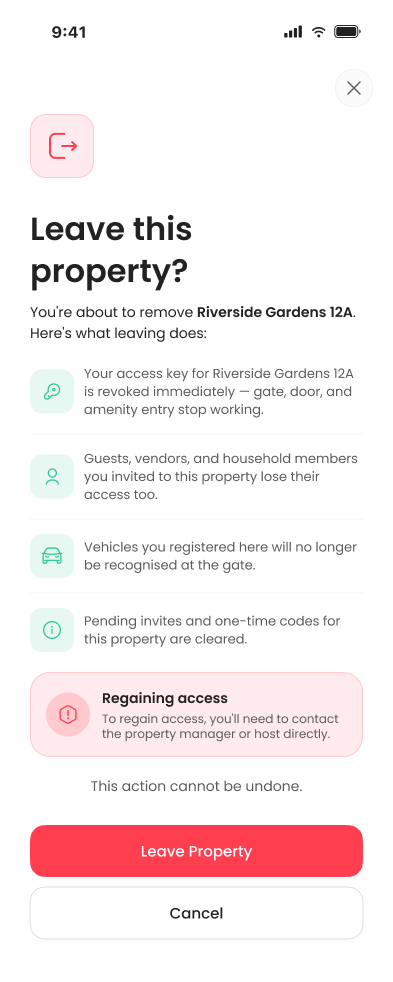
Leaving takes effect immediately and can’t be undone:
- Your access key for that property stops working at every gate and door.
- Guests, vendors and household members you invited to that property lose their access too.
- Vehicles you registered there are no longer recognized at the gate.
- Pending invitations and one-time codes for that property are cleared.
To get access back, contact the property manager or the person who invited you.
Leaving a property from the app isn’t available on Android yet. Ask your property manager to remove you.
Need help?
Questions? Contact us at support@sagesystems.io.