Basics
Sign in to the console
Last verified: October 4, 2026The SAGE console runs in your web browser. There are two ways in: scan the code on the sign-in page with the SAGE app on your phone, or type your email and password and then confirm it’s you with a second step.
SAGE works by invitation. You can’t create a console account yourself; someone on your community’s team adds you, and SAGE emails you a link to set up your account.
Sign in with your email and password
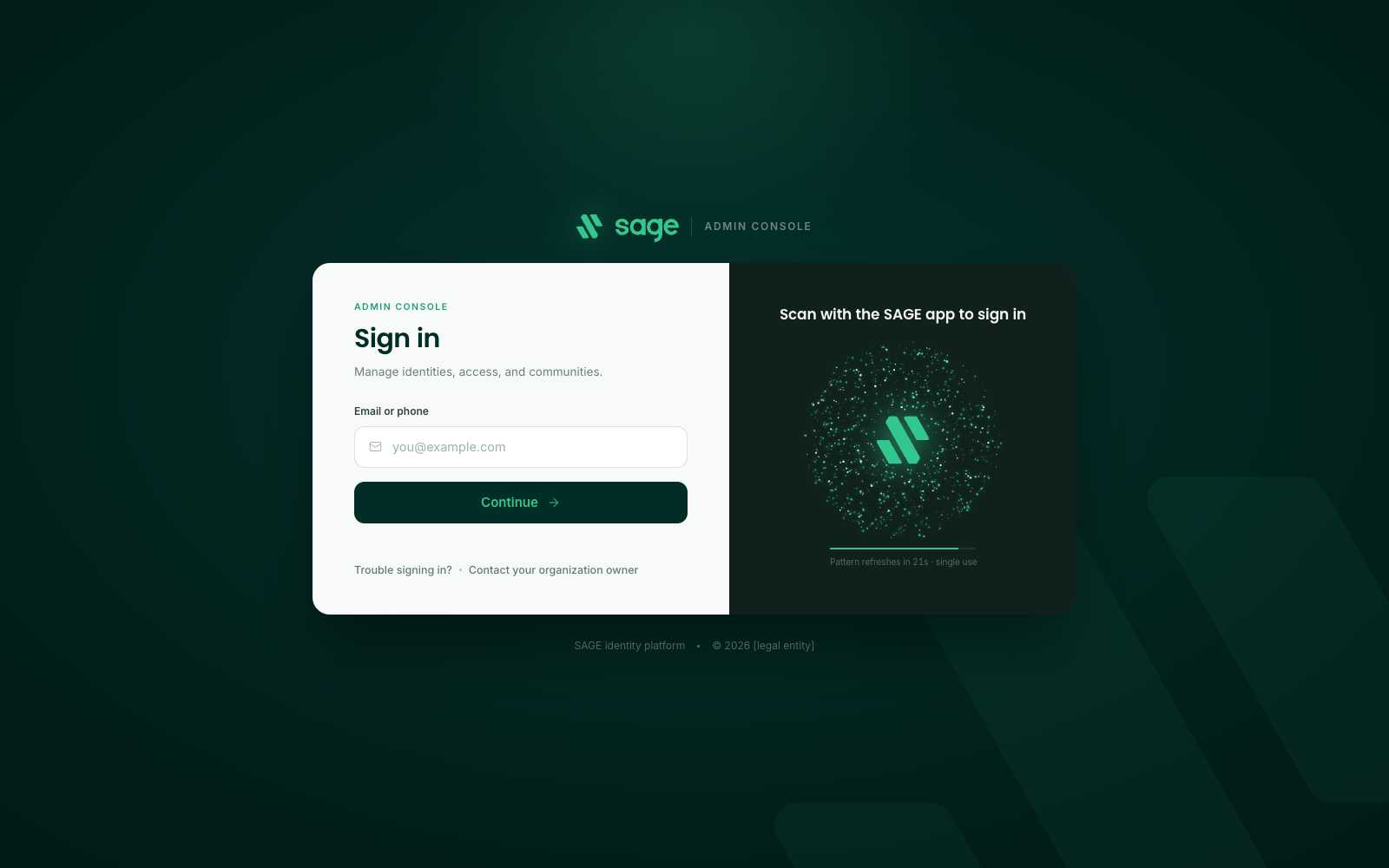
- Open the SAGE console. The page says Admin console and Sign in.
- Enter your email address under Email or phone and click Continue.
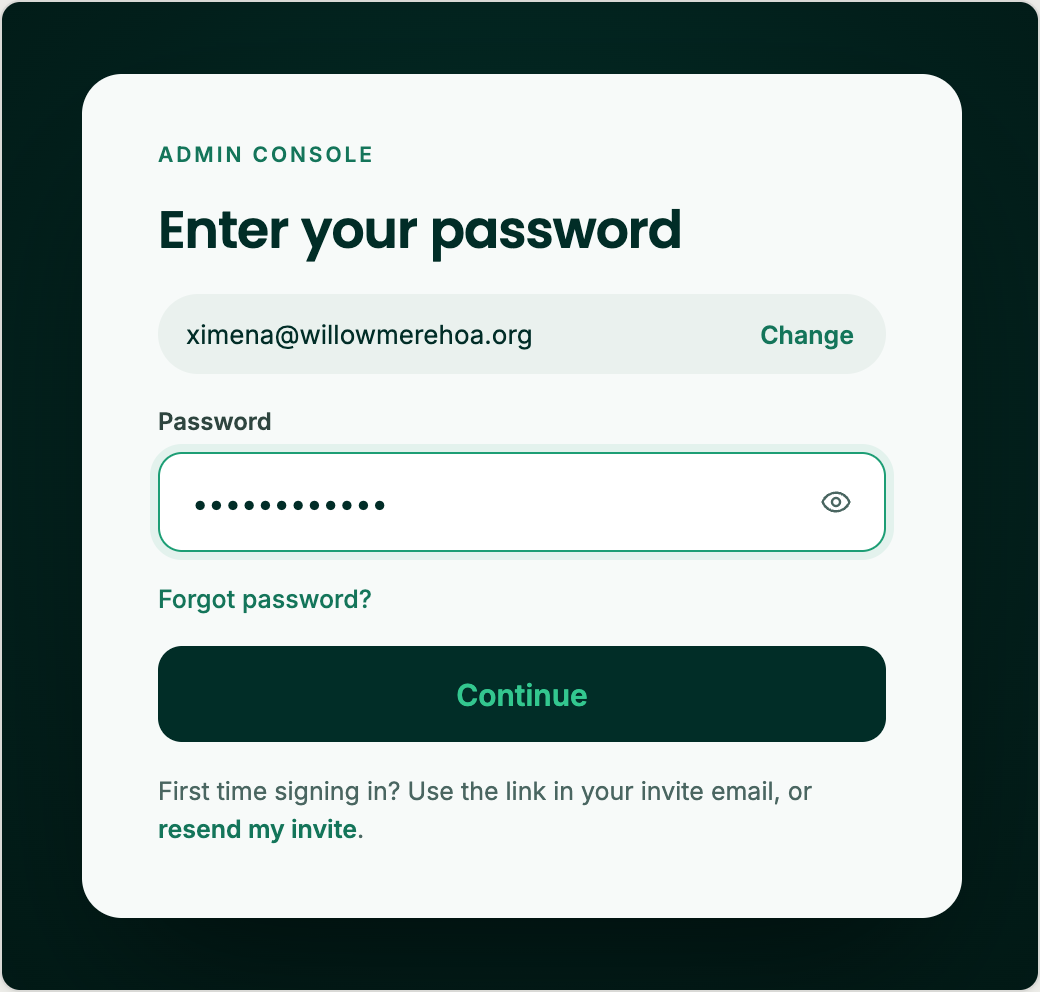
- On Enter your password, type your password and click Continue. To use a different email, click Change.
- If SAGE asks for a second step, confirm it’s you with your passkey or a code. See The second step below.
The console opens the community you used last. If you manage more than one community, the first time you sign in you pick one under Choose a community. After that you can switch any time from the header; see Your account menu.
Sign in by scanning with the SAGE app
The right side of the sign-in page says Scan with the SAGE app to sign in.
- Open the SAGE app on your phone.
- Scan the code on the right of the sign-in page.
The code changes every 24 seconds and works only once. A scan counts as both steps, because the app only opens on your phone with your fingerprint, face or passcode, so you aren’t asked for a password or a code.
The second step
After your password, SAGE may ask you to confirm it’s you. It asks on a new device and every 30 days. Ramco staff confirm every time they sign in with a password.
- Passkey - Confirm it’s you appears with your browser’s passkey prompt on top of it. Use your device’s fingerprint, face or PIN. If you cancel or it times out, you see Passkey didn’t go through; click Try again, or Use another way.
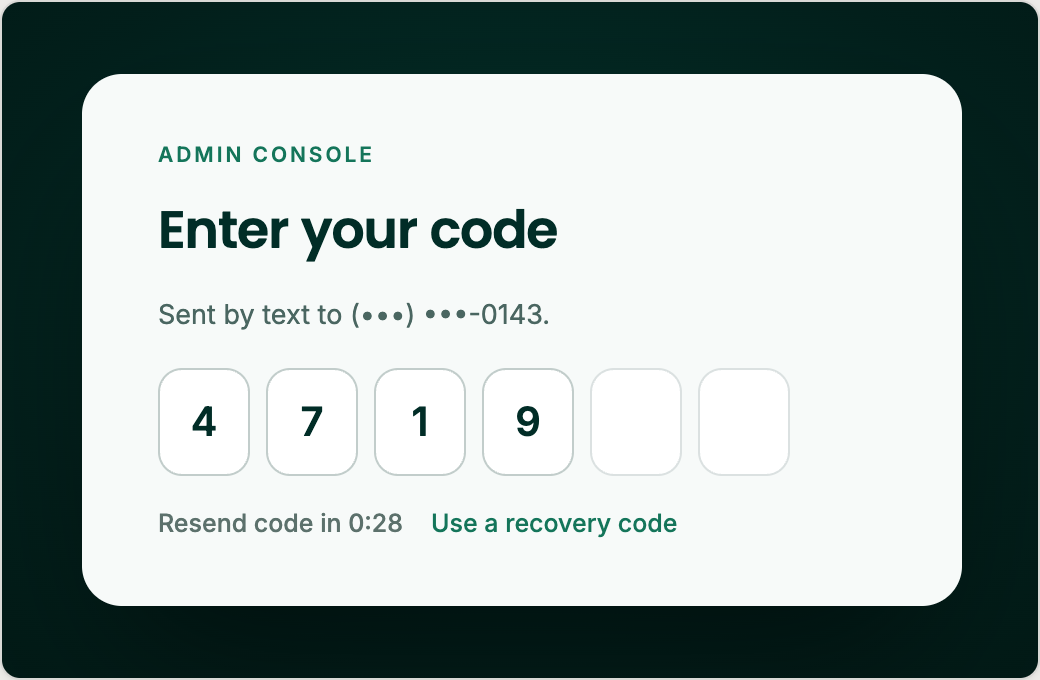
- Code - Enter your code shows where the code was sent, by text or from your authenticator app. Type the six digits. You can also paste the code; the last digit signs you in. If the code doesn’t arrive, Resend code is available after 30 seconds.
- Recovery code - If you’ve lost your phone or passkey, click Use a recovery code. A recovery code works once, and SAGE then asks you to set up a new second step.
Set up your second step
If your community requires a second step, SAGE asks you to add one the next time you sign in.
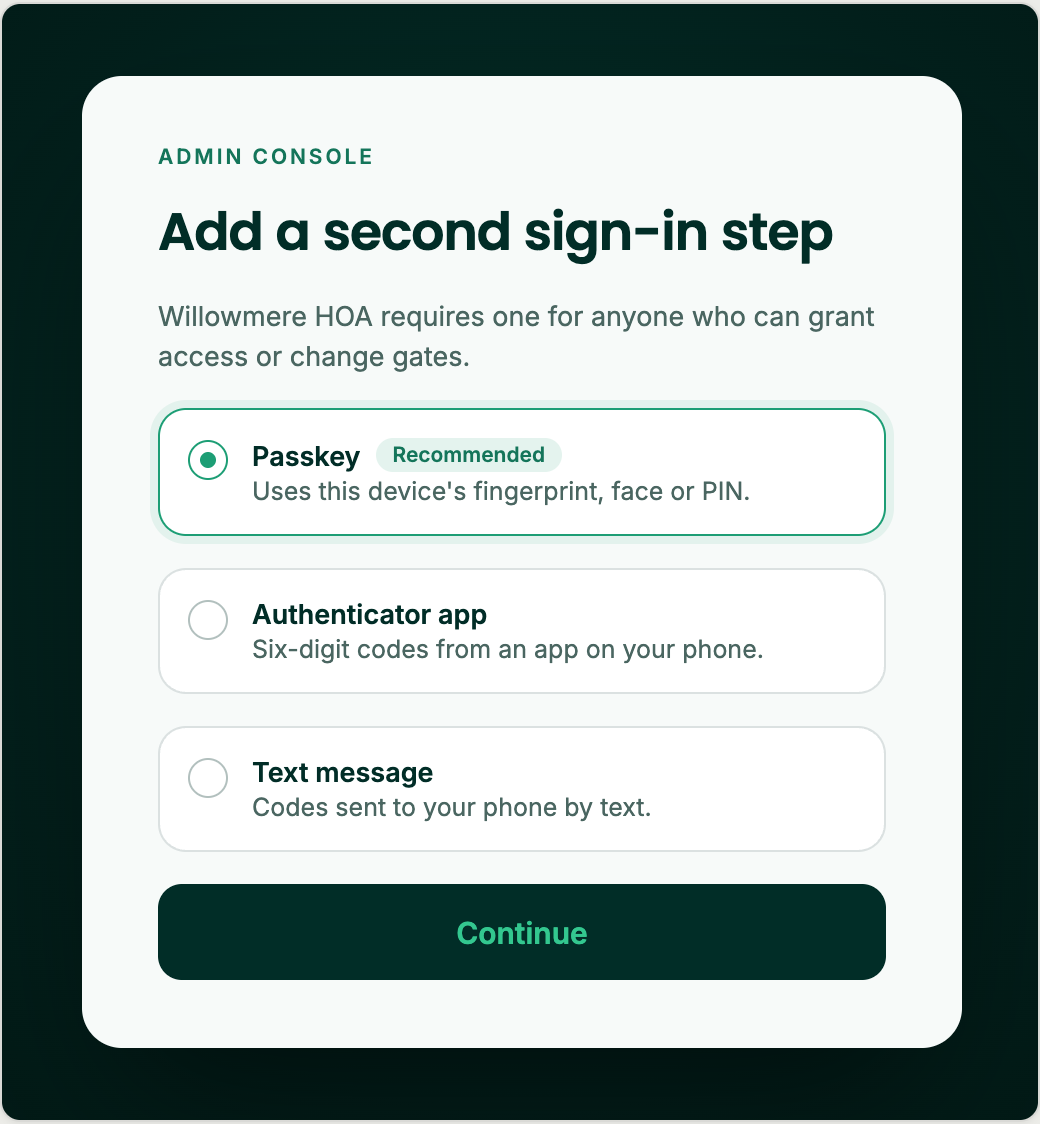
- On Add a second sign-in step, pick one and click Continue:
- Passkey (recommended) uses this device’s fingerprint, face or PIN.
- Authenticator app gives you six-digit codes from an app on your phone. Scan the QR code with the app, or enter the key shown under it, then type a code from the app and click Verify.
- Text message sends codes to your phone by text.
- On Save your recovery codes, click Download or Copy and keep the ten codes somewhere safe. Each one works once.
- Tick I’ve saved these somewhere safe and click Done.
You can change your second step or get new recovery codes later in Profile and security; see Your account menu.
First time signing in
When someone adds you to the team, SAGE emails you an invitation to join your community on SAGE. The link works for a set number of days, shown in the email.
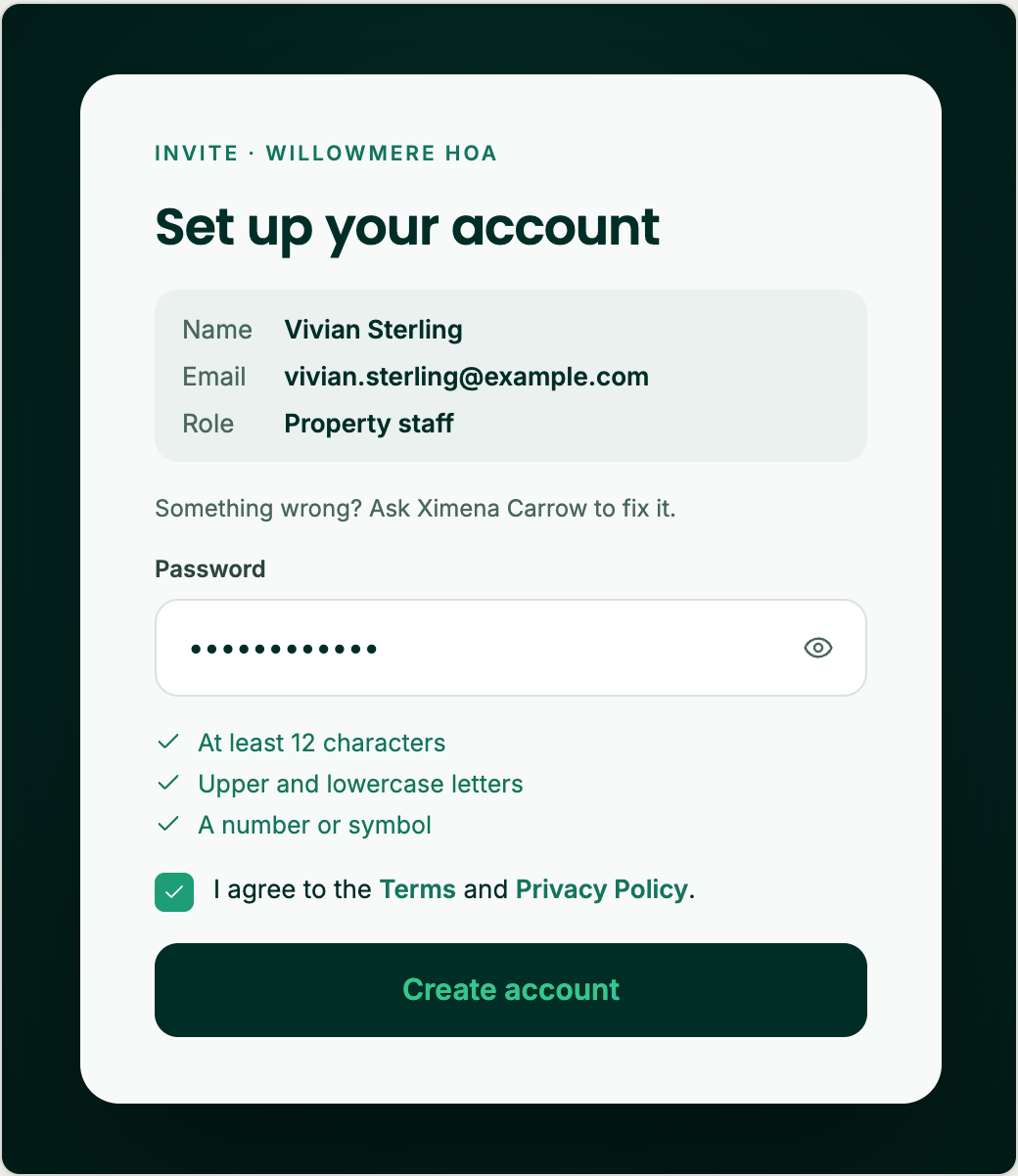
- Open the email and click Set up your account.
- Check your name, email and role. You can’t change them here; if something is wrong, ask the person who invited you to fix it.
- Choose a password. The checklist under the field ticks off each rule as you meet it: at least 12 characters, upper and lowercase letters, and a number or symbol.
- Tick I agree to the Terms and Privacy Policy and click Create account.
- If your community requires a second step, set it up now.
The console then opens your community.
If the link no longer works, the page tells you why: the invite expired, it was cancelled, or a newer invite replaced it (use the link in your latest email). For an expired or cancelled invite, ask the person who invited you for a new one.
Can’t find the invite email? On the sign-in page, enter your email, click Continue, then click resend my invite. SAGE answers “If you have an invite, a new link is on its way” whether or not there’s an invite for that address.
Invited to another community
If you already have a SAGE account, for example because you manage another community, the email asks you to Respond to invite instead.
- Click Respond to invite in the email. If you’re signed out, sign in first.
- The page names the community, who invited you, and the role you’re invited as. Click Accept or Decline.
After you accept, the page says you’ve joined, with a button to open the community. If you decline, the person who invited you is told. If the page says This invite is for another account, you’re signed in with a different email than the one invited; click Switch account and sign in with the right one.
Forgot your password
- On Enter your password, click Forgot password?. SAGE emails a reset link to the address you entered.
- Open the email Reset your SAGE password and click Set a new password.
- Type a new password that meets the checklist, then click Save password.
- On Password changed, click Sign in and sign in with your new password.
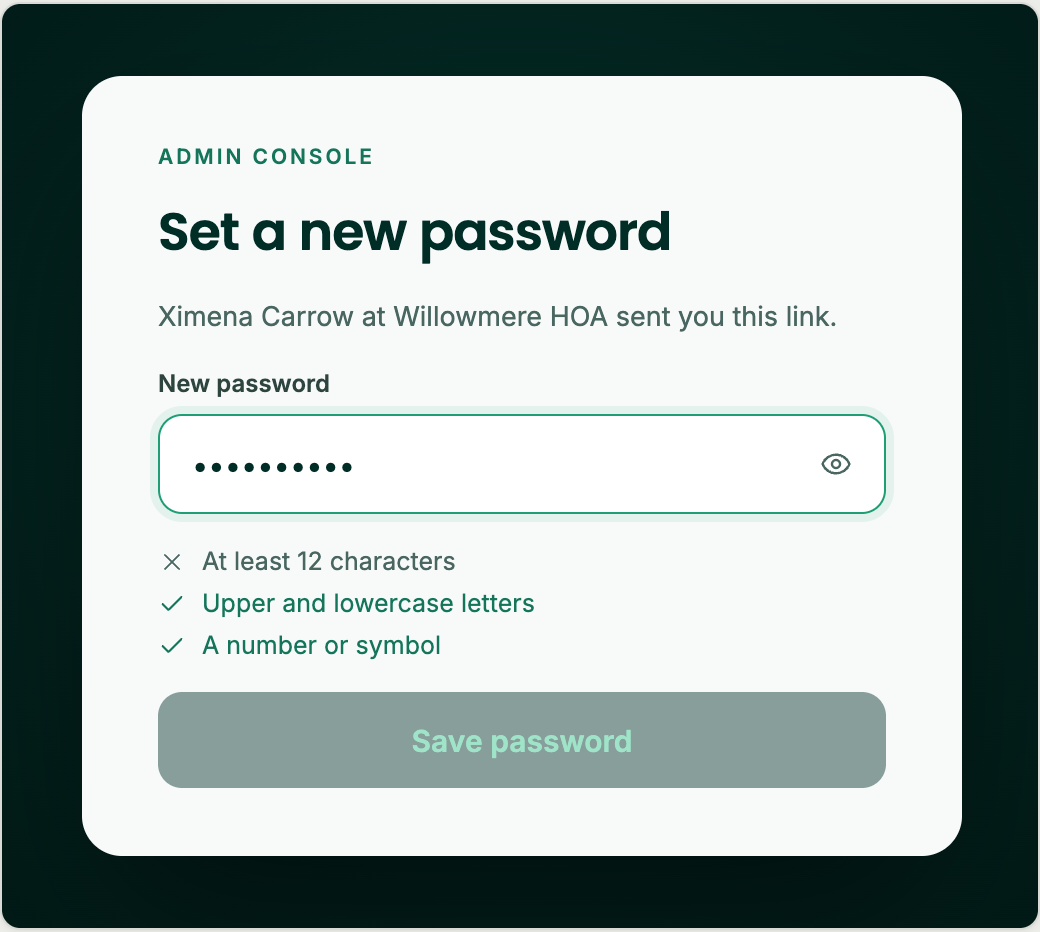
Changing your password signs you out on every other device. A reset link works once and expires after an hour; if you see This link has expired, click Send a new link. If nothing arrives, check your spam folder.
A manager can also send you a reset link from My Organization. The page then says who sent it.
If you can’t sign in
- That email and password don’t match - Check both and try again, or reset your password. You see the same message when the email isn’t on a SAGE account, so if you were never invited, ask your community office.
- Sign-in paused - After five wrong passwords, or five wrong codes, sign-in pauses for 15 minutes. From the third failure the page shows how many tries you have left. You can still reset your password during the pause.
- That code didn’t work - Check the code, or send a new one. If the code expired, SAGE sends a new one for you.
- Your access is paused - Your community paused your console access. Contact the community office to have it restored. If it says You no longer have access, you’ve been removed from that community.
- This sign-in is for community staff - Residents and guests manage their access in the SAGE app. Click Get the SAGE app, or Go to resident sign-in.
When sign-in is paused, Get help opens this article. If you still can’t get in, click Contact your organization owner, or call your community office.
Staying signed in
The console signs you out after a period without activity, which your community sets. Two minutes before that, Still there? counts down. Click Stay signed in to carry on; any key or click also counts as activity.
If you’re signed out, the page says Sign in to continue and why, with your email already filled in. Enter your password and click Sign in and go back to return to the page you were on. Anything you had typed into a form is still there.
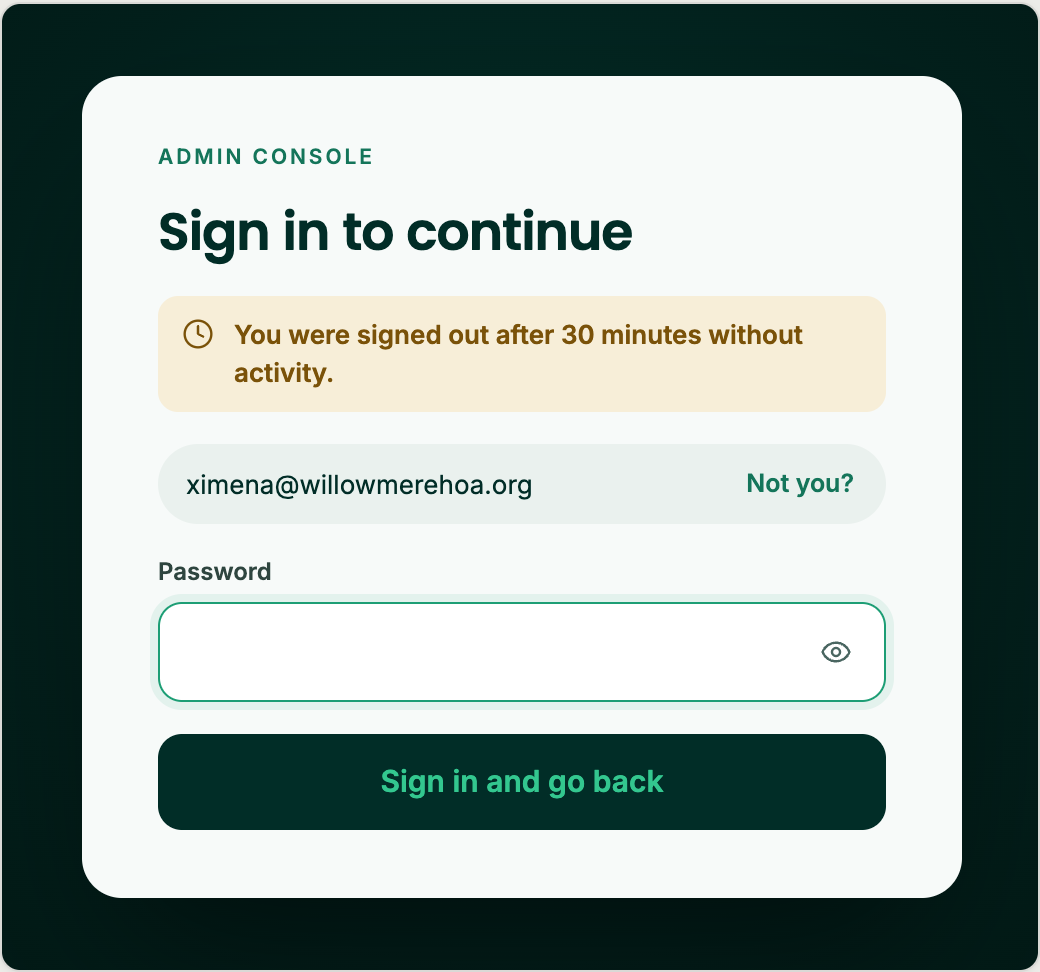
You’re also signed out when your password changes, when you sign out from another device, or when an administrator ends your session. The page tells you which.
On a shared computer, always sign out when you’re done: click your name at the top right, then Sign out.
Need help?
Questions? Contact us at support@sagesystems.io.