Get started
ID verification
Last verified: October 4, 2026Why we ask for ID verification
Verifying your identity confirms who you are, so every unlock is tied to a real person. You photograph your government-issued ID (a driver’s license or passport) in the app, and SAGE saves it to your account.
- In the app - On iPhone, until you verify, the app asks you to verify first when you try to unlock a gate from your phone or add or connect a vehicle.
- At the gate - If your ID is on file, a guard using the SAGE guard app doesn’t need to photograph your ID when logging your entry.
- Kiosk calls - Visitors use a call directory to call residents from the gate kiosk. To be listed, you must be a verified resident or tenant whose access isn’t suspended and who has calling turned on. Verifying alone doesn’t list you.
- Once is enough - Verification belongs to your account, not to a property, so you don’t need to do it again for each property.
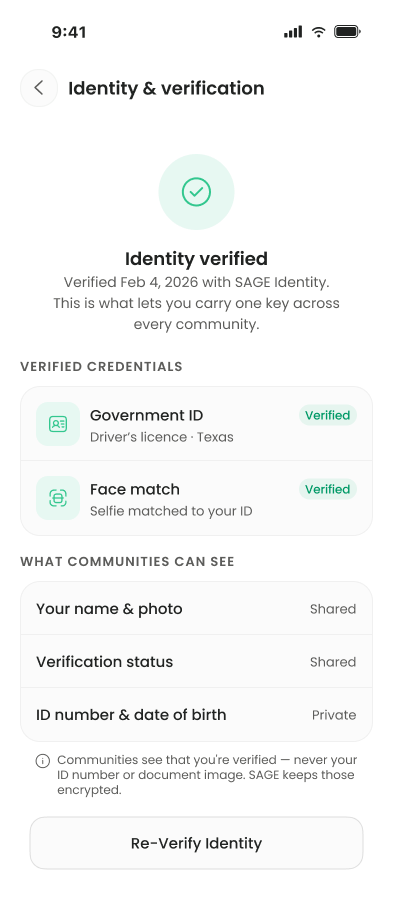
The app says communities see that you’re verified, but never your ID number or the image of your document.
Verify your identity
Have your ID with you, and find a spot with good light.
- Start - The app takes you here right after you create your account. You can also tap Verify on the home-screen card that says “To access and manage all available features please verify your identity.”, or open Settings, tap Identity & verification, then Verify identity.
- Read the intro - On Let’s verify your identity., tap Continue. Tap Why is this required? if you’d like to know more.
- Photograph the front - On Front of your ID., point the camera at the front of your ID and take the photo. You can also pick a photo you already have. If the app asks, allow camera access.
- Photograph the back - Turn your ID over and do the same for the back.
- Android only: take a selfie - On Look at the camera., take a photo of your face.
- Done - The app shows Verifying Your Identity. for a few seconds, then You’re Verified. Tap Ok.
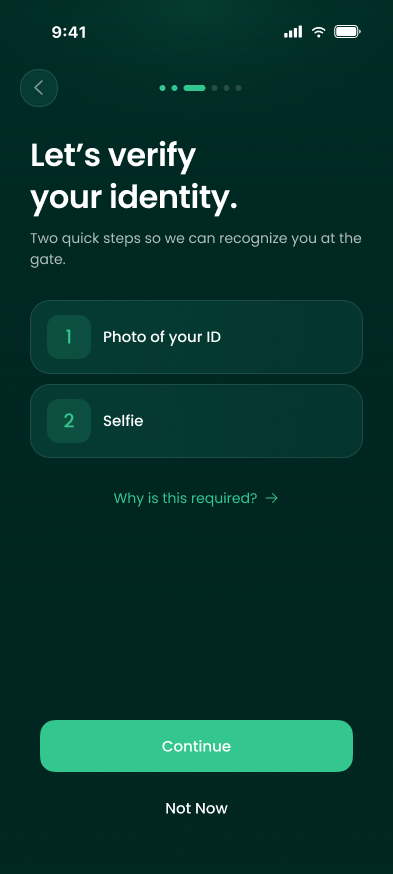
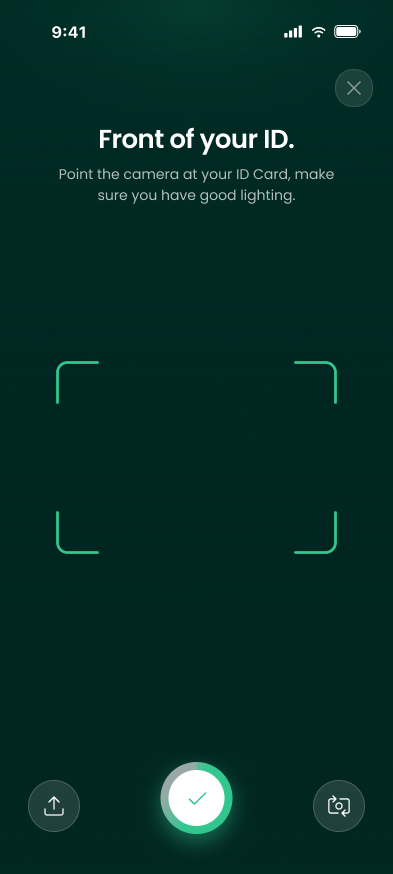
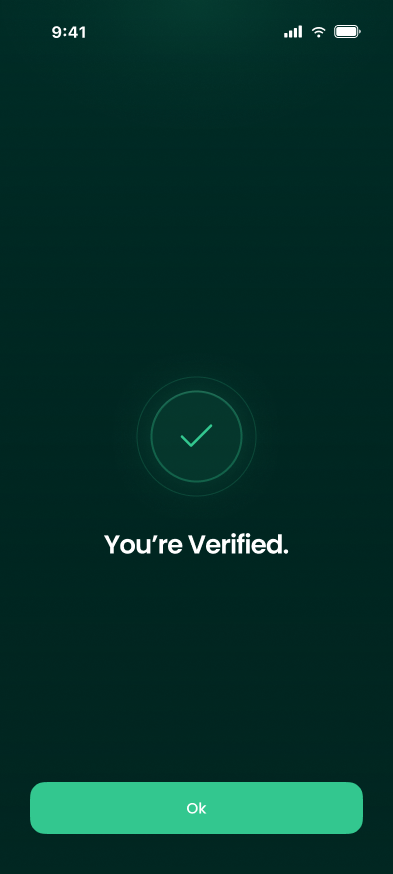
If the app can’t read your ID, you’ll see a message such as “We Couldn’t Check Your Photo” or “We couldn’t verify your identity.” Retake the photo on a darker, non-reflective surface with every detail visible and no glare, and try again.
Check your status
Open Settings and look at the Identity & verification row. It says Verified once you’re done. Before that it says Verify on iPhone or Pending on Android. Verified accounts also show SAGE verified identity under your name at the top of Settings.
If you skip it for now
On iPhone you can always tap Not Now on the intro and verify later. On Android, Not now only appears if your community doesn’t require verification. When it’s required, the Android app notes that you can still get in through the kiosk or a guard, and that verifying unlocks tap-to-enter.
Until you verify, a Verify card stays on your home screen. On iPhone, the app also asks you to verify before you unlock a gate from your phone or add or connect a vehicle. Accounts for minors aren’t held back this way.
Need help?
Questions? Contact us at support@sagesystems.io.