Administration
Property devices
Last verified: October 4, 2026A device is a credential that opens the gate, such as a tag, a key fob, a barcode, a keypad code or a mobile credential, linked to one person at one property. A person can have more than one device.
Each property’s page in Administration has a Devices tab that lists the devices held by the people at that property: the type, the ID (device number), when it was Assigned, the Holder and the Status. To see every device in your community at once, use the Devices page.
Assigning a device needs the Manage Occupant Devices or Manage Organization Devices permission. For license plate (LPR) devices, see Vehicles and plate access.
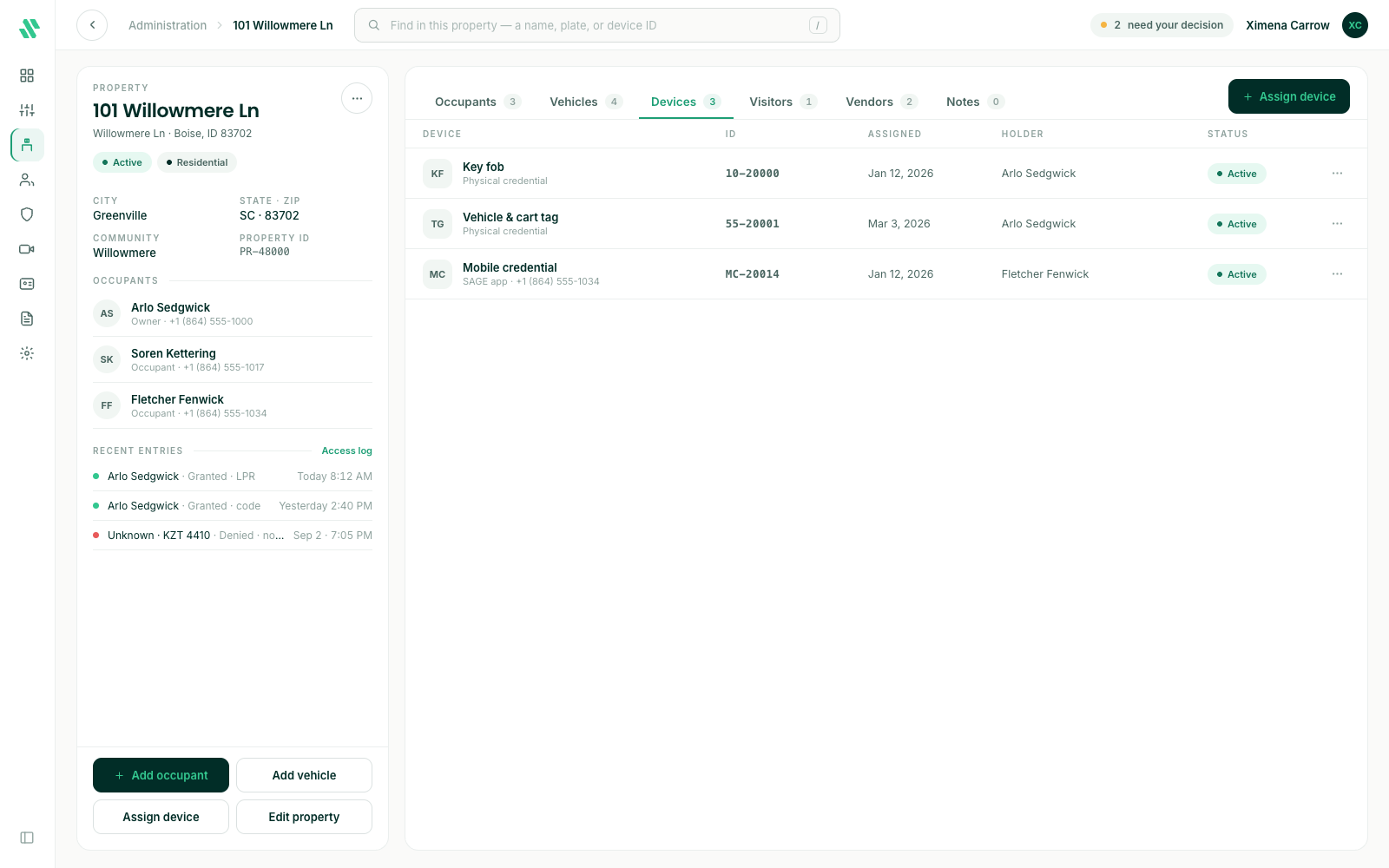
Assign a device
- Go to Administration, open the property and select the Devices tab.
- Click Assign device.
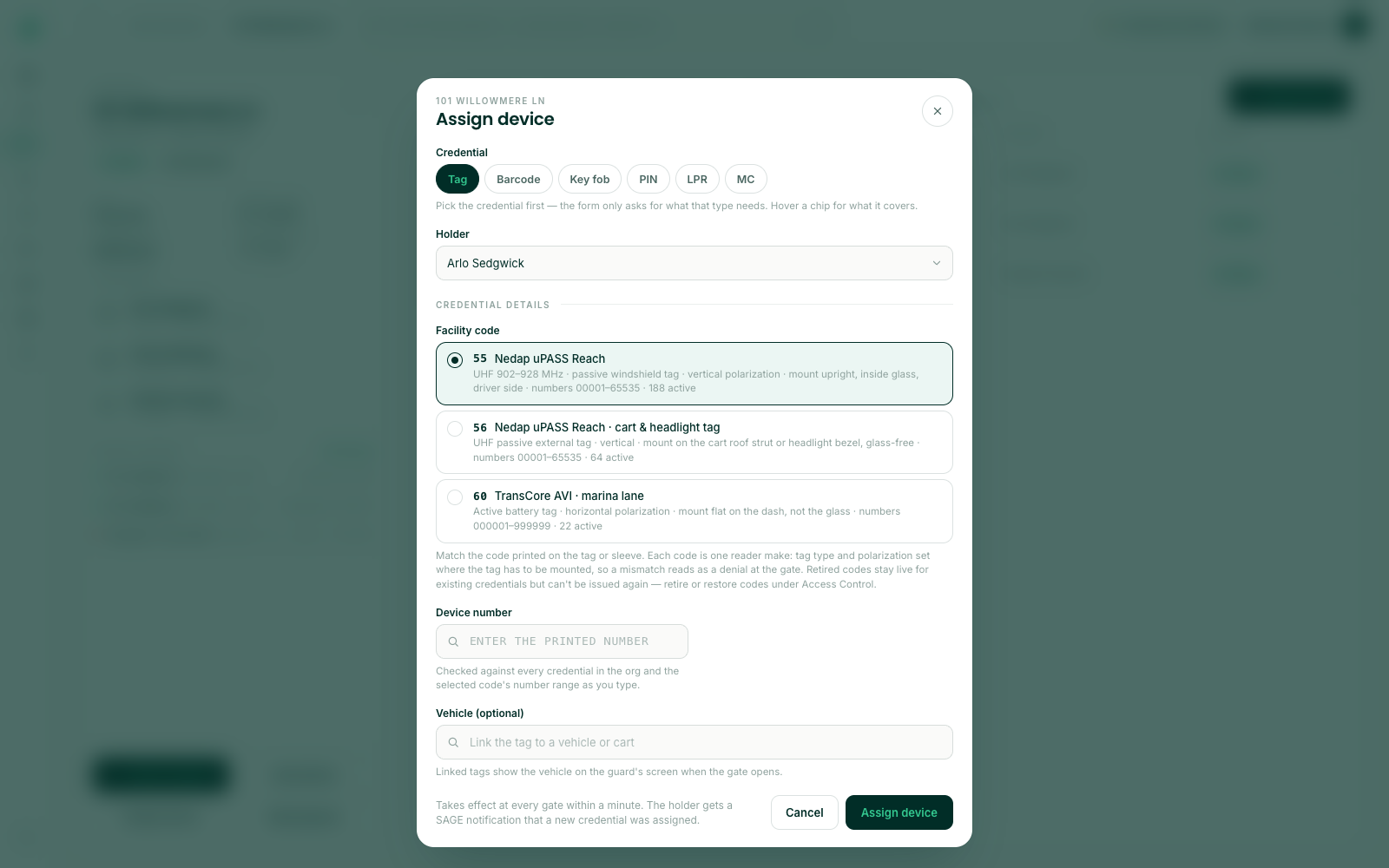
- Pick the Credential first: Tag (vehicle and cart tag), Barcode, Key fob, PIN (keypad code), LPR (license plate) or MC (mobile credential). The form only asks for what that type needs.
- Choose the Holder. Credentials always belong to a person, so add an occupant first if the property has none.
- Under Credential details, pick the Facility code that matches the code printed on the tag or sleeve. When only one code is issued for that type, it’s already picked.
- Enter the Device number printed on the device. For a PIN, enter the keypad code instead. For a tag, you can also link it to one of the property’s vehicles.
- Under Access, check the Access groups the device should open. At least one is required.
- Leave Active from on Now, or choose Schedule and pick a start. Leave Access ends on Never, or pick an end date. For tenants you can also choose Lease end.
- Add a Note if you like, then click Assign device.
For a mobile credential, SAGE picks the number for you. If the holder hasn’t accepted their SAGE invite yet, the device is saved but doesn’t work at the gate until they accept; then it switches on by itself.
Match the facility code to the one printed on the device. A device saved with the wrong code is denied at the gate.
Who can hold a device
The Holder list shows the people at the property: owners, occupants and tenants, including people who have been invited but haven’t accepted yet. A device for someone who hasn’t accepted is saved but doesn’t work at the gate until they accept their invite.
Edit a device
Click the ⋯ at the end of the device’s row and choose Edit device. You can change the access groups and dates, and edit the note. The device number can’t be changed. Save your changes when you’re done.
To take a device away from someone, remove it on the Devices page.
If something goes wrong
| What you see | What to do |
|---|---|
| A message that a device with that number and facility code already exists | Another device already has that number. Check the number on the device. |
| No access group is checked | Check at least one access group. |
| No mobile credentials are available | Your community has no free mobile credentials. Contact support@sagesystems.io. |
| A message that you don’t have permission to manage devices | Ask a manager to give you the Manage Occupant Devices or Manage Organization Devices permission. |
Need help?
Questions? Contact us at support@sagesystems.io.