Guests
Grant guest access
Last verified: October 4, 2026Tap Invite guest on the home screen to give a friend, family member or service company access to your community. You can also start from the Guests tab with the + button. For a single quick visit, like a delivery, a one-time code is often easier.
Invite a guest
- Start the invite - On the home screen, tap Invite guest. Or open the Guests tab (Guest on Android) and tap +.
- Who’s coming? - Choose Guest or Vendor. For a guest, enter their First name and Last name. For a vendor, see Inviting a vendor. Tap Continue.
- Where can they go? - Pick one or more of your properties. If you have more than one home, you can invite the guest to several at once. Tap Continue.
- When can they come? - Choose Always, Temporary or Recurring and set the dates and times. See Types of access. Tap Continue.
- How they get in - Choose Send digital AccessKey (Invite to the SAGE app on Android) and enter your guest’s mobile number. Tap Continue.
- Review and send - On Review invitation, check the guest, property, access, schedule and how they get in. Tap Send Invite.
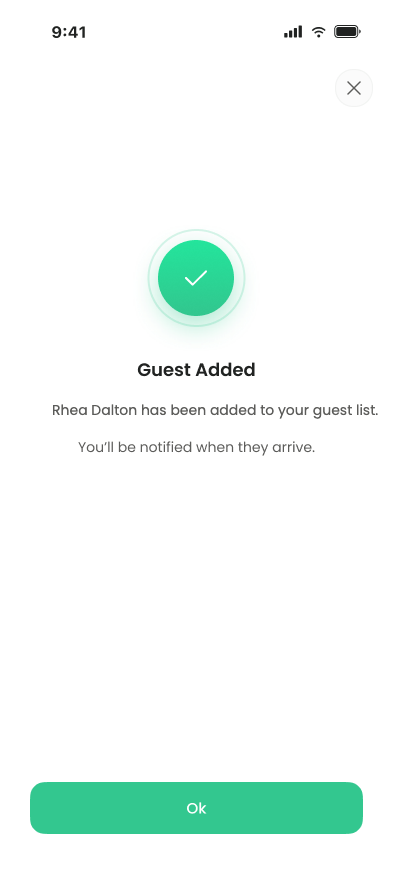
When it’s sent, iPhone shows Guest Added (“You’ll be notified when they arrive.”). Android shows Invite sent (“We’ve texted [name] a SAGE invite link with their access details.”). Your guest appears in your guest list as Pending until they accept.
Manual check-in appears as an option on the “How they get in” step, but the app can’t send it yet. On iPhone, Send Invite does nothing. On Android, you’ll see “Couldn’t send the invitation. Please try again.” Use Send digital AccessKey, or give your visitor a one-time code instead.
What your guest does next
SAGE texts your guest a link. They download SAGE, create an account, and verify their identity once. Their access starts working after they accept. They then open the gate with the app during their schedule. See Gate access.
If your guest already has a SAGE account, the review screen says so (“is registered in Sage as”), and the invite goes straight to their account.
Inviting someone you’ve invited before
When you start typing a name, the app suggests your Previous guests (or Previous vendors). Pick one and the app fills in their details. You skip the phone number step, because the invite goes straight to their SAGE account.
If you pick a property where that person already has access, the app tells you they already have access and offers Manage, which opens their current access instead. See Edit guest access.
Inviting a vendor
Choose Vendor on the first screen and enter the Business name. A Contact name is optional. The app notes that vendors enter during community vendor hours and are checked in by a guard each visit.
Adding a guest to another property (iPhone)
To give an existing guest access to another of your properties, open the Guests tab, tap the guest, then tap Add to property. The app skips straight to choosing the property and schedule. This option isn’t in the Android app.
If you’re renting
If you’re a tenant, your guest’s access dates must fall within your rental period. If the invite doesn’t show up in your guest list after you send it, check the dates and try again.
If something goes wrong
If SAGE can’t send the invite, iPhone shows “An Error Occured” with the reason, and Android shows “Couldn’t send the invitation. Please try again.” To change or remove a guest later, see Edit guest access.
Need help?
Questions? Contact us at support@sagesystems.io.