Manage vehicles
Vehicles and plate access
Last verified: October 4, 2026How plate access works
A resident’s license plate opens the gate only when it is on their access in SAGE. How it gets there depends on how plate access is set up at your community.
If plate access is turned on by management
Adding a vehicle only puts it on file. Plate access starts when you assign an LPR device for that vehicle at that property.
If plate access is automatic
Adding a vehicle gives it plate access right away, at every property the resident belongs to.
Ramco sets this up for your community, and it can’t be changed from the console. If you’re not sure which setup you have, contact support@sagesystems.io.
Add a vehicle
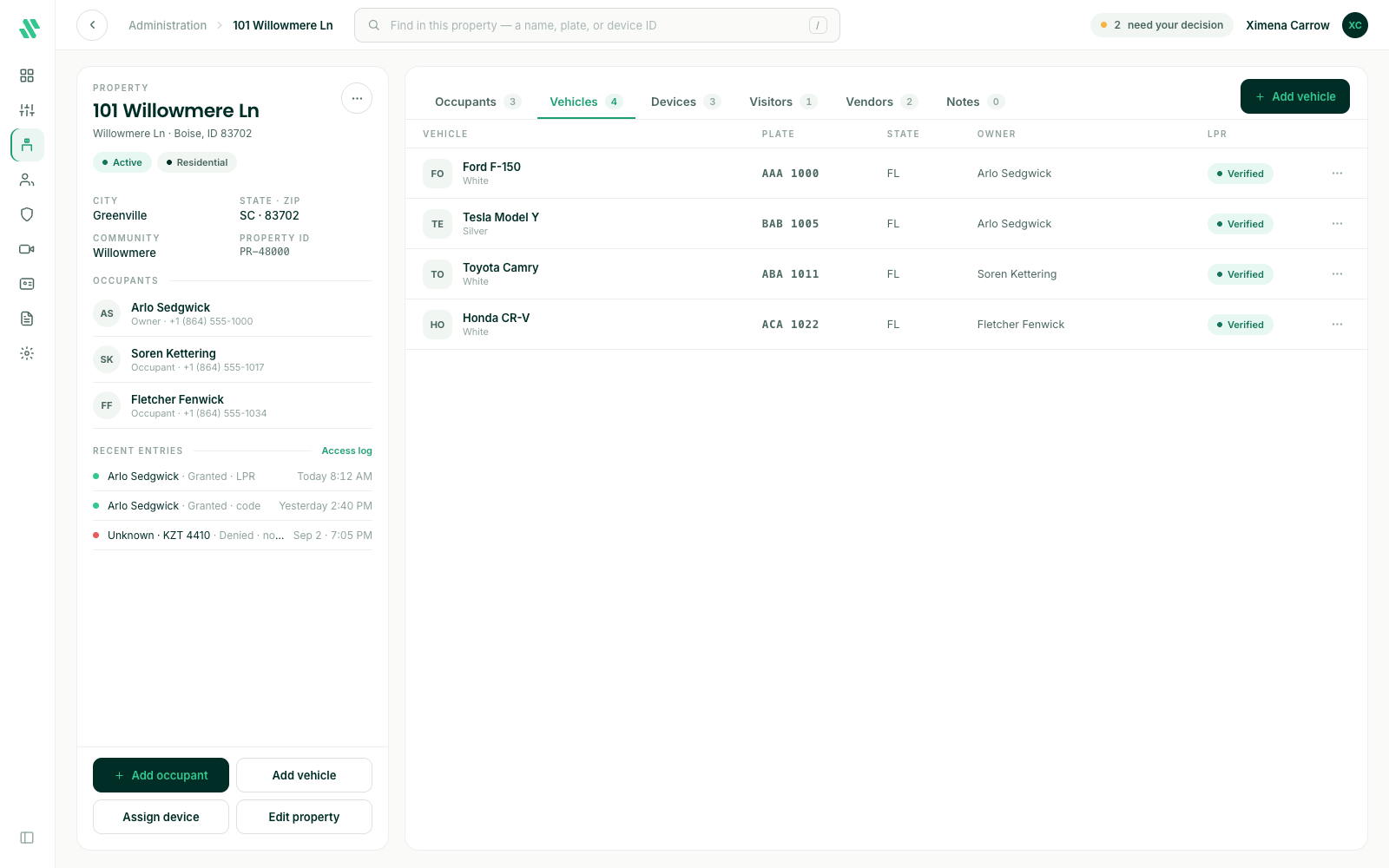
Register a resident’s vehicle from their property’s page. You need the Manage Occupant Vehicles permission.
- Go to Administration, open the property and select the Vehicles tab.
- Click Add vehicle.
- Choose the Owner, then type the Plate. If the plate is already registered in your community, the form tells you.
- Pick the State, enter the Make, Model and Color, and the Year if you know it.
- Click Add vehicle.
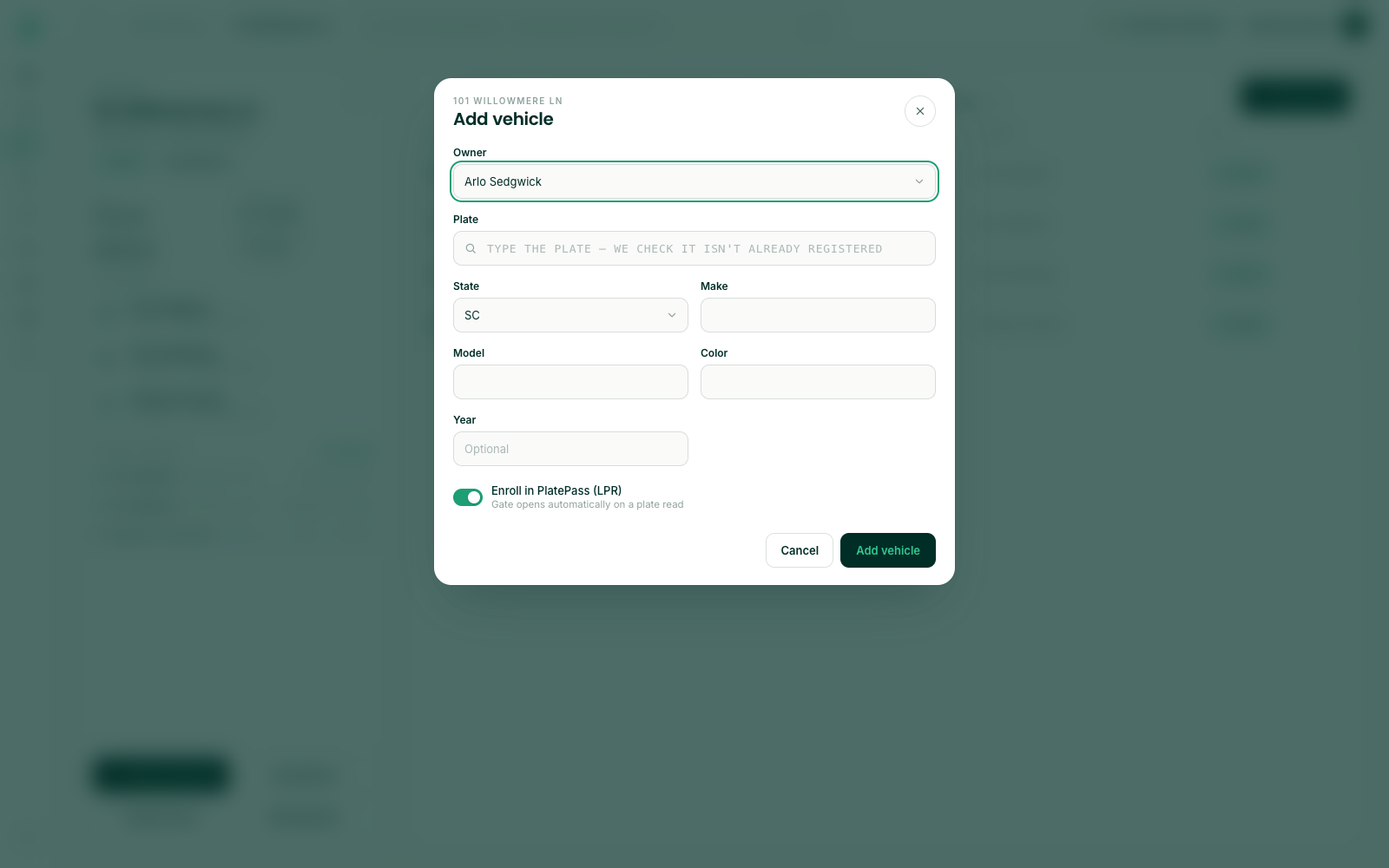
Only people who have accepted their SAGE invite can own a vehicle.
Turn on plate access with an LPR device
Only for communities where management turns on plate access. Each vehicle needs its own LPR device. Assigning one needs the Manage Occupant Devices or Manage Organization Devices permission.
- Add the vehicle first (see above).
- On the same property, open the Devices tab and click Assign device.
- Pick LPR as the Credential, then choose the Holder.
- Under Vehicle, pick the vehicle from the property’s vehicles. The plate is the credential.
- Leave Active from on Now. Leave Access ends on Never, or pick an end date.
- Click Assign device.
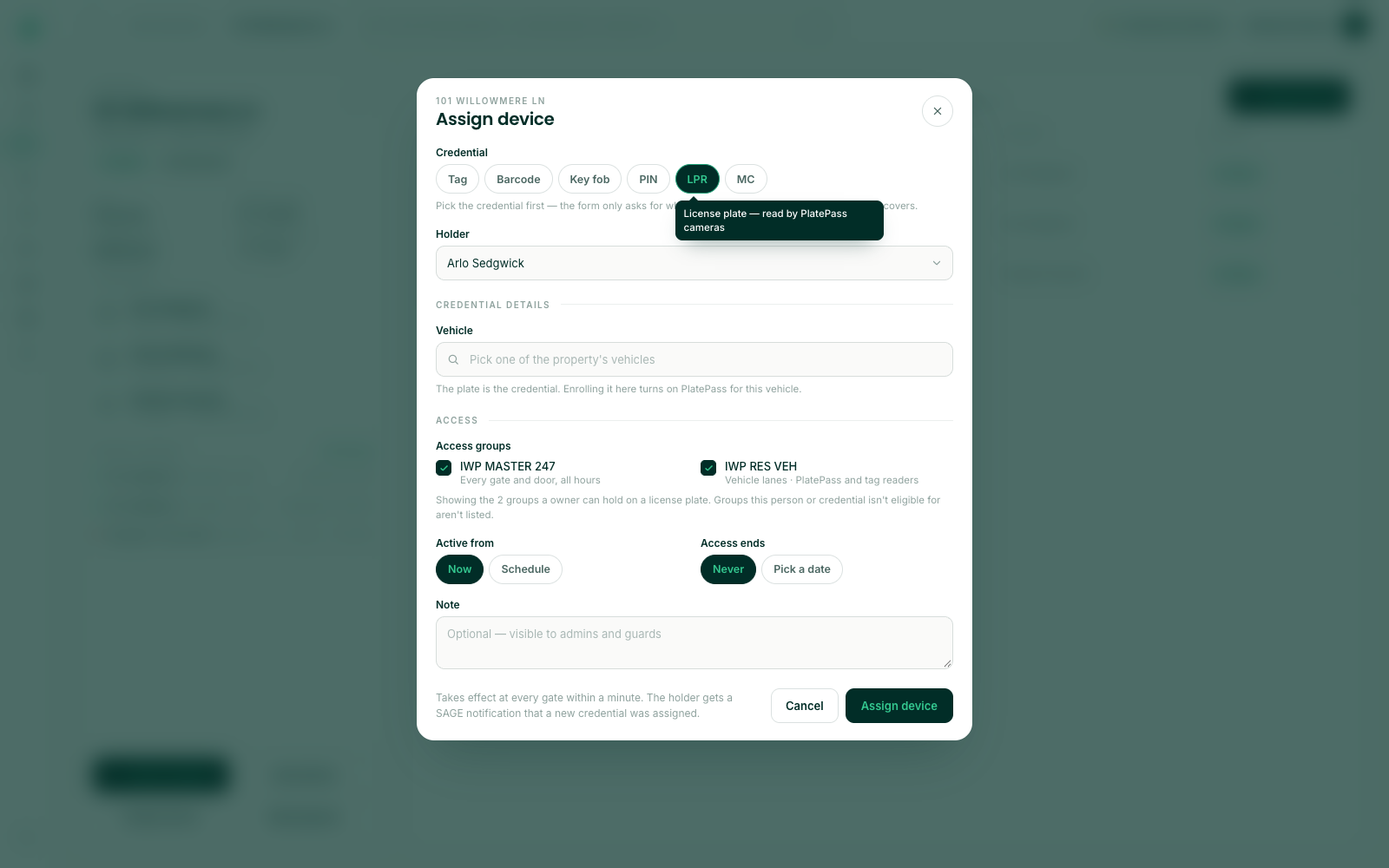
Leave Active from on Now. A scheduled start date does not switch plate access on by itself: on that date, open the device and save it again.
An end date does not remove plate access by itself. To end a resident’s plate access, remove their LPR device on the Devices page.
A plate can have only one LPR device in your community. LPR devices don’t use a facility code or a device number; the license plate takes their place.
Check that a vehicle has plate access
With management-controlled plate access, open the Devices page, click the LPR chip and search for the plate. The vehicle has plate access once its LPR device is on the Active devices tab. Click the row to check that the right owner and property are attached. With automatic plate access, a vehicle has plate access as soon as it’s saved.
The surest check is a test drive through a camera entrance, then a look at the access log on the Dashboard.
Remove a vehicle
On the property’s Vehicles tab, click the ⋯ at the end of the vehicle’s row and choose Remove vehicle….
A vehicle that’s still linked to a device can’t be removed. Remove the device on the Devices page first, then remove the vehicle.
LPR and barcodes
They are separate credentials, and adding one does not change the other. At an entrance with a license plate camera, a registered plate opens the gate on its own. Barcodes keep working at every reader.
- Keep the barcode - Residents still need it at entrances without a camera, in a car that isn’t registered, or when the camera can’t read the plate.
- Access rules still apply - If a resident’s access is suspended, expired, or outside their allowed days and hours, the camera won’t open the gate either.
If something goes wrong
| What you see | What to do |
|---|---|
| A message that this plate already has an LPR credential in this community | Find that LPR device on the Devices page and remove it first if it belongs to the wrong person. |
| The owner isn’t in the Owner list | They haven’t accepted their SAGE invite yet. Ask them to accept it, then try again. |
| The vehicle isn’t in the Vehicle list when you assign an LPR device | Add the vehicle on the property’s Vehicles tab first. |
| A message that you don’t have permission | Ask a manager for the Manage Occupant Vehicles permission (vehicles) or a device permission (LPR devices). |
For anything not listed here, send a screenshot to support@sagesystems.io.
Need help?
Questions? Contact us at support@sagesystems.io.