Basics
Access control
Last verified: October 4, 2026Access Control shows the gate hardware at your community and how it’s doing: the locations, the panels, readers and cameras at each one, and the access groups and time schedules that decide who gets in and when. Open it from the left rail.
The overview
The page opens on an overview of your whole community.
- What needs your attention - The dark card at the top lists problems, such as a panel that hasn’t reported. Click an item to go straight to the panel or reader it’s about. When nothing needs attention, the card says so.
- Panels reporting - How many of your panels are checking in, for example 6/7.
- Locations - A card for each location, such as a gate or the clubhouse, with how many panels, readers and cameras it has and whether it’s Healthy.
- Organization-wide parameters - Tiles for Access groups, Time schedules and All hardware.
The pill at the top right shows the most important problem, for example 1 panel offline.
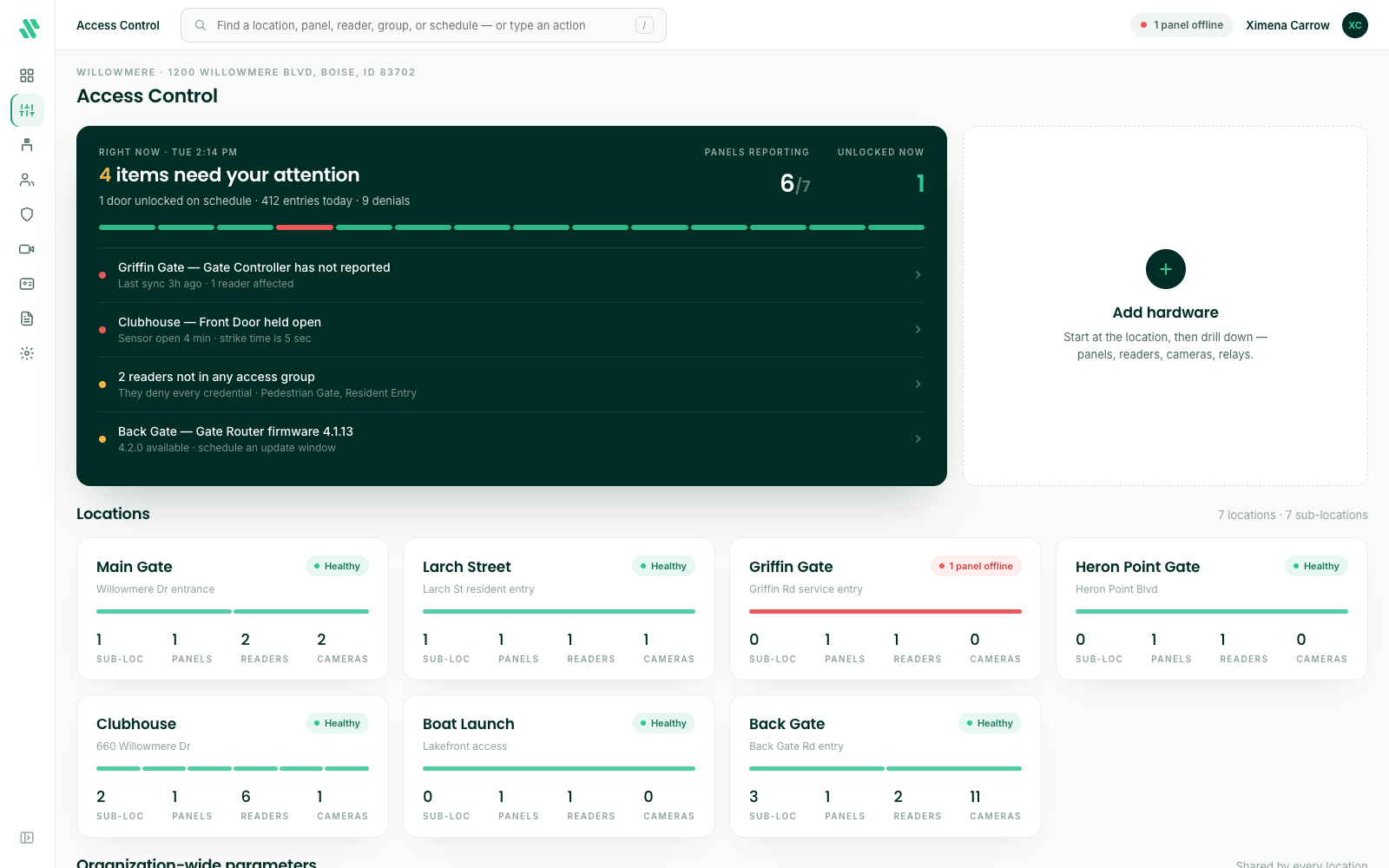
Look around your hardware
Click a location card to see what’s there, then a panel, then a reader. The path at the top grows as you go down; click any part of it, or the back arrow, to go back up.
- A panel shows the readers and other hardware wired to it.
- A reader shows the panel it’s wired to and the access groups that include it.
All hardware lists every panel, reader, camera, kiosk and network device in one table, with its location, model and status. Use the chips at the top to show one kind of device.
Panels, readers, cameras and kiosks are set up by SAGE administrators. If something needs to be added or moved, contact support@sagesystems.io.
Access groups and time schedules
- An access group is a set of readers. A device opens the readers in its access group, during that group’s time schedule. Each reader can follow the group’s schedule or have its own.
- A time schedule sets the hours, Monday through Sunday plus holidays.
Open Access groups or Time schedules from the overview to see them. Each time schedule shows its hours in plain words, for example “Mon – Fri · 6:00 AM – 10:00 PM”.
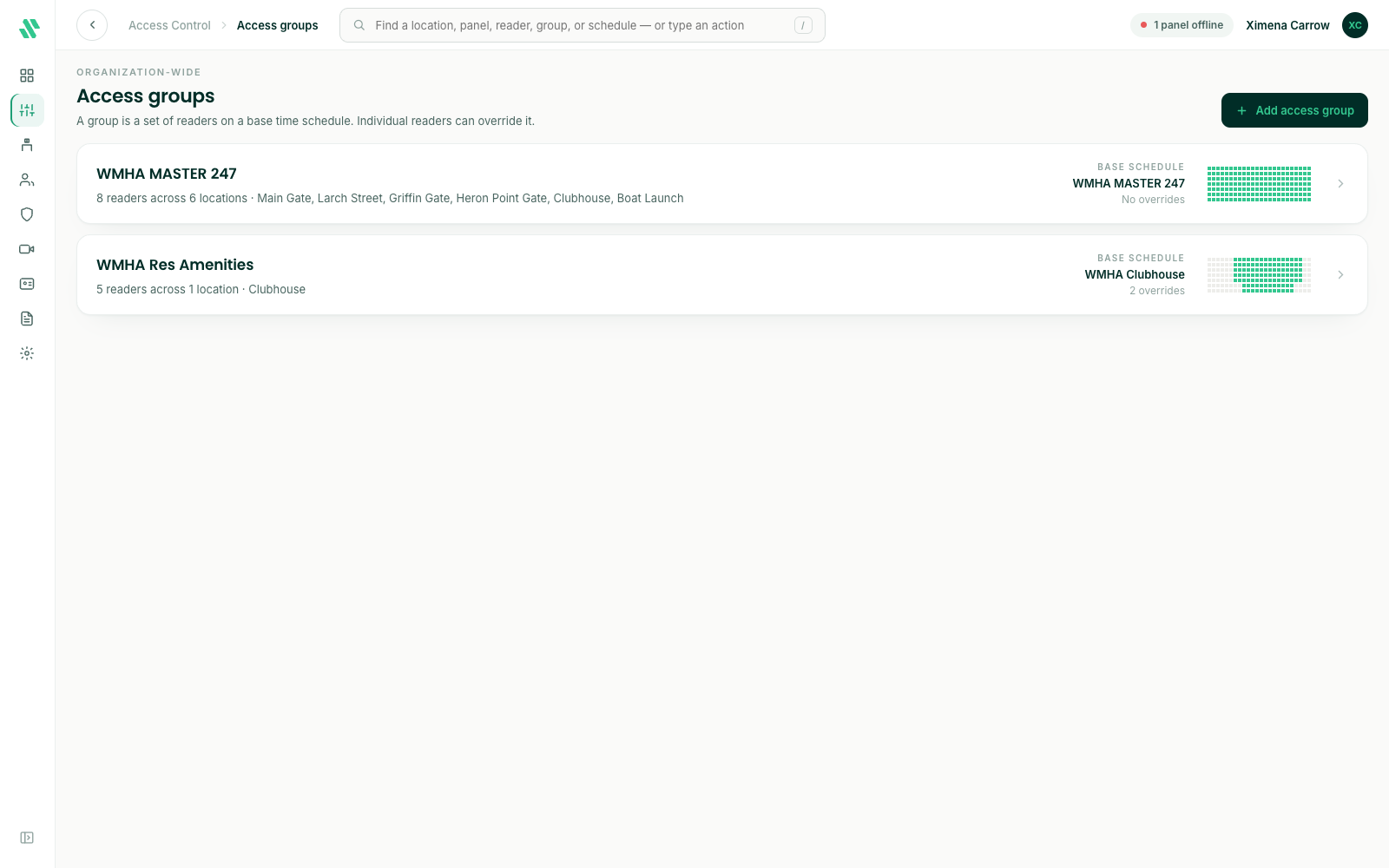
Change a time schedule
Some communities can add and edit their own access groups and time schedules. When that’s turned on for your community and you have the Manage Access Control permission, you can change them here.
- Open Time schedules and click a schedule.
- Click or drag across the weekly grid to add or remove hours. Click a day’s name to fill or clear the whole day. You can also start from 24 / 7, Mon – Fri, 8 – 6 or Amenity hours.
- Click Save time schedule.
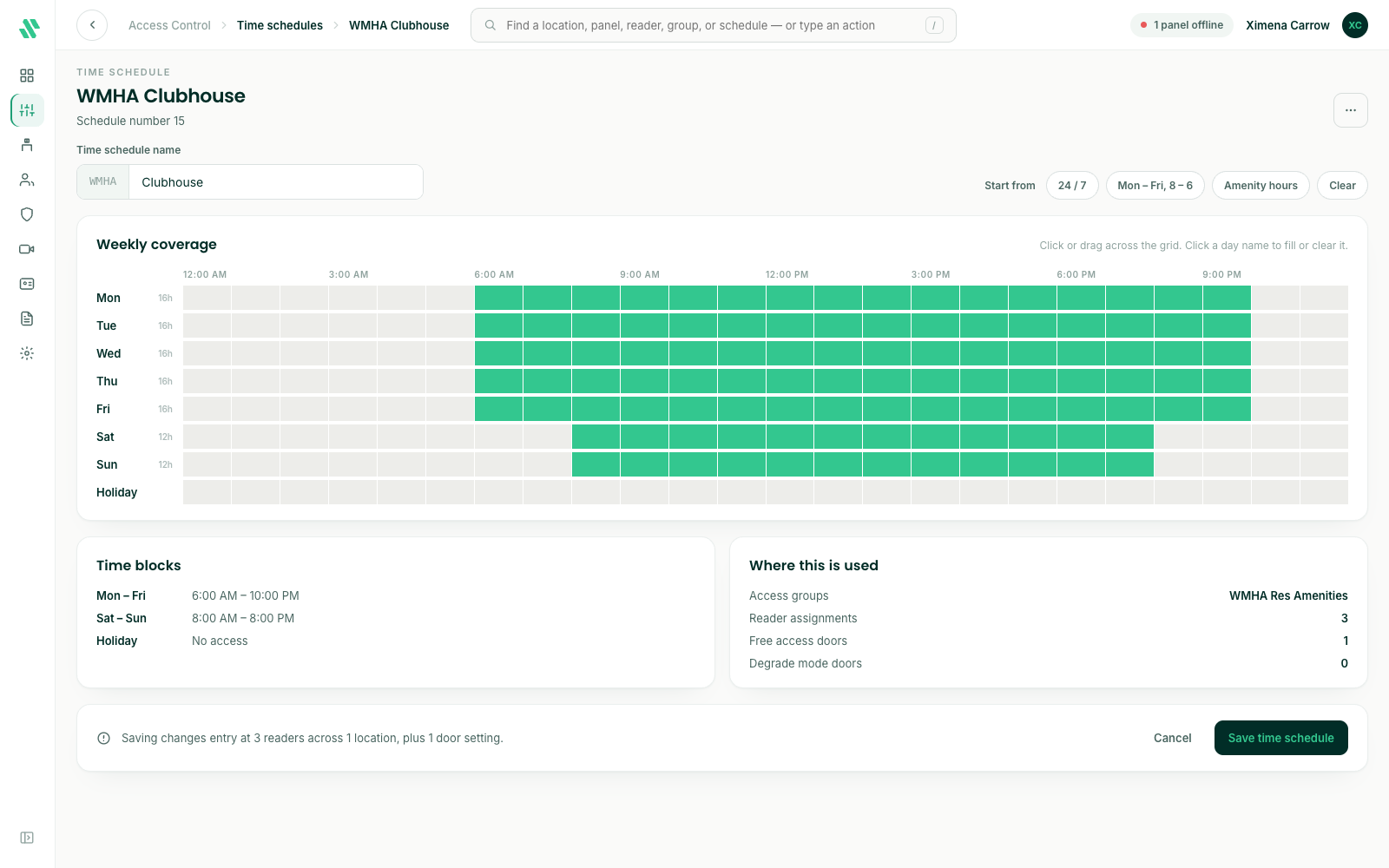
To change an access group, open Access groups, click a group, choose its readers and base time schedule, and save. Click Add access group or Add time schedule to create a new one.
A change to a time schedule or access group changes entry at every reader that uses it. If you don’t see a way to edit, or you need a change made, contact support@sagesystems.io.
Need help?
Questions? Contact us at support@sagesystems.io.