Modules
VideoConnect
Last verified: October 4, 2026VideoConnect is the call console for gate calls. Visitors call from the kiosk at the gate; you see and talk to them on video, open the gate or turn them away, and every call is logged. If you cover more than one community, calls from all of them come into the same queue.
You see VideoConnect in the left rail when your community has the VideoConnect module. To look up a property’s guest list in more detail, use Virtual Guard.
The console at a glance
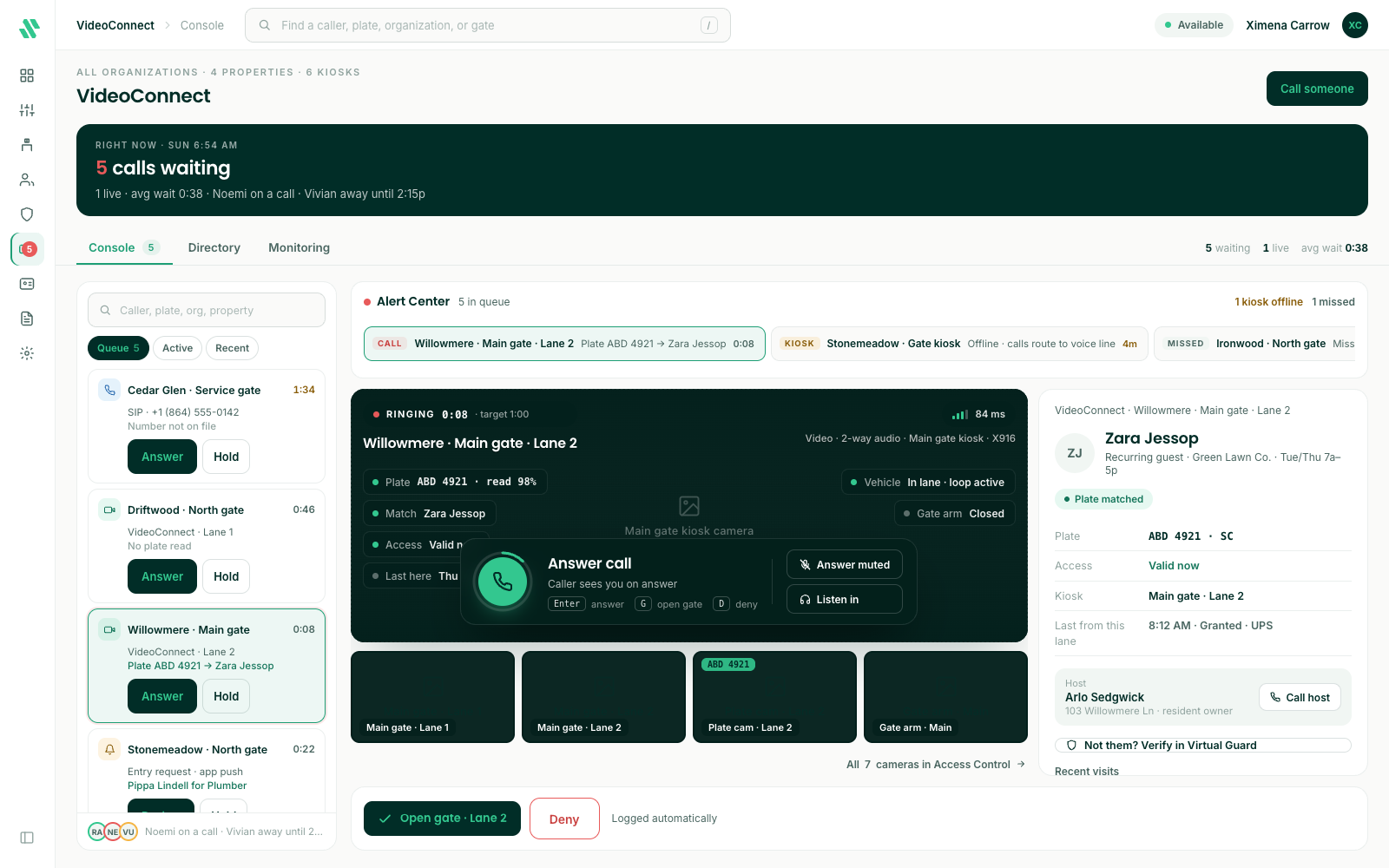
- Left - The call queue. Queue lists calls that are waiting, Active the call you’re on, and Recent the calls you’ve finished. Each call shows the community and gate and how long the visitor has waited. The wait time turns amber, then red, the longer they wait.
- Middle - The live video, and under it the camera views at that gate.
- Right - Details about the caller and the property they’re asking for.
- Bottom - The buttons to open the gate or turn the visitor away.
Answer a call
- Click Answer on a call in the queue, or press Enter to answer the highlighted call. The visitor sees you once you answer.
- Talk to the visitor and ask who they’re here to see. To check the property’s guest list, click Not them? Verify in Virtual Guard.
- Click Open gate to let them in, or Deny to turn them away. You can also press G to open the gate or D to deny, as long as you aren’t typing in a box.
- Log the visit (see below).
Open gate sends the open command to the gate. Most gates don’t report back when they open, so the message reads Open sent. Watch the video to see the gate open.
Log the visit
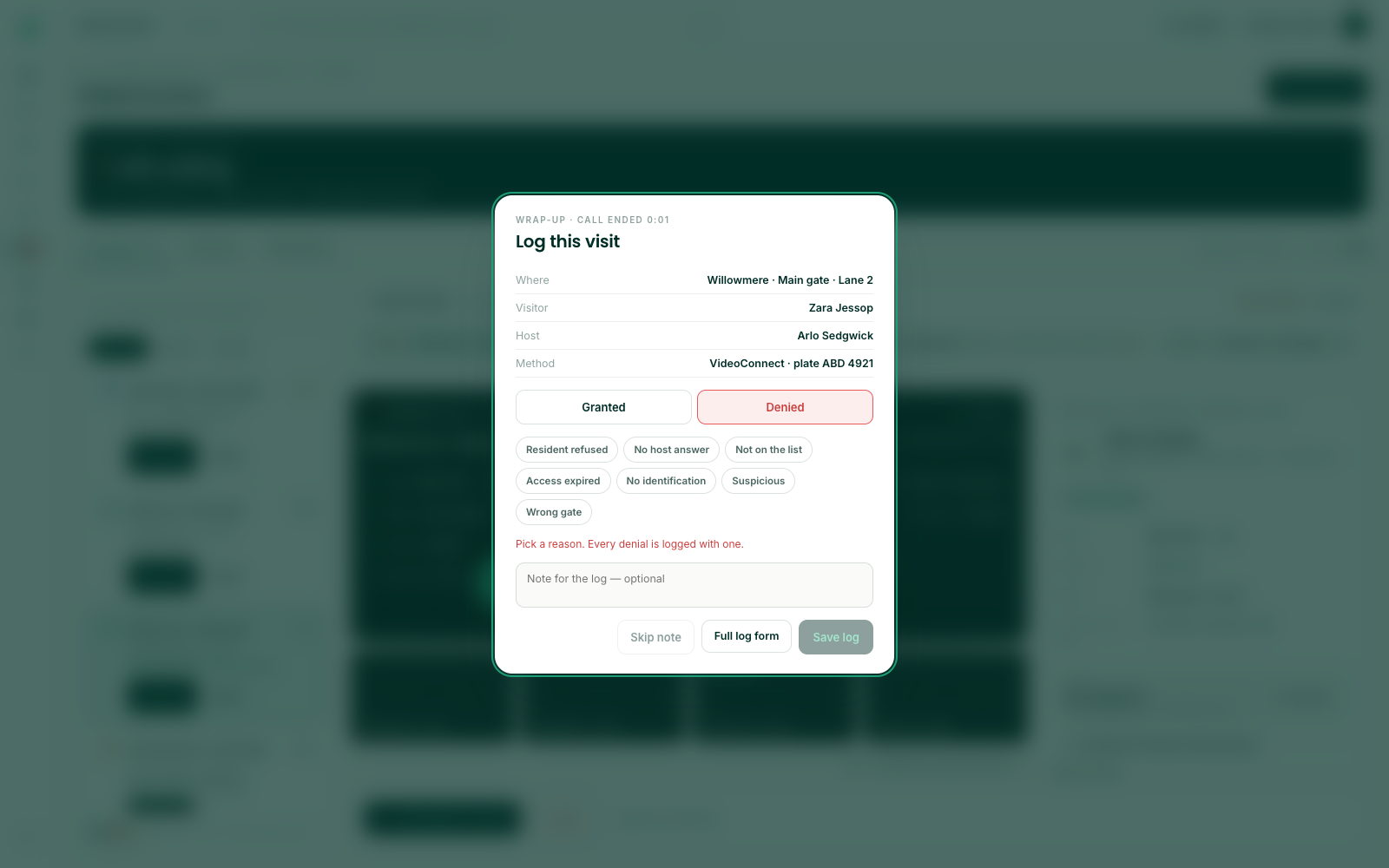
When you open the gate or deny, Log this visit opens. It shows where the call came from, the visitor, their host and how they called.
- Check that Granted or Denied is right.
- If you denied the visitor, pick a reason: Resident refused, No host answer, Not on the list, Access expired, No identification, Suspicious or Wrong gate. You can’t save a denial without one.
- Add a note if you like, then click Save log. To save without a note, click Skip note.
Either way the decision is logged and the call leaves your queue. To fill in the full visitor log instead, with the visitor’s vehicle and the occupant who authorized them, click Full log form.
Need help?
Questions? Contact us at support@sagesystems.io.