My Organization
My Organization
Not yet verifiedThis article hasn't been checked against the current app yet. Some steps may describe features that aren't live.
My Organization is about the community itself rather than one property. It holds your team, on My Team, and the visitors your office hosts, on My Visitors.
My Team
My Team lists the managers and staff who use the console, with their Role and Status. Invited means they haven’t finished setting up yet.
Add a team member
- Open My Team and click Add team member.
- Enter their first and last name, work email and mobile phone.
- Choose their Role.
- Click Send invite.
They get an email with a link to set up their console access. The role decides what they can see and do in the console.
Change or remove a team member
Open a team member’s row:
- Edit permissions - Change their role, then click Save changes.
- Reset password - Sends them an email with a link to choose a new password.
- Remove from team - In Edit permissions. They lose access to the console right away. SAGE asks you to confirm.
My Visitors
My Visitors lists people the office hosts, such as a contractor, an inspector or an instructor. Each row shows the visitor, their access type, when their access is Valid, who invited them and their Status. Use the chips to show one access type.
Invite a visitor
- Open My Visitors and click Invite visitor.
- Enter the visitor’s name.
- Choose the access type: Permanent (no end date), Recurring (the same days and hours every week) or Temporary (from one date and time to another), and set the dates or hours.
- Click Send invite.
Gate staff can find the visitor on the list when they arrive.
To change a visitor’s access, open their row and click Edit access. To remove them, click Revoke access… and confirm. Guards see them as not authorized from then on.
One-time codes
A one-time code is a six-digit number a visitor, vendor or delivery driver enters at a keypad or kiosk, or tells the guard.
- Open My Visitors and click Invite visitor.
- Enter a name for the code, such as the person or company it’s for.
- Choose One-time code as the access type.
- Set Valid from. It starts five minutes from now and can’t be in the past.
- To let the code work more than once, turn on Reusable and set Valid to, at least an hour after Valid from.
- Click Create code.
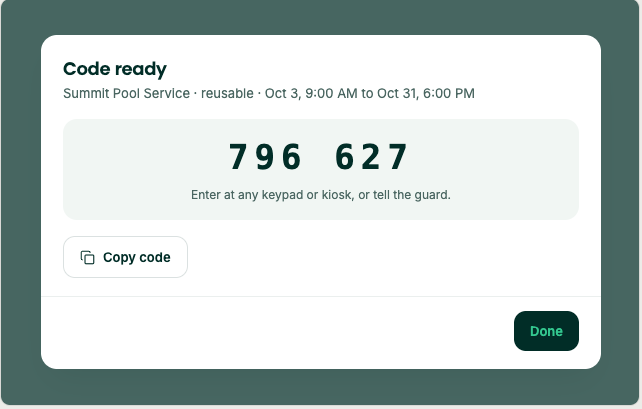
The new code shows once, in large type. Click Copy code and share it with the person yourself, then click Done.
| Code type | When it stops working |
|---|---|
| Single use | After it’s used once, or 30 days after it starts, whichever comes first. |
| Reusable | At the Valid to date and time you set. |
Codes are listed under the One-time codes chip. Reusable codes show One-time code · reusable in the access column. To cancel codes, tick them and click the revoke button in the bar above the list, for example Revoke 2 codes. SAGE asks you to confirm.
Need help?
Questions? Contact us at support@sagesystems.io.