Modules
Plate search
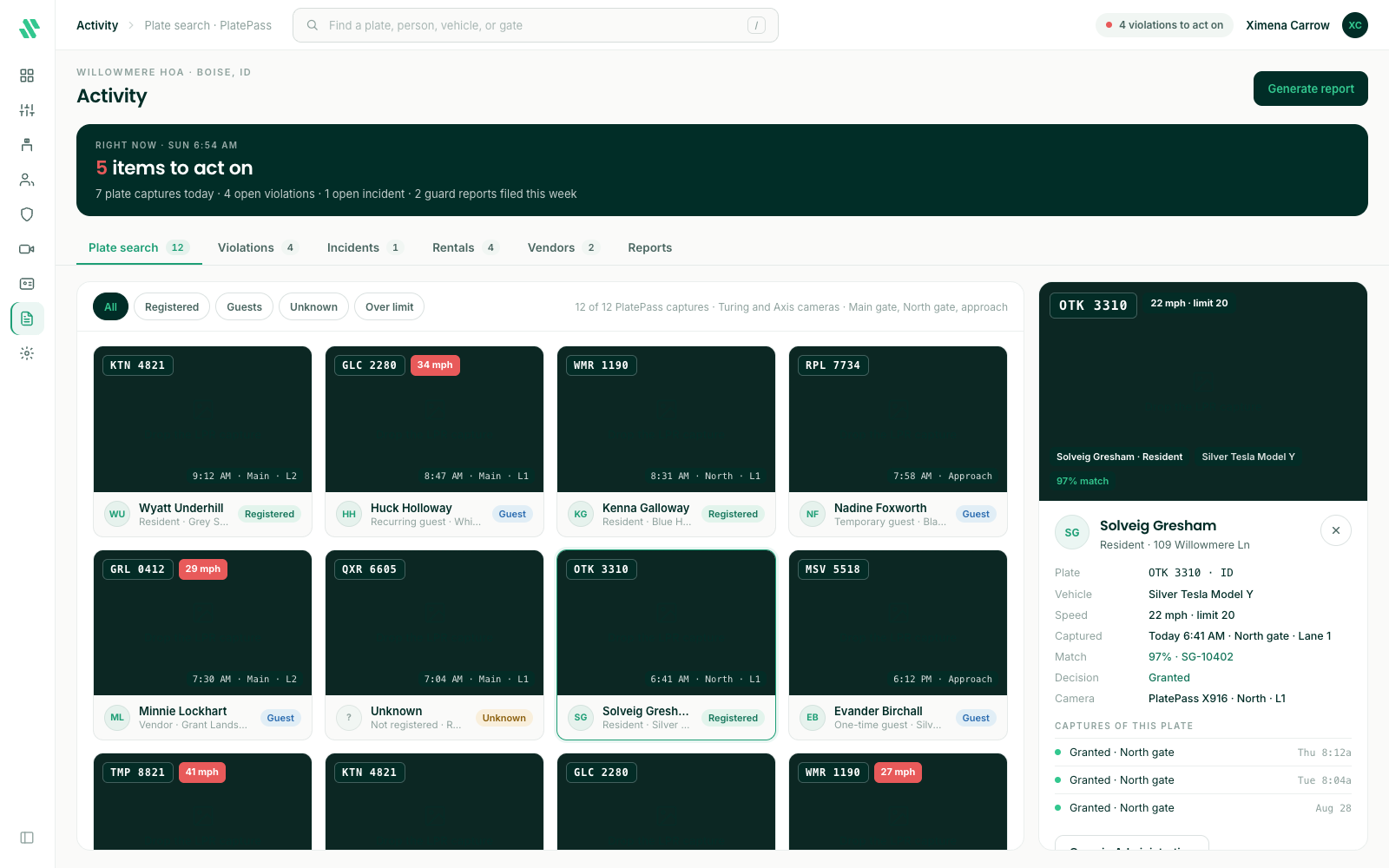
Last verified: October 4, 2026Plate search shows the license plates your community’s cameras have read, so you can check whether and when a vehicle came through a camera entrance.
It’s the first tab on the Activity page. You see it when your community has license plate cameras and you have the License Plate Recognition permission.
Find a plate read
- Open Activity from the left rail. Plate search opens first, with the newest reads at the top.
- To look for one vehicle, press / or click the search box at the top, and type the plate. You can also type a gate.
- Click a read to open its details on the right.
Each read shows the plate, the time, and the gate and lane where it was read. Click it to see the camera picture, the vehicle’s make, model and color when SAGE could look them up, and the other reads of the same plate.
Type the plate the way the camera read it. If nothing comes up, check the plate for a misread letter or number.
Related pages
Plate search is a record of what the cameras saw.
- To confirm whether the gate opened for a vehicle, use the access log on the Dashboard and search for the plate.
- To see a resident’s registered vehicles, open their property’s Vehicles tab. See Vehicles and plate access.
Need help?
Questions? Contact us at support@sagesystems.io.