Your account
Notifications
Last verified: October 4, 2026SAGE keeps you up to date on activity at your property. You get a notification on your phone when something happens, and the app keeps a history so you can look things up later.
What you’re notified about
Some examples:
| Notification | When |
|---|---|
| Access Granted | A guest or vendor arrives at the gate (“[name] has arrived at the gate”). |
| Your Entry Code Was Used | Someone uses a one-time code you created to enter the community. |
| Access Expiring Soon | A guest’s access is about to end. |
| You’ve been invited! | You’re invited to another property. |
| Property access updated or Property access suspended | Your own access to a property changes. |
| An announcement | SAGE sends a message to people at your community. It shows the title and text SAGE wrote. |
Which notifications you get depends on your role at the property and on your notification settings. For example, arrival notifications go to the household’s primary members, not to every occupant.
See your notification history
Tap the bell at the top right of the home screen. The number on the bell is how many notifications you haven’t seen yet.
The Notifications screen has two tabs:
- All - Every notification, newest first.
- Access log - Entries at the gate, including when your one-time codes are used, plus notices when someone’s access is updated or about to expire.
Opening the screen marks your notifications as read.
Turn on notifications on your phone
On iPhone, after you sign in the app shows Stay informed. once. Tap Turn On Notifications, then allow notifications when your phone asks.
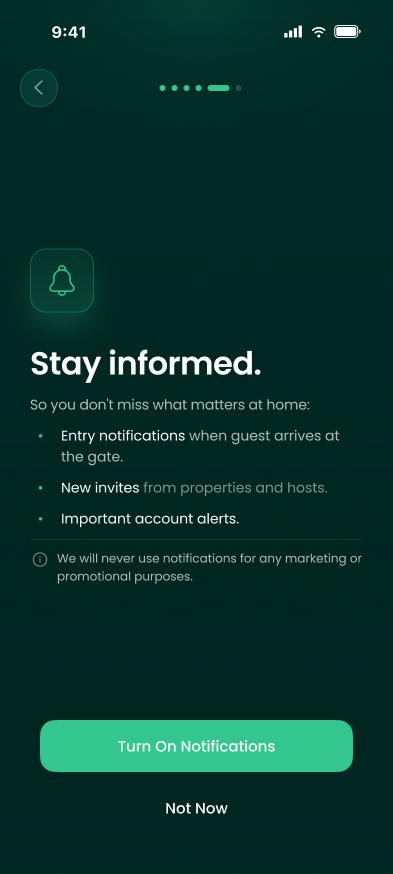
If you tapped Not Now, or notifications are off, a card on the home screen says “Turn on notifications so you don’t miss arrivals at the gate, new invites and account alerts.” Tap Turn On. If you turned notifications off in your phone’s settings, the app sends you there to turn them back on for SAGE.
On Android, allow notifications for SAGE when your phone asks, or turn them on in your phone’s settings.
Even with notifications off, everything still appears in the app’s history.
Choose what you’re notified about
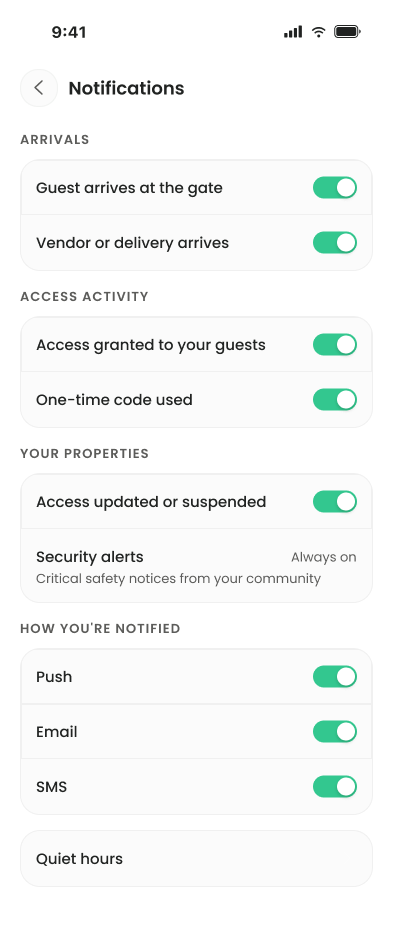
- Open notification settings - Tap your photo or initials at the top left of the home screen, then tap Notifications under Preferences.
- Pick topics - Turn each topic on or off:
- Arrivals - Guest arrives at the gate, Vendor or delivery arrives.
- Access activity - Access granted to your guests, One-time code used.
- Your properties - Access updated or suspended. Security alerts (critical safety notices from your community) are Always on.
- Pick how you’re notified - Under How You’re Notified, turn Push and Email on or off. SMS is grayed out because it isn’t available yet.
Changes save as soon as you tap a switch.
Quiet hours
Quiet hours keep non-critical notifications silent overnight. They still appear in your notification history.
On iPhone, tap Quiet hours at the bottom of notification settings, turn it on, and set when it Starts and ends. Times are in your property’s time zone. The Android app shows the Quiet hours row, but you can’t change it there yet.
Need help?
Questions? Contact us at support@sagesystems.io.