Basics
Your account menu
Last verified: October 4, 2026The right side of the header is the same on every page of the console. From left to right it shows your community’s name, the status pill, the notifications bell, and your name and avatar.
Switch communities
If you manage more than one community, its name in the header is a button. With only one community, the name is plain text.
- Click the community name in the header.
- Click the community you want. If you have six or more, you can type in Find an organization to search the list.
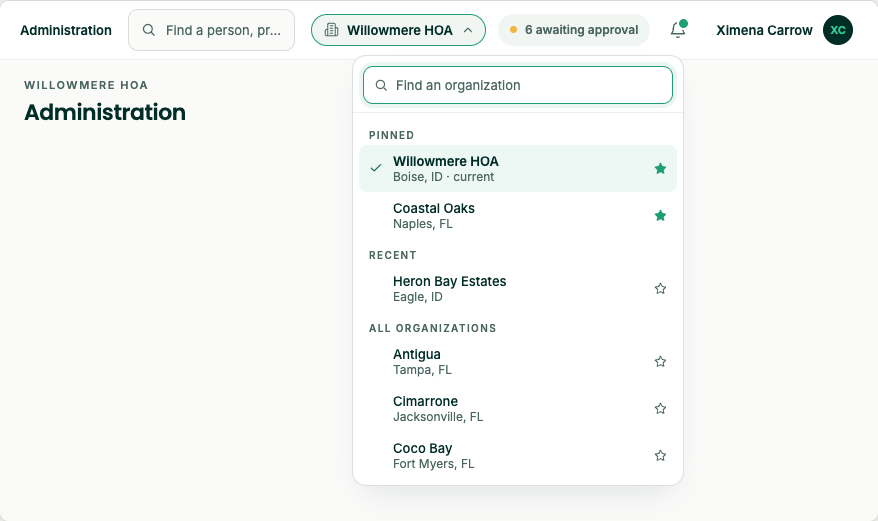
The list shows your Pinned communities first, then Recent ones, then All organizations. The one you’re in is checked. Click the star next to a community to pin or unpin it; your pins and recents are your own.
If the community you switch to has the page you were on, you stay on that page. Otherwise the console opens your home page there.
Notifications
Click the bell to open your notifications on the right, newest first. A dot on the bell means something is unread. Click a notification to go to its page; a finished export also has a Download button. Click Mark all as read to clear the dot.
Anything the console promises to tell you about later, such as an export or report that’s ready, an invite that couldn’t be delivered, or people awaiting approval, ends up here, so you don’t miss it if you look away.
Your account menu
Click your name or avatar at the top right. The menu shows your name, your email and your role in this community.
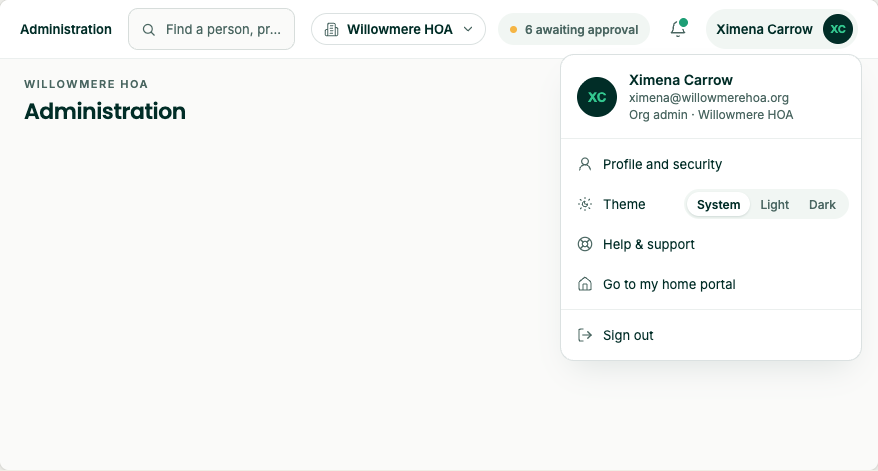
- Profile and security - Your password, second sign-in steps, recovery codes and the devices you’re signed in on. See below.
- Theme - Pick System, Light or Dark. It changes right away and is saved to you, not to the community. Until you pick one, Guard Home, Virtual Guard and VideoConnect open dark and every other page follows your computer’s setting.
- Help & support - Opens the Help Center.
- Go to my home portal - Shows only if you also live in the community. It takes you to your resident pages.
- Sign out - Signs you out of this browser. The sign-in page then says You’re signed out.
Profile and security
Click Profile and security in the account menu.
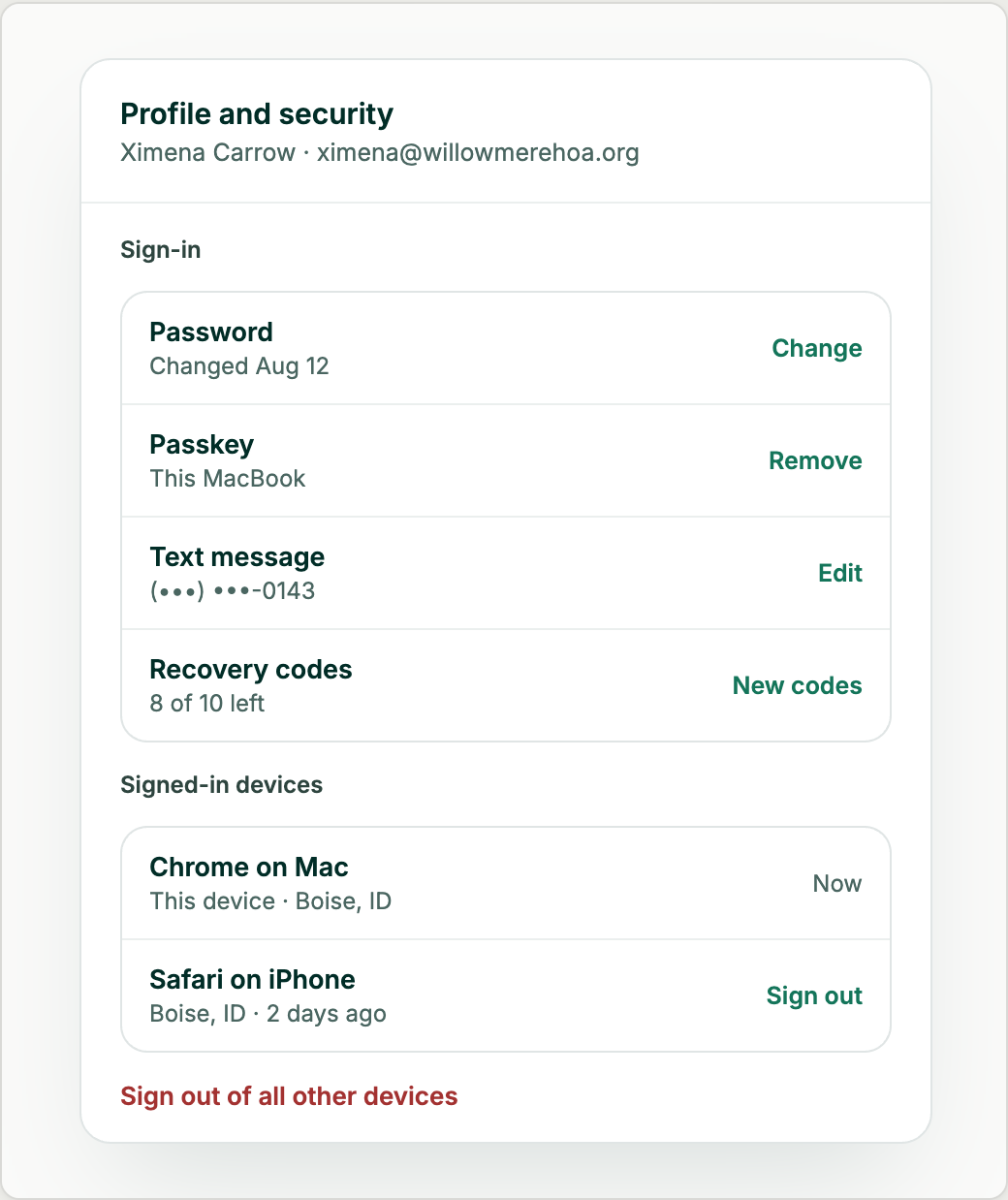
| Row | What you can do |
|---|---|
| Password | See when you last changed it, and click Change to set a new one. |
| Passkey, Authenticator app or Text message | See the second steps you’ve set up. Remove a passkey, or edit the phone number codes go to. |
| Recovery codes | See how many of your ten codes are left, and click New codes for a fresh set. |
| Signed-in devices | See each browser and device you’re signed in on, where and when it was last used. Click Sign out next to one, or Sign out of all other devices. |
Changing your password signs you out on every other device. If you think someone else knows your password, change it here, then check Signed-in devices.
For signing in and setting up your second step for the first time, see Sign in to the console.
Need help?
Questions? Contact us at support@sagesystems.io.