Get started
Set up your account
Last verified: October 4, 2026It all starts with your phone number. Use the same phone number your invitation was sent to. If you haven’t installed the app yet, see Download the app.
Create your account on iPhone
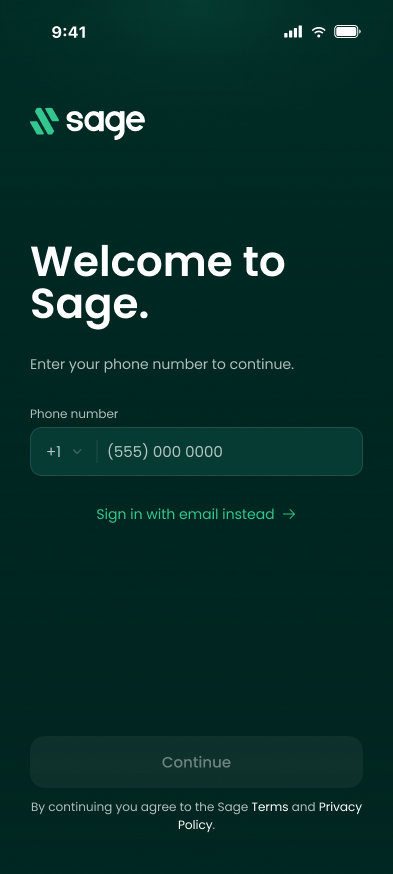
- Enter your phone number - Open the app. On Welcome to Sage., check the country code (it starts on the United States), enter your phone number, and tap Continue. By continuing you agree to the SAGE Terms and Privacy Policy.
- Enter the code - SAGE texts you a 6-digit code: “Your Sage verification code is … It expires in 5 minutes.” On Check your messages., type the code. The app checks it as soon as all six digits are in.
- Fill in your details - On Create your account, enter your First name, Last name, Email and a Password of at least 6 characters. If your invitation has an email address, it’s already filled in. Tap Create account.
- Verify your identity - The app opens Let’s verify your identity. Tap Continue and photograph the front and back of your government-issued ID. See ID verification.
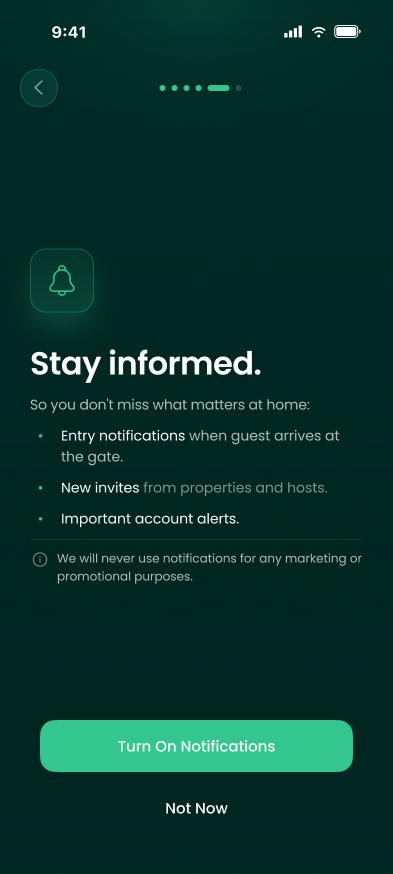
- You’re in - The app opens on your home screen. It may ask you to turn on notifications (Stay informed.). Tap Turn On Notifications, or Not Now to decide later.
Didn’t get the code? - Codes can take up to a minute. Tap Resend Code once the countdown ends, or go back and check the number. If you’ve requested too many codes, the app shows Too many attempts. Wait a few minutes and try again.
From now on, sign in with your phone number and password, or your email and password.
Create your account on Android
Setting up a new account isn’t available in the new Android app yet. Create your account on the web instead, then sign in to the app.
- Create your account on the web - Go to sagesystems.io, click Create account, and enter the phone number your invitation was sent to. See Use SAGE on the web.
- Sign in to the app - Open the app, tap Sign in with email instead, and sign in with the email and password you just set up. See Sign in.
If something goes wrong
| Message | What it means | What to do |
|---|---|---|
| No pending invite (iPhone) | SAGE has no open invitation for that phone number. Your registration may not be approved yet, the number may not match the one on your invitation, or the invitation may already have been used. | Check the number and country code. If you already have an account, go back and sign in. Otherwise wait for your invitation text, or contact your property manager or whoever invited you. |
| “That code is incorrect or has expired. Please request a new one and try again.” | The code was mistyped or is more than 5 minutes old. | Tap Resend Code and enter the new code. |
| Too many attempts. | You asked for too many codes in a few minutes. | Wait a few minutes, or tap Try a different phone number. |
| “This email is already associated with an account…” | Another SAGE account already uses that email address. | Sign in with that email instead, or use a different email address. |
| “An account already exists. Please log in.” | You already have a SAGE account with this phone number. | Go back and sign in. |
| “This invite is no longer valid. Please contact your host for a new invite.” | The invitation was cancelled or has expired. | Ask whoever invited you to send a new invitation. |
| Continue or Create account stays gray | The phone number isn’t valid for the country you picked, or a field is empty. | Check the country code and the number, and fill in every field. |
Still stuck? Contact your property manager or support@sagesystems.io.
Need help?
Questions? Contact us at support@sagesystems.io.