Vehicles
Add and manage vehicles
Last verified: October 4, 2026Add the vehicles you drive under My vehicles, then connect each one to a property so the gate’s license plate camera can let you in. Adding a vehicle and connecting it are two separate steps.
To open My vehicles, tap your profile photo on the home screen to open Settings, then tap My vehicles.
Add a vehicle
- Start - On My vehicles, tap Add A Vehicle (Add a vehicle on Android).
- Find your vehicle - Choose the Registration Country and Registration State (Registration State/Province on Android), and type the License Plate (Licence plate on Android).
- Search - Tap Search public records. To skip the search, tap Enter data manually.
- Confirm - If SAGE finds your car, check the year, make, model and color, and tap Yes, this is my vehicle. If it’s not your car, tap Enter data manually.
- Enter details (if needed) - If SAGE can’t find a match, you’ll see No match in public records. Tap Enter details manually, or Try another plate. Fill in the make, model, year and color, and tap Add vehicle.
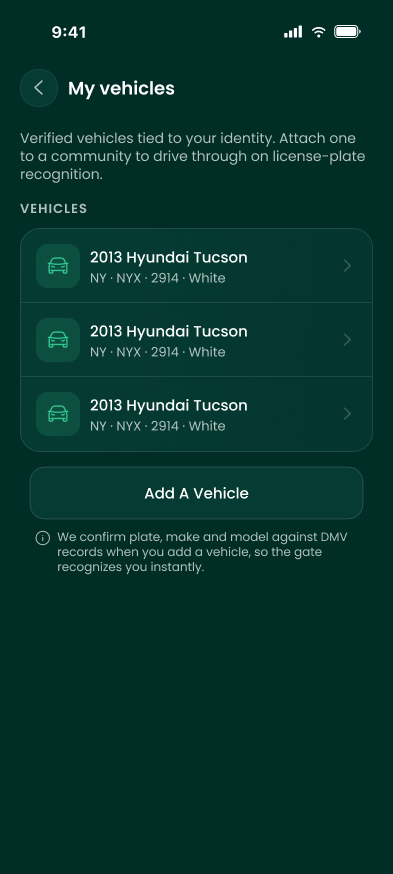
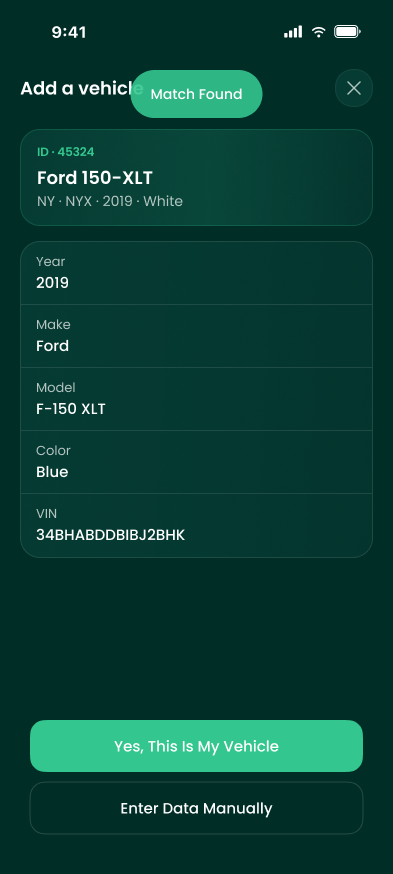
You’ll see “Vehicle added” on iPhone. The vehicle shows in your list as Not connected until you connect it to a property.
Vehicles registered in Canada always use manual entry. If the app asks you to verify your identity first, follow those steps, then come back. See ID verification.
Connect a vehicle to a property
- Open the vehicle - On My vehicles, tap the vehicle.
- Connect - Under CONNECTED PROPERTIES, tap Connect to property.
- Select property - Choose the property. Each one shows how the connection works there. Tap Continue.
- Review request - Check the vehicle, property and Validation, then tap Connect.
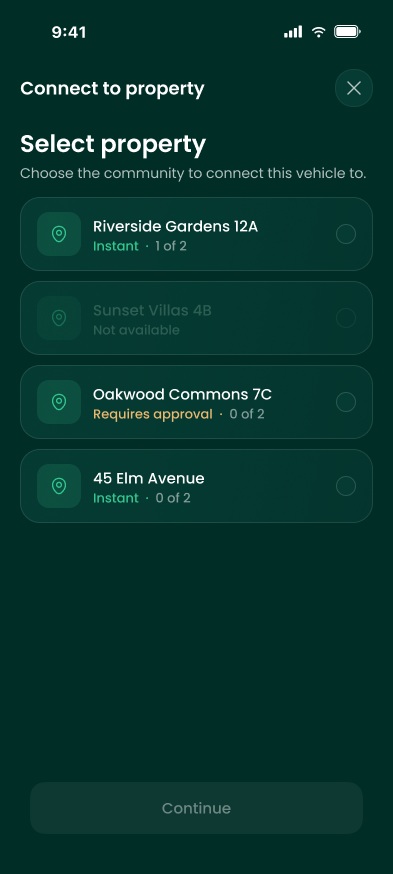
What happens next depends on your community:
| Validation shows | What happens |
|---|---|
| Instant | The vehicle is Connected right away. You’ll see “[vehicle]‘s plate now opens the gate at [property].” |
| Requires approval | You’ll see Request sent. The vehicle shows Pending until a manager approves or denies it. You’ll get a notification either way. |
| Vehicle limit reached | Your home already has as many connected vehicles as your community allows. See When you’ve reached the vehicle limit. |
| Already connected or Not available | This vehicle can’t be connected there. |
You can also start connecting from a property’s access key on the Keys tab, or from a card on the home screen.
When you’ve reached the vehicle limit
The app shows Vehicle limit reached with two choices:
- Replace a vehicle - Swap a connected vehicle for this one. Pick the vehicle to replace, check Review replacement, and tap Confirm replacement. The new vehicle takes over the old one’s place, and the old one stops opening the gate there. You can swap a vehicle once every 24 hours.
- Request HOA approval - Ask for an extra vehicle. Add a Reason Or Note and tap Submit request. A manager reviews it.
Edit, disconnect or delete a vehicle
Tap the vehicle in My vehicles to open its details.
| To | Do this |
|---|---|
| Change the plate or color | Tap Edit vehicle, make your changes, then tap Save changes. A new plate replaces the old one at the gate cameras. |
| Stop it opening the gate at one property | Under that property, tap Disconnect vehicle, then Confirm. |
| Cancel a pending request | Under that property, tap Cancel request, then confirm. |
| Remove the vehicle | Tap Delete vehicle, then Confirm. This disconnects it from every property. |
Plate access at the gate
At entrances with a license plate camera, a connected plate lets you drive in without scanning anything. Entrances without a camera still need your phone or barcode, so keep them.
If plate access is turned on by management
In your community, your property manager turns on plate access for each vehicle. Adding your vehicle puts it on file, but your plate won’t open the gate until your manager sets it up. Tell your manager the plate number, and keep using your phone or barcode until they confirm.
If plate access is automatic
When you connect your vehicle, the property shows Instant, and the plate starts opening the gate right away. There’s nothing else to do.
- Keep another way in - You’ll need your phone or barcode at entrances without a camera, in a car that isn’t connected, or if the camera can’t read your plate because of dirt, weather or a plate frame.
- New car? - Add it, then connect it. If you’re at your limit, use Replace a vehicle.
If something goes wrong
| Message | What it means | What to do |
|---|---|---|
| “Vehicle Already Added” (iPhone) or “Licence plate already registered” (Android) | This plate is already in SAGE, on your account or someone else’s. | Check the plate. If it’s in your list, nothing to do. If it isn’t yours, contact your property manager. |
| “Doesn’t match the [state] plate format” (iPhone) or “Invalid licence plate” (Android) | The plate isn’t in a format that state uses. | Check the state and enter only the plate’s letters and numbers. |
| “No available properties to connect to” | The vehicle is already connected everywhere it can be. | Nothing to do. |
| “Vehicle access denied” notification | A manager denied the connection. | Contact your property manager. |
Still stuck? Contact your property manager or support@sagesystems.io.
Need help?
Questions? Contact us at support@sagesystems.io.