Administration
Administration and properties
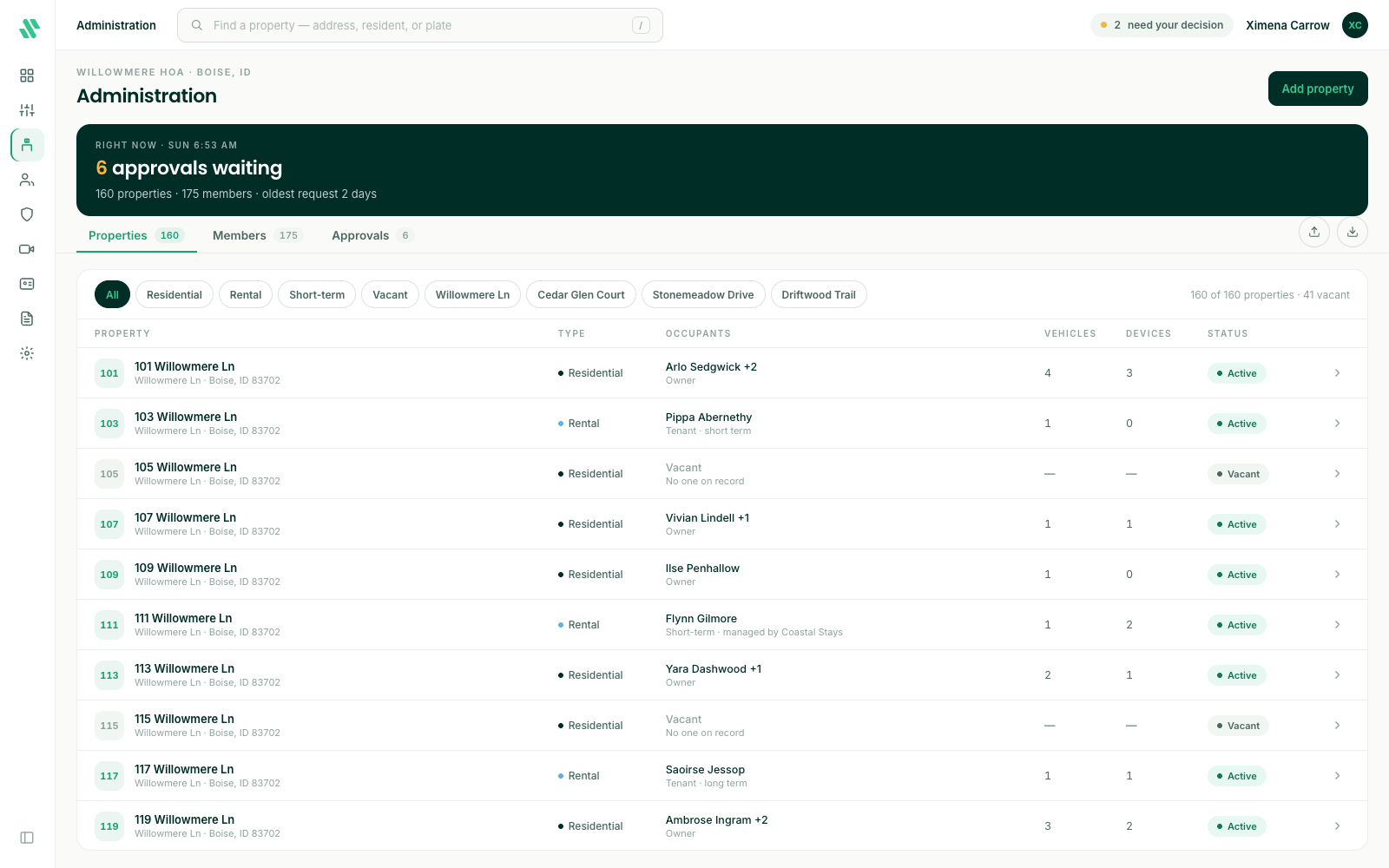
Last verified: October 4, 2026Administration in the left rail is where you manage your community’s properties and the people in them. It has four tabs:
| Tab | What it holds |
|---|---|
| Properties | Every property in your community. |
| Members | Everyone linked to a property. See Members and approvals. |
| Approvals | Requests that need your decision, and invitations that haven’t been accepted yet. See Members and approvals. |
| Guests | Every guest across your community. See Members and approvals. |
The dark band at the top shows how many approvals are waiting. The pill at the top right, for example 2 need your decision, opens the requests on the Approvals tab.
Find anything fast
Press / on your keyboard, or click the search box at the top, and start typing. SAGE suggests matching actions, properties, people, plates and devices as you type, and the list below narrows at the same time. Press Enter to open the first suggestion. Plates and device numbers show up once you’ve typed three characters.
The Properties tab
The Properties tab lists every property with its Type (Residential or Rental), its Occupants, how many Vehicles and Devices it has, and its Status (Active or Vacant). Use the chips above the list to show one type, vacant properties or one street. The line at the right counts what’s showing.
Click a property to open it.
Add a property
Properties are normally loaded for you when your community is set up. To add one yourself:
- Click Add property at the top right.
- Type the Street address. As you type, SAGE shows any property it already has at that address. If the property is already there, open it instead of adding it again.
- Fill in the rest of the address.
- Choose the Type: Residential or Rental. For a rental, see Notes and long-term rentals or Short-term rentals.
- Choose the Status: Vacant or Active.
- Click Add property.
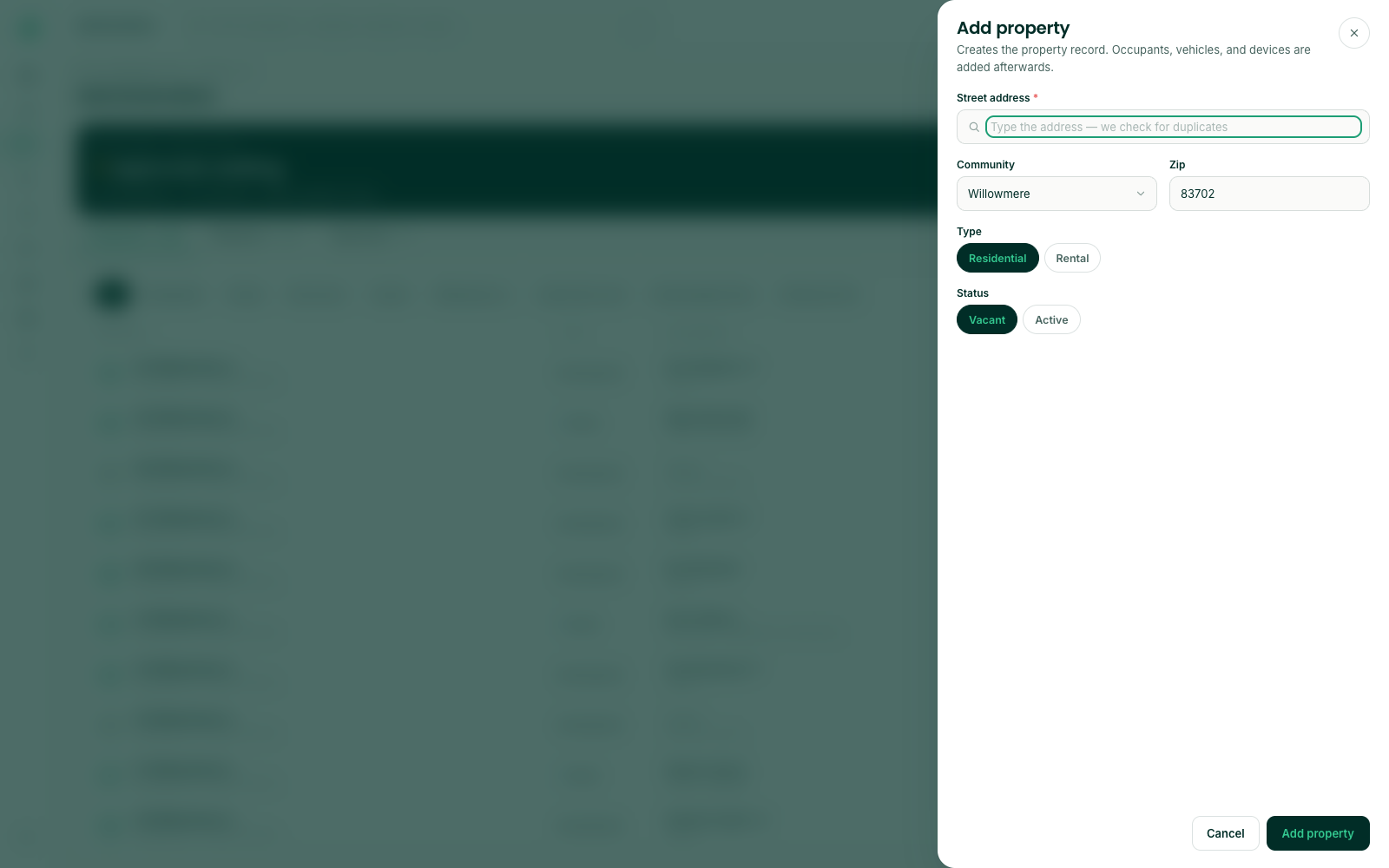
The new property starts empty. Add its occupants, vehicles and devices from the property page.
Import properties
To add many properties at once, click the upload icon at the right of the tabs and choose a CSV file. You see a preview before anything is saved.
The property page
A property page has a card on the left and tabs on the right.
The card shows the address, the property’s status and type, the city, state and zip, the community and the Property ID. It also lists the occupants, and the property’s Recent entries at the gates. Click Access log for more of its entries. The buttons at the bottom of the card are shortcuts: Add occupant, Add vehicle, Assign device and Edit property.
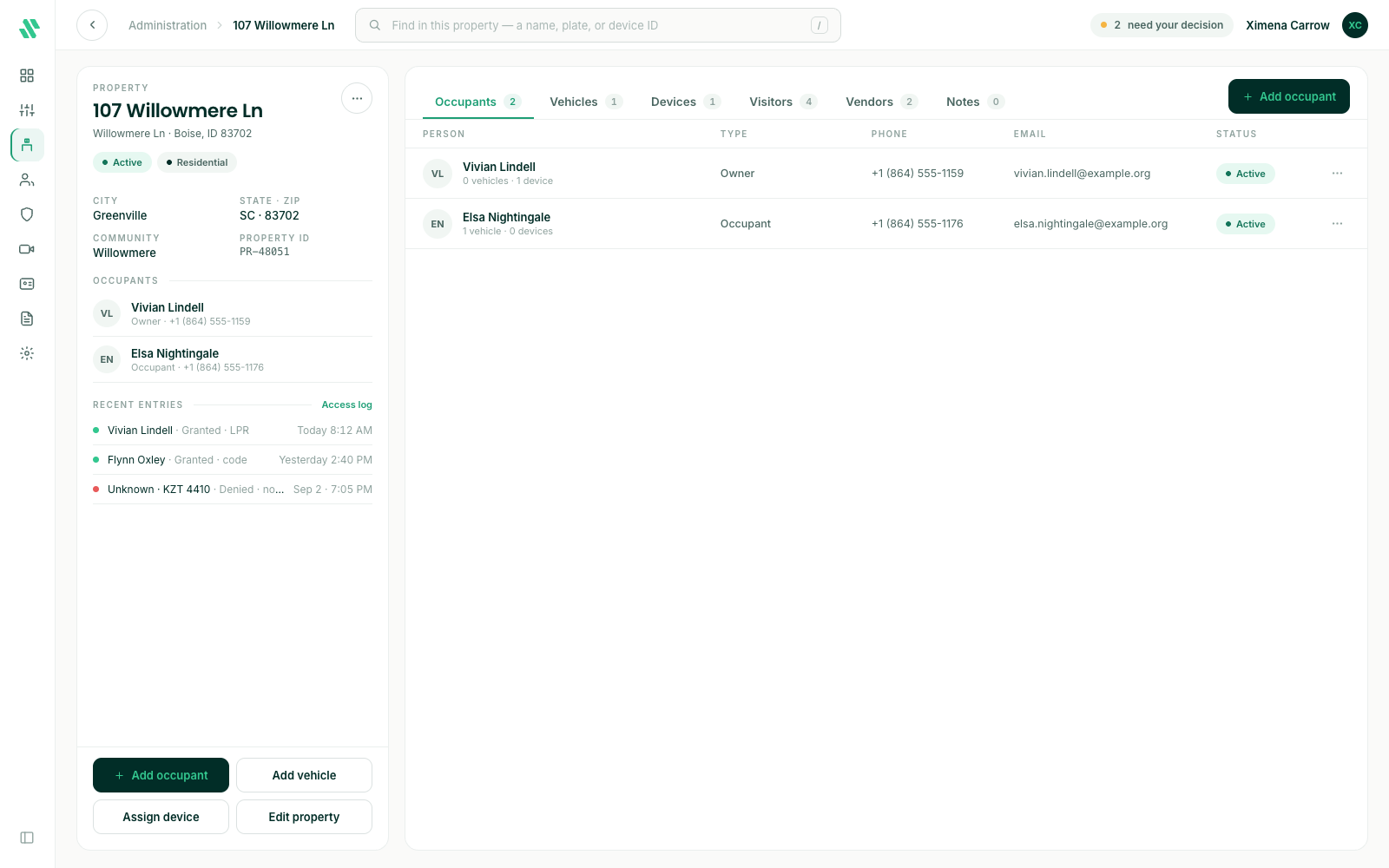
The tabs hold the people and things attached to the property:
- Occupants - see Property occupants
- Vehicles - see Vehicles and plate access
- Devices - see Unit devices
- Visitors - see Property visitors
- Notes - see Notes and long-term rentals
Each tab has an add button at the top right, and a ⋯ menu at the end of each row with the actions for that row. The search box at the top searches inside the property you’re on.
Edit a property
Click Edit property on the card, or open the ⋯ menu next to the property’s name and choose Edit property. Change the address, type or status and click Save changes.
Move everyone out
Use Move-out when a home is sold or changes hands.
- Open the property and click the ⋯ menu next to its name.
- Choose Move-out.
- Read what will happen, then confirm.
The occupants lose their gate access. Their past entries stay in the property’s access log.
Move-out can’t be undone from the console. To give someone access again, invite them to the property again.
Need help?
Questions? Contact us at support@sagesystems.io.