Administration
Property occupants
Not yet verifiedThis article hasn't been checked against the current app yet. Some steps may describe features that aren't live.
The Occupants tab on a property page lists the people who live there: owners, occupants and tenants. Each row shows the person, how many vehicles and devices they have, their member Type, Phone, Email and Status. Invited means they haven’t accepted their invitation yet.
Add an occupant
Adding an occupant sends them an invitation. They get access to the property once they accept it in the SAGE app.
- Go to Administration and open the property.
- Click Add occupant.
- Enter their Full name and Mobile phone. Email is optional.
- Pick the Member type, for example Owner, Occupant or Tenant · long term.
- Click Add occupant.
They’re sent a text message with the invitation, plus an email if you entered one. Until they accept, their status is Invited and the invitation waits on the Approvals tab. See Members and approvals.
If the phone number or email already belongs to a SAGE account, they still have to accept the invitation in the app before they get access.
If the person is already linked to this property, or already has an open invitation to it, SAGE stops you and says why instead of sending a second invitation.
Change an occupant
Click the ⋯ at the end of the occupant’s row for these actions:
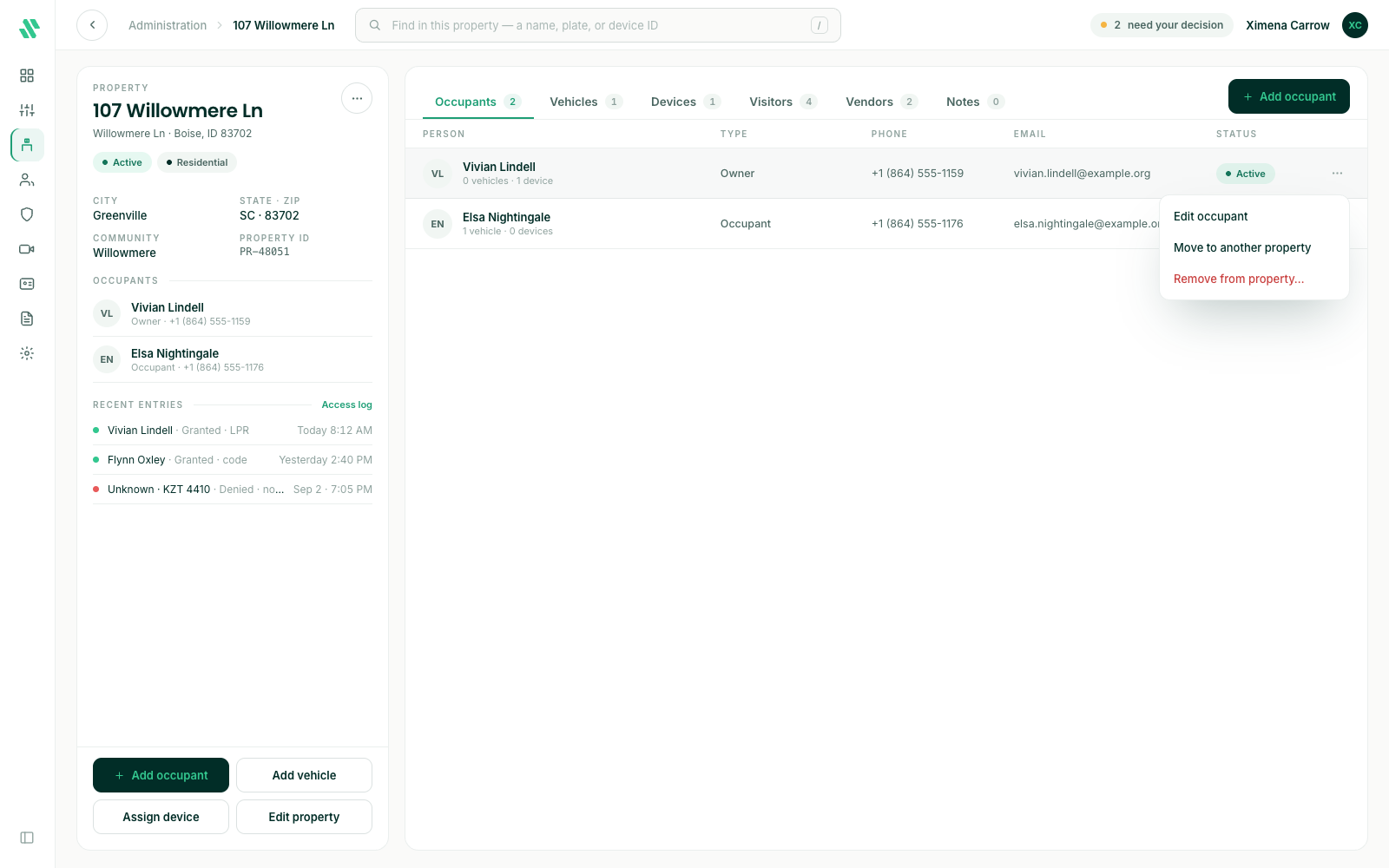
| Action | What it does |
|---|---|
| Edit occupant | Change their name, phone, email or member type, and the settings below. |
| Move to another property | Moves them to a different property in your community. |
| Remove from property… | Ends their access to this property. |
A new email address changes their email everywhere in SAGE, and they then sign in with it.
Occupant settings
Edit an occupant to change these settings.
| Setting | What it does |
|---|---|
| Owner | Marks them as an owner of the property. |
| May invite guests | Lets them invite guests in the SAGE app. |
| Minor | Marks them as a minor. A minor can’t receive gate calls or invite guests, so May invite guests turns off. |
| Hide from calls | Keeps them out of the call directory, so visitors can’t call them from the gate. Until their ID is verified it’s locked and reads Available after ID is verified. |
| Suspended | Pauses their access to this property. They stay linked to it, and you can turn it back on later. SAGE asks you to confirm. |
In the occupant and member lists, these people carry a small label: Owner, Minor or Hidden from calls. A suspended person’s row is dimmed and marked Suspended.
Move an occupant to another property
Use this when someone was added to the wrong property or has moved within your community.
- Click the ⋯ on their row and choose Move to another property.
- Search for the new property and pick it.
- Click Move.
Their devices, the guests they invited, their open invitations and their visitors move to the new property with them.
Remove an occupant
Click the ⋯ on their row, choose Remove from property… and confirm. Their access to this property ends right away. Their SAGE account stays, along with their access to any other properties they belong to.
Need help?
Questions? Contact us at support@sagesystems.io.