Guests
One-time codes
Last verified: October 4, 2026For a quick, single visit, like a delivery, a ride-share pickup or a repair, generate a one-time code. SAGE gives you a six-digit code to share. Your visitor types it on the gate kiosk’s Enter Code keypad. They don’t need the app.
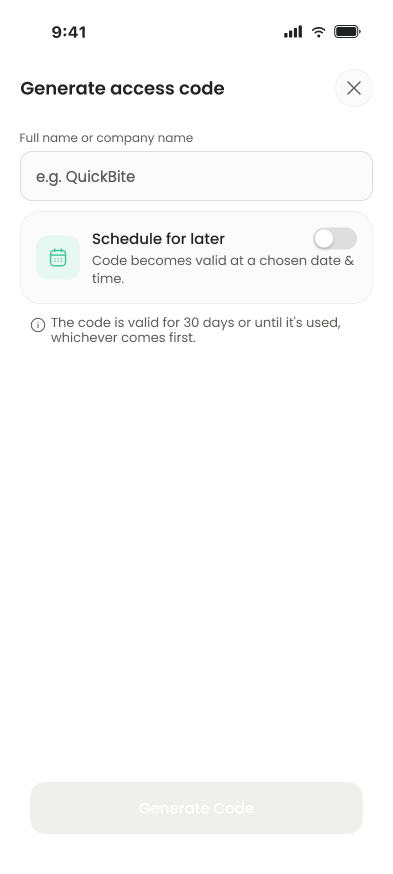
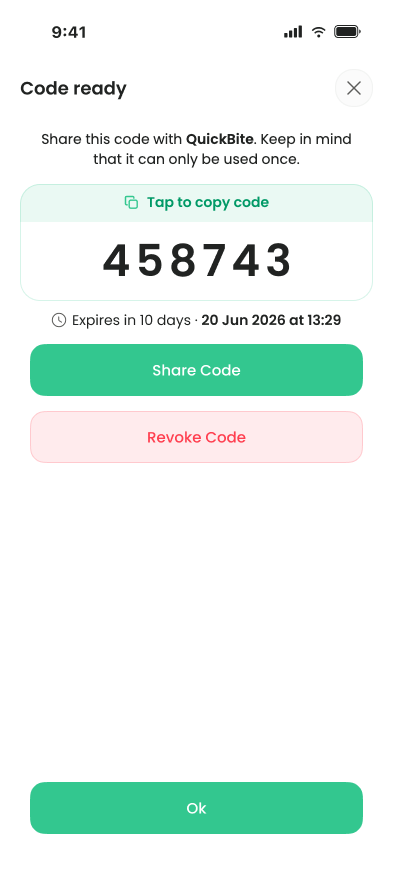
A code works once. It expires 30 days after it starts, or when it’s used, whichever comes first. If you’re a tenant, it also expires when your rental ends, if that’s sooner.
Generate a code
- Start - On the home screen, tap Generate code.
- Name it - Enter who the code is for in Full name or company name, for example “QuickBite”.
- Schedule it (optional) - To make the code start later, turn on Schedule for later and pick Valid from and the Time. Otherwise it works right away.
- Generate - Tap Generate code.
- Pick the property (iPhone) - On Which property?, choose the home the code lets someone into and tap Continue. On Android, the code is made for your current property.
- Share it - On Code ready, share the code with your visitor. Tap Tap to copy code to copy it, or on iPhone tap Share code to send it by text, email or any messaging app. Tap OK when you’re done. Android has no Share button, so paste the copied code into a message.
If you don’t see Generate code, your account can’t create codes. It’s hidden for short-term renters on iPhone. If the app shows an error when you generate a code, your account may not be allowed to create them. Minors, short-term renters and people without permission to invite guests can’t.
See your codes
Active and scheduled codes show under Active codes on the home screen. Tap All codes for the full list, where you can search. Each code shows Active, Scheduled, or how long until it expires or starts. Used and revoked codes leave the list.
The list includes active codes for your properties, not only the ones you made.
Revoke a code
Revoke a code if you no longer want it to work.
- Open the code - Under Active codes or in All codes, tap the code.
- Revoke it - Tap Revoke code. On iPhone, confirm with Revoke on “Revoke this code?”.
The code stops working and leaves your list.
On Android, Revoke code only works on the Code ready screen right after you create the code. From Active codes or All codes, the button just closes the code without revoking it. If you need to cancel a code later, ask your property manager.
Need a code that works more than once?
Codes you create in the app always work once. For something like an event, ask your property manager. Managers have an option to create codes that work more than once.
Need help?
Questions? Contact us at support@sagesystems.io.