Modules
Devices
Last verified: October 4, 2026Devices lists every credential in your community in one place: RFID tags, key fobs, mobile credentials, access keys (keypad codes), barcodes and LPR (license plate) devices, for every property. Use it to find a device, see who has it, add a new one, or take one away.
Devices shows in the left rail when your community has the Devices module and you have the Devices permission. To add, edit or remove a device you also need the Manage Occupant Devices or Manage Organization Devices permission.
The page at a glance
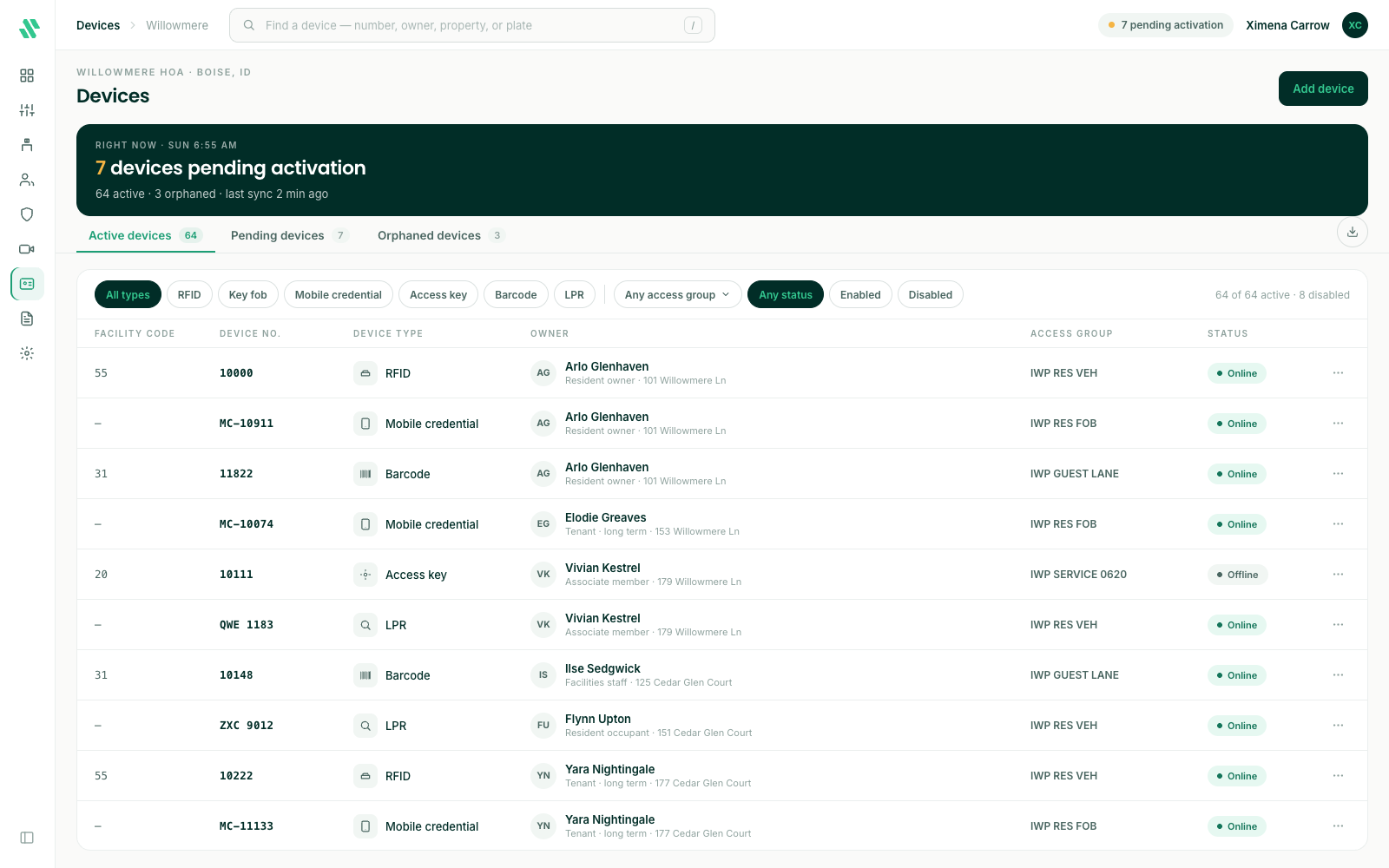
The dark band at the top counts what needs your attention, for example how many devices are pending. The pill at the top right says the same thing; click it to jump to the Pending devices tab.
| Tab | What it lists |
|---|---|
| Active devices | Devices that belong to someone and are on your gate system. |
| Pending devices | Devices that belong to someone but haven’t reached the gate system yet, usually because the owner hasn’t accepted their SAGE invite. A device moves to Active by itself once they accept. |
| Orphaned devices | Devices that don’t belong to anyone. |
Each tab shows a count. Communities that share credentials with another community also have Shared members and Shared credentials tabs. See Shared credentials from another community.
The list shows Facility code, Device no., Device type, Owner (with their role and property), Access group and Status. LPR and mobile credential rows show a dash for the facility code because those types don’t use one. LPR rows show the license plate as the device number.
Find a device
- Search - Press / or click the search box at the top, then type a device number, an owner’s name, a property or a plate. Press Enter to open the first match. The list below filters as you type.
- Device type - Click a chip: RFID, Key fob, Mobile credential, Access key, Barcode or LPR.
- Access group - Pick one from Any access group. The menu shows how many devices on the current tab use each group.
- Status - On Active devices, pick Enabled or Disabled.
Click Reset to clear the filters. The Active tab shows the first devices and a Load more button; the other tabs show everything.
Look at one device
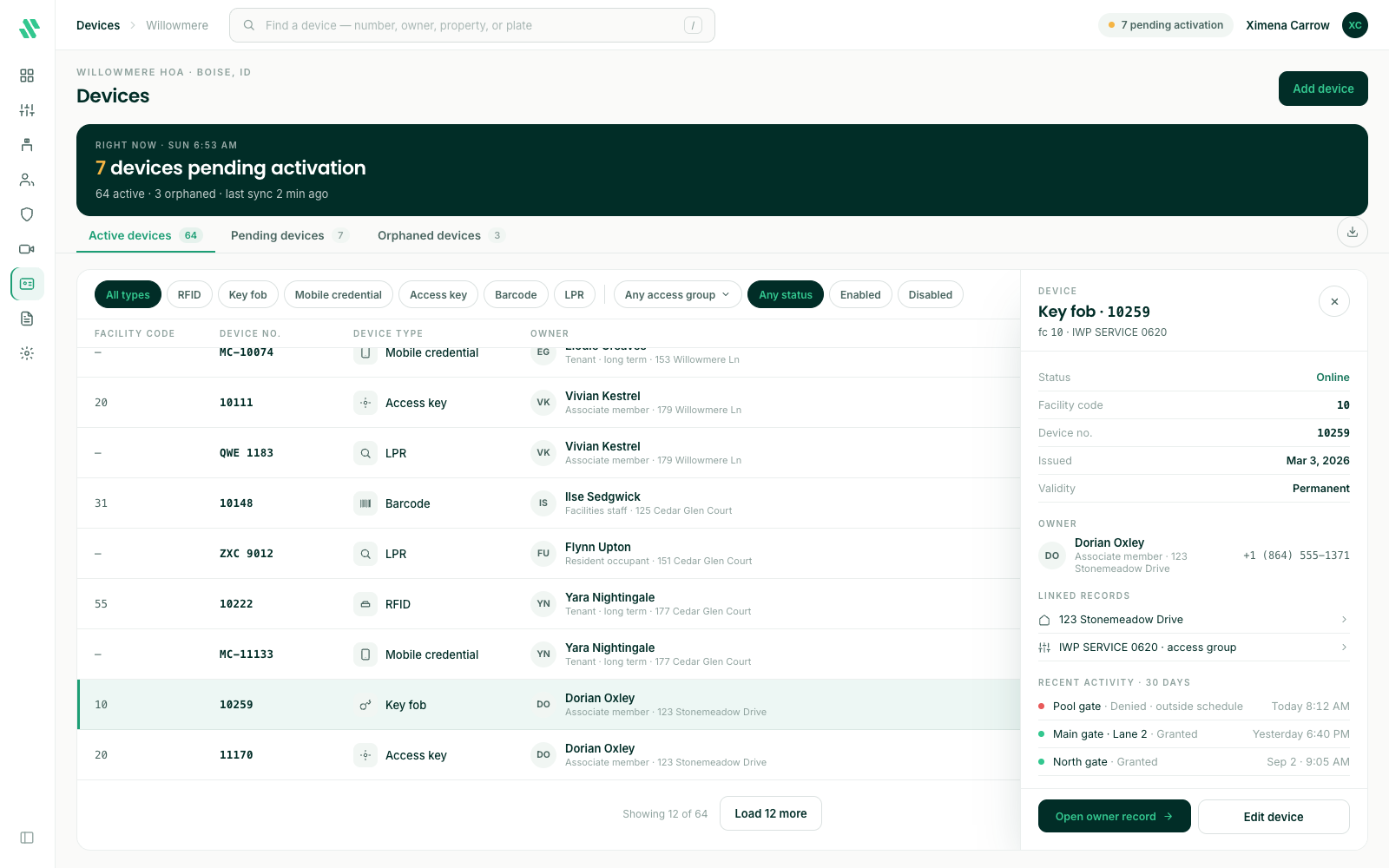
Click a row. A panel opens on the right with the device’s status, facility code, number, when it was issued and whether it’s permanent or expires. It also shows the owner with their phone number, the property and access group it’s linked to, and its recent entries at your gates.
From the panel, click Open owner record to go to the owner’s property in Administration, or Edit device to change it. Click the row again, press Esc, or click outside the panel to close it.
Add a device
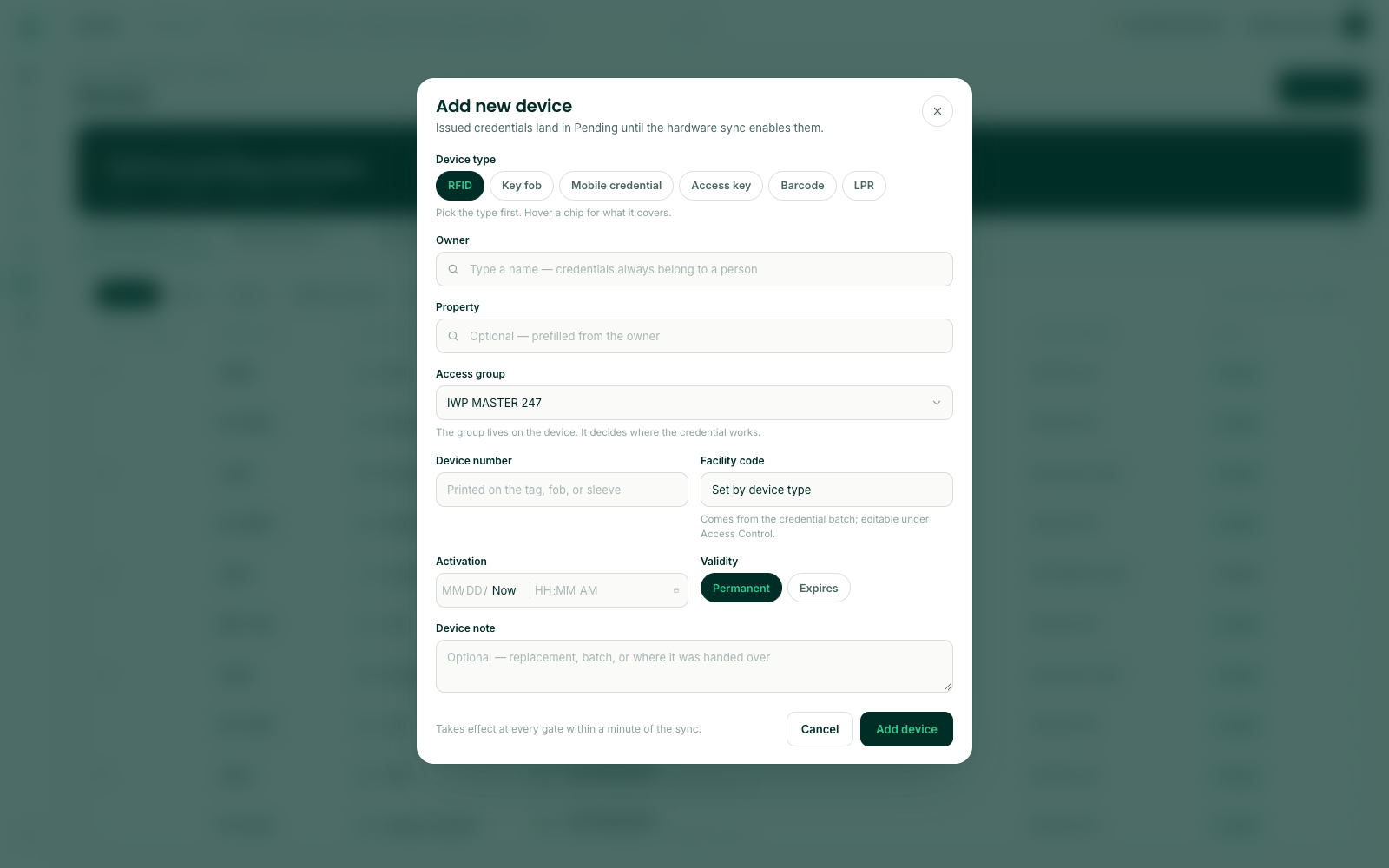
- Click Add device at the top right.
- Pick the Device type first. The rest of the form follows from it.
- Type the Owner’s name and pick them from the list. Credentials always belong to a person, so add the person in Administration first if they aren’t listed.
- Check the Property. It fills in from the owner; you only need to choose when the owner belongs to more than one property.
- Choose the Access group. It decides which gates and doors the device opens.
- Enter the Device number printed on the tag, fob or sleeve. The Facility code fills in from the device type.
- Leave Activation at Now, or pick a later date and time. Leave Validity on Permanent, or choose Expires and set the end date.
- Add a Device note if you like, for example “replacement for a lost fob”, then click Add device.
If the owner already uses SAGE, the device goes onto the gate system right away and shows on Active devices. If they haven’t accepted their SAGE invite yet, it waits on Pending devices until they do.
For license plate access, add the LPR device from the property’s Devices tab in Administration, where you pick the vehicle. See Vehicles and plate access.
Edit a device
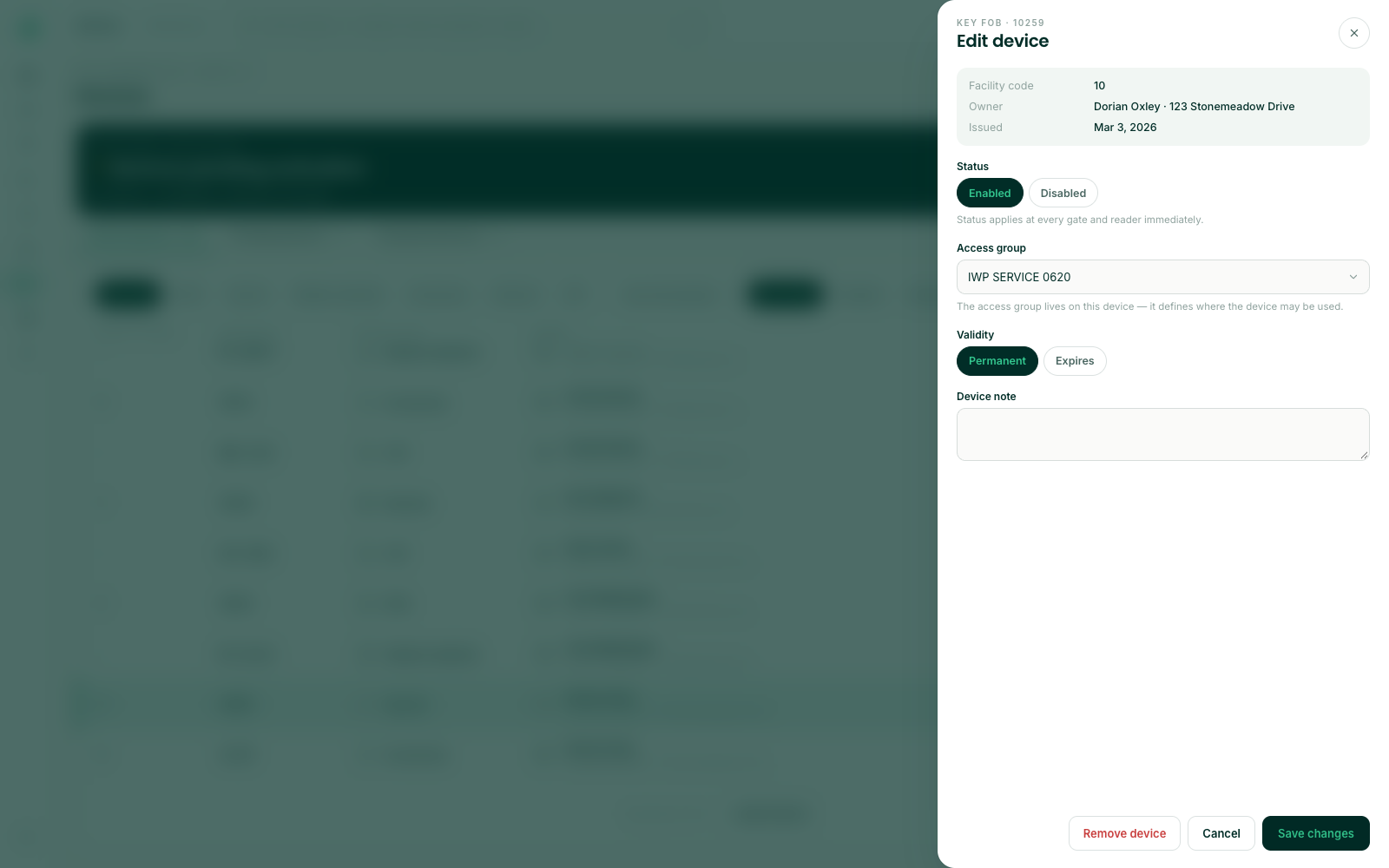
Click the ⋯ at the end of a row and choose Edit device, or click Edit device in the side panel. You can change the Access group, switch Validity between Permanent and Expires, and edit the Device note. The facility code, owner and issue date are shown for reference. Click Save changes.
Remove a device
- Click the ⋯ at the end of the row and choose Remove device…. You can also click Remove device in the Edit device panel.
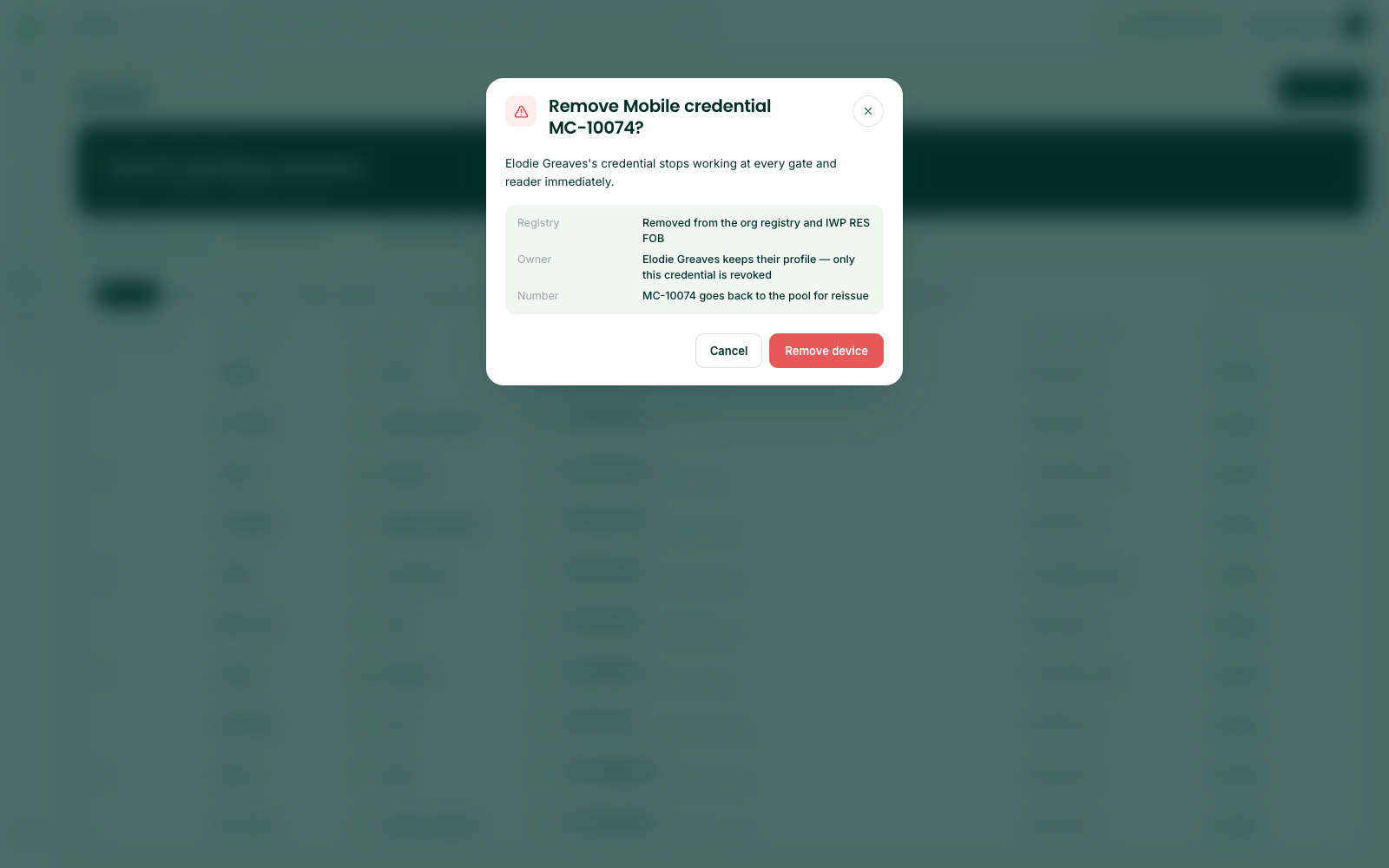
- Read the confirmation. It names the device and its owner.
- Click Remove device.
The device stops working at every gate and reader. The owner keeps their SAGE account; only this device is taken away.
Orphaned devices
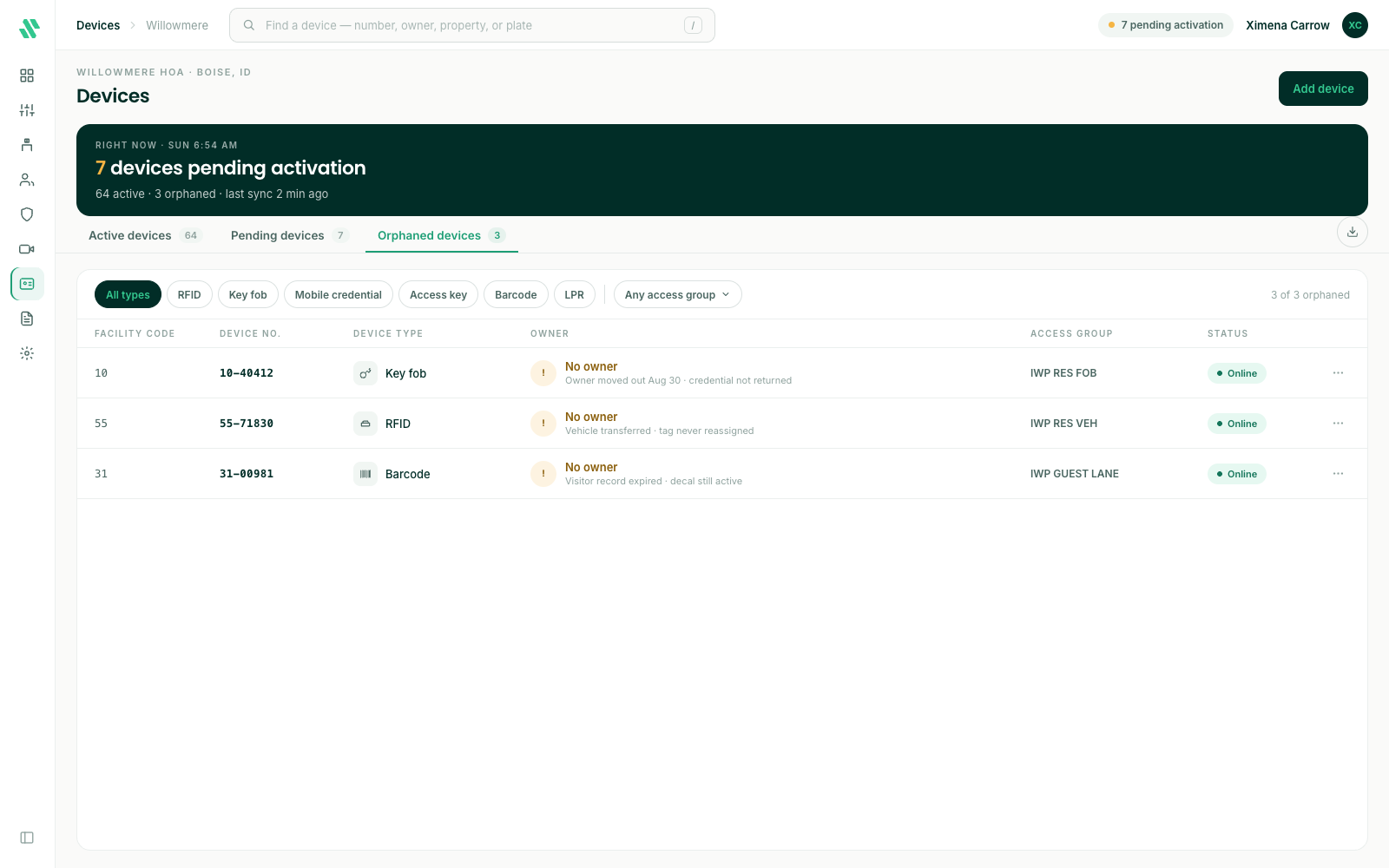
A device on Orphaned devices has no owner. Give it one, or remove it if nobody needs it.
- Open the Orphaned devices tab.
- Click the ⋯ at the end of the row and choose Assign to an owner.
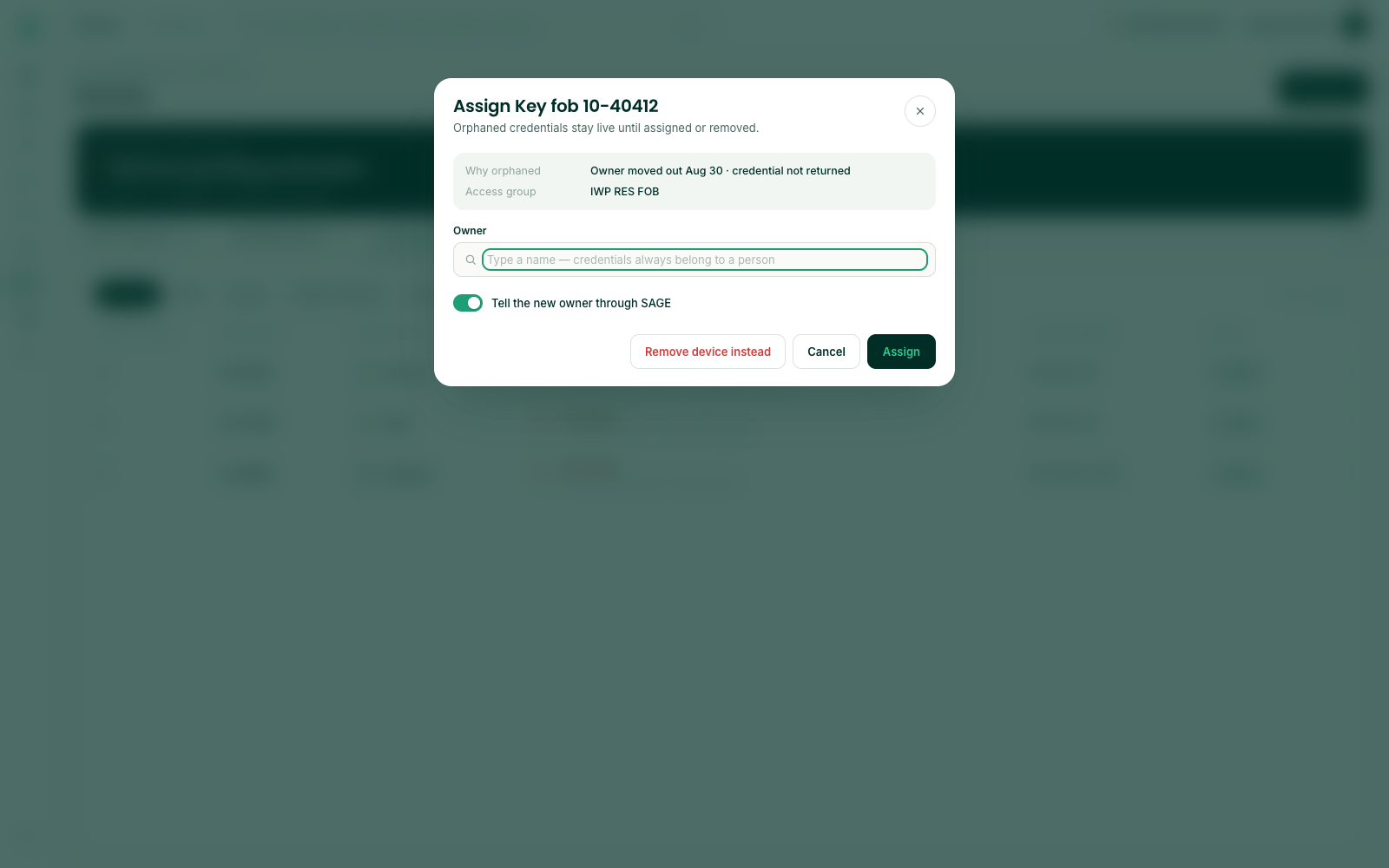
- Type the new owner’s name and pick them from the list, then click Assign. To get rid of the device instead, click Remove device instead.
Shared credentials from another community
Some communities have a sharing agreement with another community, for example a neighboring association whose residents may use your pool or gates. The other community is the sponsoring org. SAGE administrators set up the agreement; you decide what the shared credentials open at your community.
Shared credentials
The Shared credentials tab lists credentials the sponsoring org has shared with you. You need the Manage Credential Grants permission to see it. Use the chips to switch views:
| Chip | What it shows |
|---|---|
| Grants | Shared credentials you’ve accepted, with their person, sponsoring org, credential, device type, status, access groups and when they were set up. Pick Active, Suspended or Revoked to show one status. |
| Pending approval | Shared credentials waiting for you. Click Approve to let them in with the access groups shown, or Decline to turn them down. SAGE asks for a reason when you decline. |
| Agreement paused | Credentials under a sharing agreement that’s paused. They don’t open anything until it resumes, and nothing here can be changed. The chip shows only when an agreement is paused. |
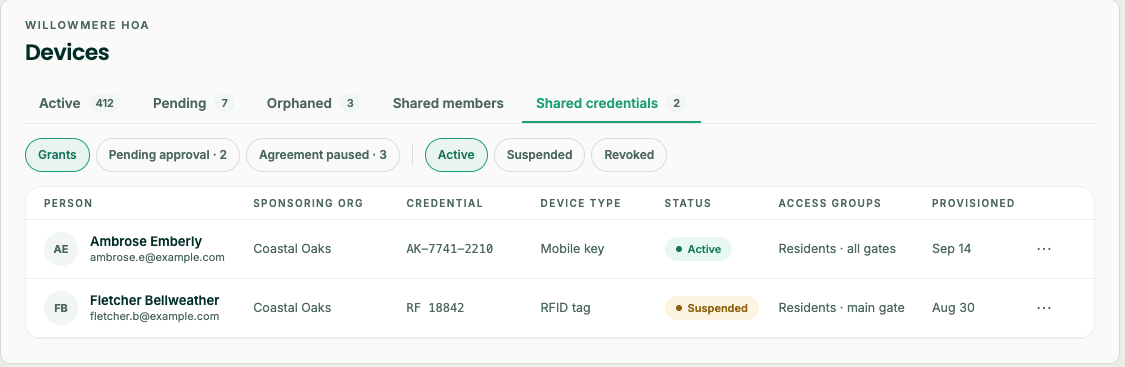
Click the ⋯ at the end of a grant’s row to change it:
- Suspend - Stops the credential working at your gates for now. SAGE asks for a reason.
- Reinstate - Lets a suspended credential work again.
- Revoke - Ends it for good. SAGE asks for a reason.
- Edit access groups - Changes which of your gates and doors it opens.
Shared members
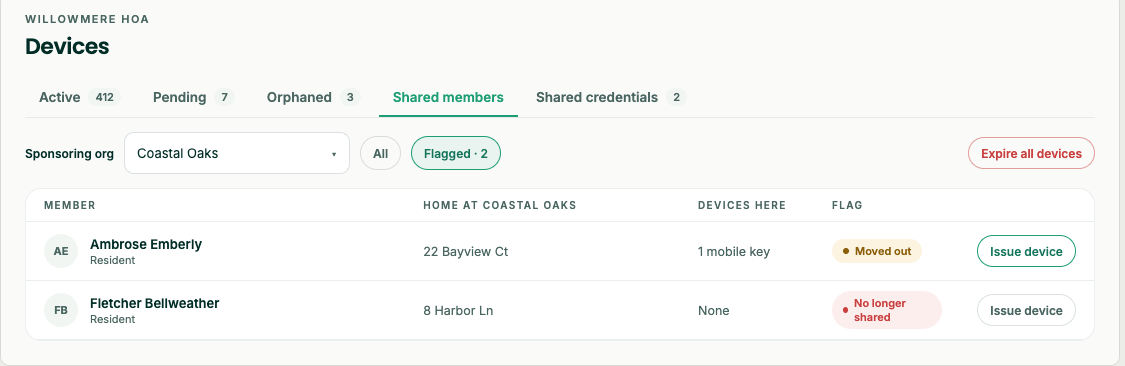
The Shared members tab lists the sponsoring org’s members who hold devices at your community. You need the Manage Organization Devices permission to see it.
- Pick the Sponsoring org. The tab shows one at a time.
- Click Flagged to see only members who are no longer at the sponsoring org.
- Click Issue device on a member’s row to give them a device at your community.
To end every device you’ve issued to that org’s members, click Expire all devices. SAGE says how many devices that is and asks you to confirm. They stop working at every gate.
If something goes wrong
| What you see | What to do |
|---|---|
| A message that you don’t have permission to manage devices | Ask a manager to give you the Manage Occupant Devices or Manage Organization Devices permission. |
| A message that a device with that number and facility code already exists | Check the number printed on the device. Search for the number to find who has it. |
| The owner isn’t in the Owner list | Add or invite them in Administration first. |
| A device stays on Pending devices | Ask the owner to accept their SAGE invite. The device moves to Active when they do. |
For anything else, send a screenshot to support@sagesystems.io.
Need help?
Questions? Contact us at support@sagesystems.io.