At the gate
Gate access
Last verified: October 4, 2026Your phone is your key. Residents, invited guests and vendors open the gate the same way, as long as they have an access key in the app and are inside their access schedule.
Unlock a gate with the app (iPhone)
- Find your key - On the home screen, your keys are under Access keys. Tap the lock button on the key for the property you’re entering. You can also open the Keys tab, tap a key, and tap Unlock a gate.
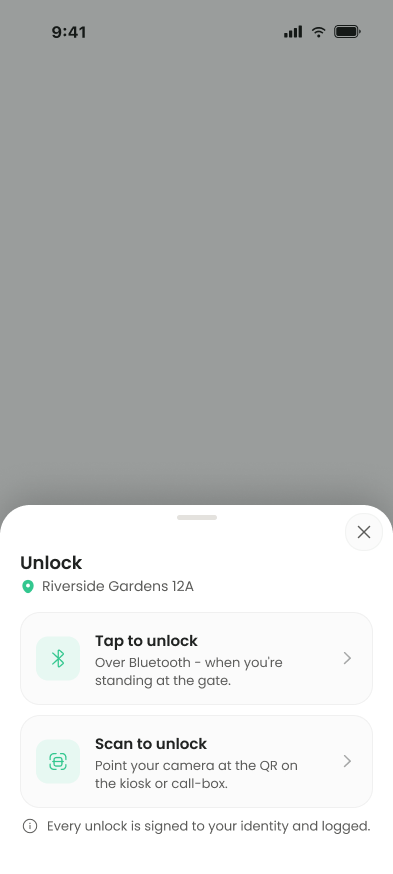
- Choose how - On Unlock, tap Tap to unlock or Scan to unlock.
- Tap to unlock - Stand at the gate and keep your phone close to the reader. The app connects over Bluetooth.
- Scan to unlock - Point your camera at the QR code on the gate kiosk or call box, or at the code an on-site guard shows you.
- Check the result - You’ll see Unlocked (“The gate is opening”) or Access denied with the reason.
If you have keys for more than one property in the community you’re scanning at, the app asks Who are you visiting?. Pick the property and tap Continue.
Every unlock is signed to your identity and logged.
The new Android app shows the Unlock options, but they don’t open the gate yet. Tapping either option just closes the sheet. Use the gate kiosk, a guard, your barcode or plate access in the meantime.
When an option isn’t available
| What you see | Why | What to do |
|---|---|---|
| “Verify your identity first to unlock with your phone.” | You haven’t verified your identity yet. Minors don’t need to. | Follow the prompt. See ID verification. |
| “No Bluetooth key for this property yet.” | Your community hasn’t set you up for Bluetooth entry. | Use Scan to unlock. |
| “Not available with your access at this property.” | Your type of access can’t unlock with the phone. | Ask your property manager. |
| A lock badge instead of the lock button | Your access to that property is suspended. | Contact your property manager. |
The gate only opens inside your access schedule. Outside it, you’ll see Access denied (“Your access key doesn’t open this gate right now.”).
The app needs your camera to scan and Bluetooth to tap. If you see “Camera access is off” or “Bluetooth access is off”, tap Open Settings and allow SAGE to use them. If Bluetooth is turned off, turn it on in Control Center.
Using the gate kiosk
Not every community has a SAGE kiosk. Where there is one, it’s the way in for your guests. A kiosk can show any of these options. Your community decides which ones appear on each kiosk.
| Kiosk option | What it does |
|---|---|
| Resident Directory | Visitors search for a resident by name or address and call them. See Call directory. |
| Contact Guard | Calls a guard for help with access. |
| Enter Code | Opens a keypad for a one-time code. |
| Exit Gate | Appears on some kiosks, for leaving through that gate. |
| QR code on the screen | Residents and guests scan it with Scan to unlock. |
Open the gate with a one-time code
If you have a one-time code, one you made yourself or one a resident shared with you, tap Enter Code on the kiosk and type the six digits. You’ll see Access Granted (“Please Enter the Gate”) or Access Denied (“Please Contact the Resident”). You don’t need the app. See One-time codes.
No kiosk?
If your community has an on-site guard instead, the guard checks you in. The guard’s tablet can also show an entrance QR code that you scan with Scan to unlock.
Need help?
Questions? Contact us at support@sagesystems.io.