Get started
Get registered for SAGE
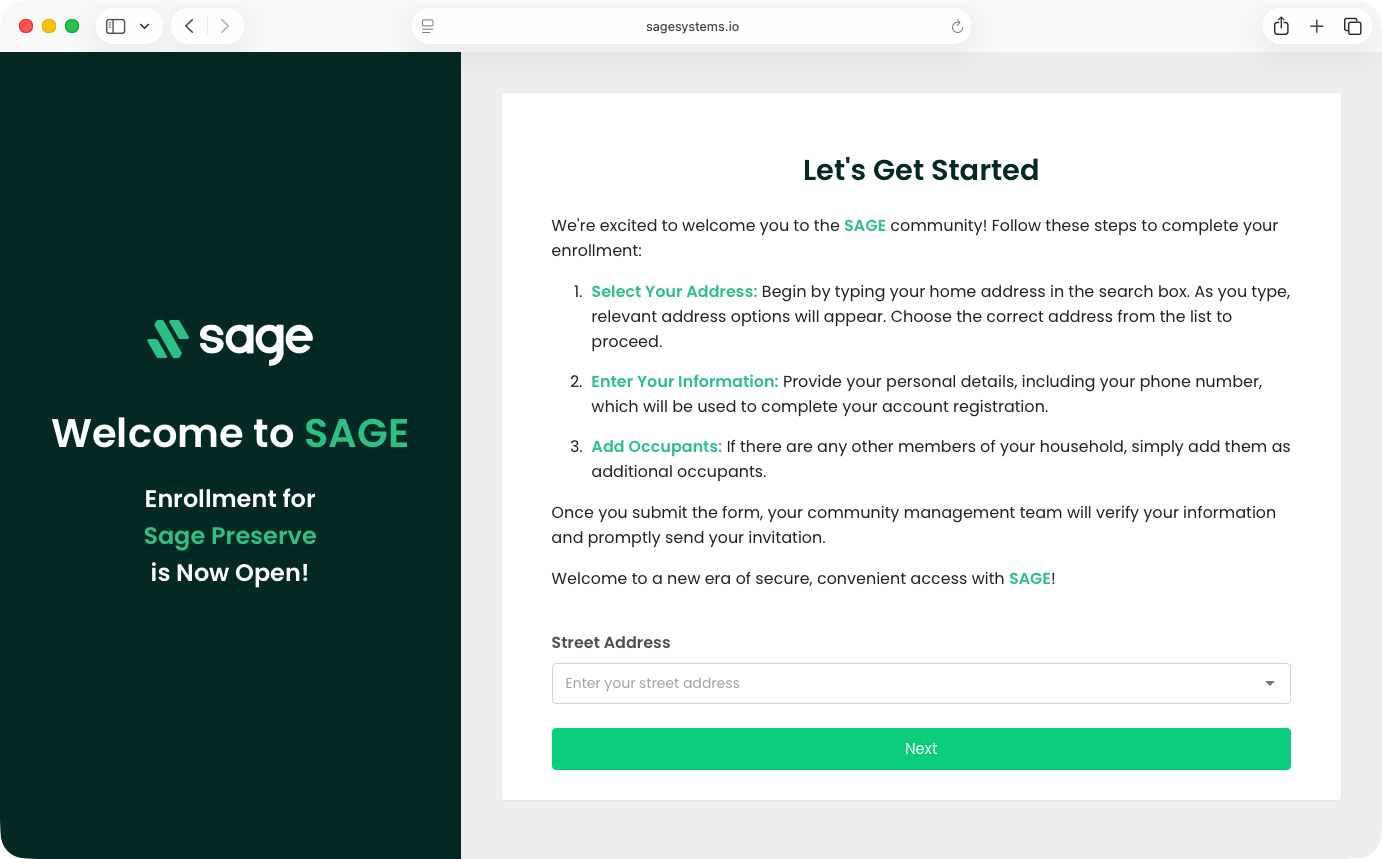
Last verified: October 4, 2026Some communities open enrollment so households can register themselves. Your community management team shares a link or QR code for it. The enrollment page opens in your web browser and shows your community’s name. You don’t need an account or the app for this step.
Register your household
- Open the enrollment page - Follow the link or scan the QR code from your community management team.
- Select your address - Under Street Address, start typing your address, pick it from the list, then click Next.
- Add each occupant - For each person in your household, fill in First Name, Last Name and Mobile Phone. Then choose a Type: Owner (primary resident or property owner), Occupant (an adult living at the address) or Minor (a child or dependent under 16). Click Add Occupant. Each person needs their own mobile number.
- Review - When everyone is added, click Finished. Check the list on Please Review Your Account Information, then click Submit.
You’ll see Thank You for Enrolling! Everyone you added is now waiting for approval by your community management team.
What happens next
Your community management team checks each registration. Once a person is approved, SAGE sends a text message to the mobile number you entered, with a link to download the app. That person then sets up their account with the same phone number.
Allow some time - Management reviews registrations by hand, so approval isn’t instant. If you try to set up the app before you’re approved, the app can’t find your invitation. On iPhone it says “No pending invite”. Wait for the text message, then try again.
If some people couldn’t be registered, the page says Enrollment Partially Completed and lets you try those people again.
Need help?
Questions? Contact us at support@sagesystems.io.