Administration
Members and approvals
Last verified: October 4, 2026The Members, Approvals and Guests tabs are on the Administration page. Members lists the people linked to your properties. Approvals is where requests wait for your decision and where invitations wait until they’re accepted. Guests lists every guest across your community.
Members
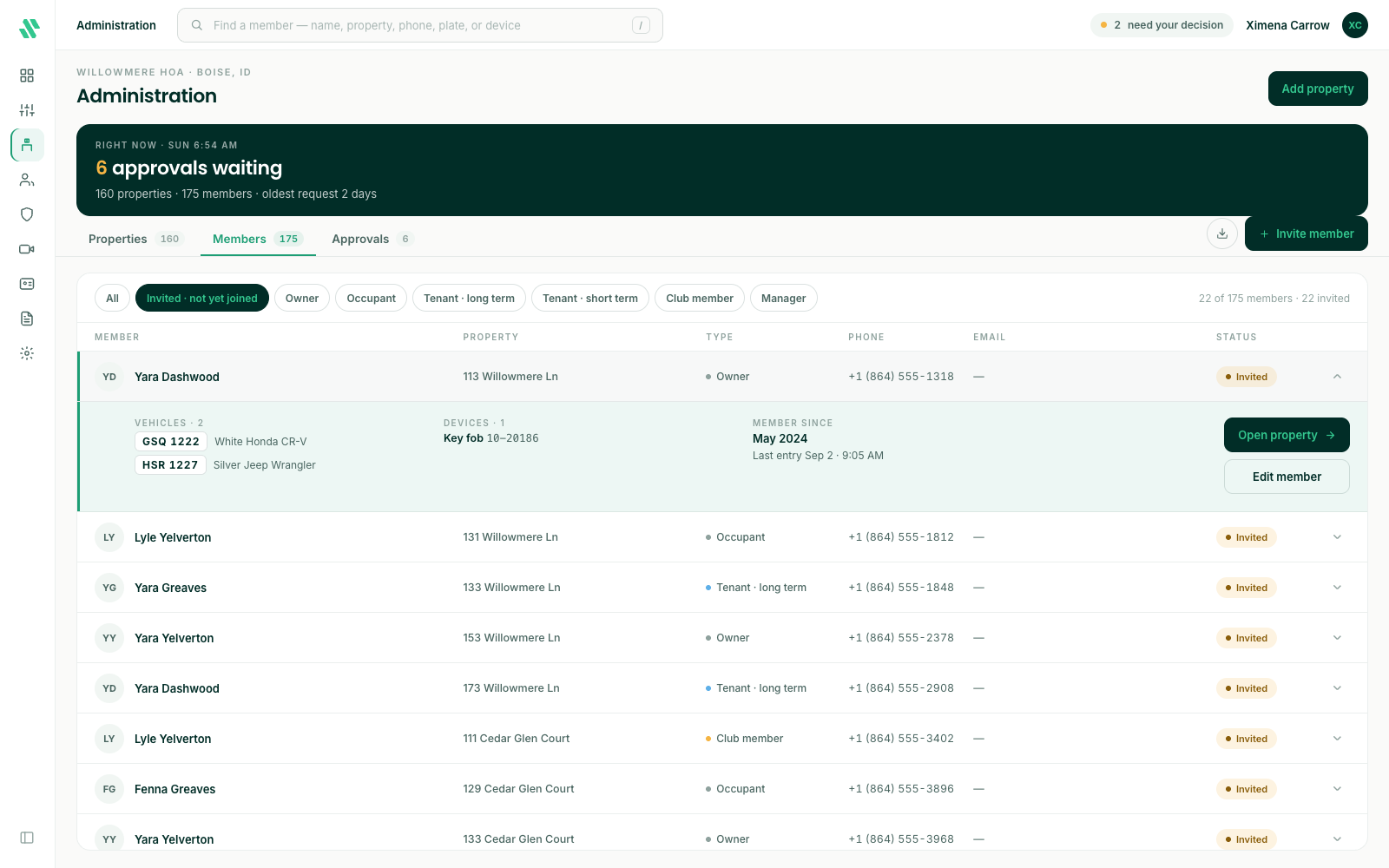
The Members tab lists everyone linked to a property in your community, with their Property, member Type, Phone, Email and Status. Someone who lives at two properties appears once for each. Invited means they’ve been sent an invitation and haven’t accepted it yet.
Use the chips above the list to show only people who haven’t joined yet (Invited · not yet joined) or one member type, such as Owner or Tenant · long term. To find one person, type their name, property, phone number, plate or device number in the search box.
Click a member to open their row. It shows their vehicles and plates, their devices and when they joined. From there:
- Open property - goes to the property they belong to.
- Edit member - change their name, phone, email or member type, move them to another property, or remove them from the property.
Invite a member
- On the Members tab, click Invite member.
- Enter their first and last name and mobile phone. Email is optional.
- Pick the property and the Member type.
- Click Send invite.
They’re sent a link to finish setting up in the SAGE app, and they get access once they accept. Until then, the invitation waits on the Approvals tab.
To invite someone straight to a property, you can also use Add occupant on the property page. See Property occupants.
Approvals
The Approvals tab has two kinds of row:
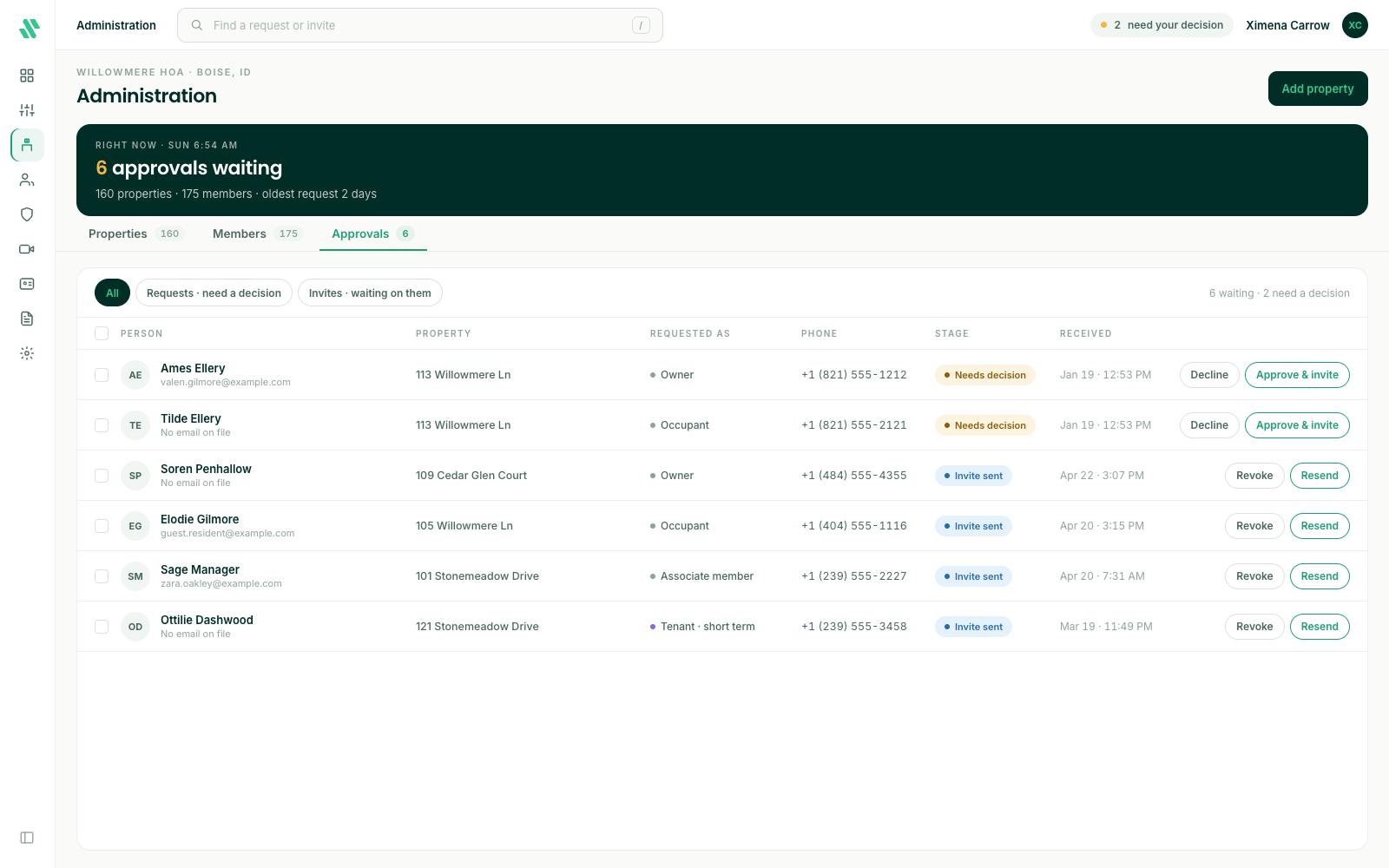
- Needs decision - A request to join a property. These come from your community’s open enrollment sign-ups, and from residents who add another person in the SAGE app.
- Invite sent - An invitation that’s been sent and not accepted yet.
Each row shows the Person, the Property, what they’re Requested as, their Phone, the Stage and when it was Received. Use the chips to show only Requests · need a decision or only Invites · waiting on them.
Approve a request
- On the request’s row, click Approve & invite.
- Check what they asked for: the property, what they asked to join as, their phone and email.
- Click Grant & send invite.
Approving sends them their invitation. They get access once they accept it in the SAGE app.
To approve several requests at once, tick their checkboxes. A bar shows how many you’ve selected, with Approve & invite and Decline.
Decline a request
Click Decline on the row, then confirm with Decline request. The request is removed. They can send a new request later.
Revoke an invitation
If an invitation was sent to the wrong person or is no longer needed, click Revoke on its row and confirm with Revoke invite. The link they received stops working. You can invite them again later.
SAGE won’t send a second invitation to someone who’s already linked to the property or already has an open invitation to it. It stops you and says why.
Guests
The Guests tab lists every guest across your community, with their Phone and Status (Active or Inactive). To find a guest from anywhere in the console, type their name in the search box at the top.
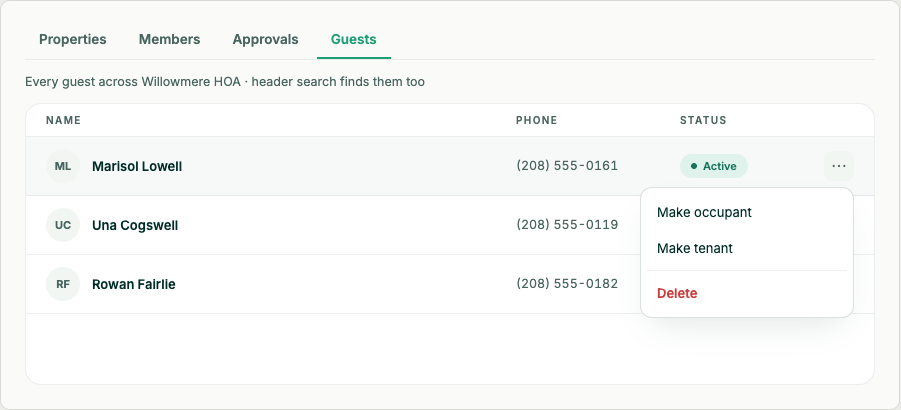
Click the ⋯ at the end of a guest’s row:
- Make occupant - Makes the guest an occupant of the property they’re a guest at.
- Make tenant - Makes the guest a tenant. For rental properties.
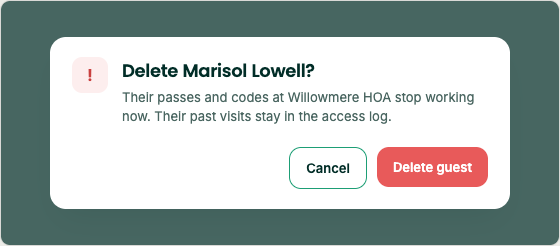
- Delete - Removes the guest’s access. SAGE asks you to confirm. Their past visits stay in the access log.
Need help?
Questions? Contact us at support@sagesystems.io.