Modules
Plate search
Last verified: October 3, 2026This guide is for the SAGE app (version 3) and management portal you use today. See the guide for the new apps.
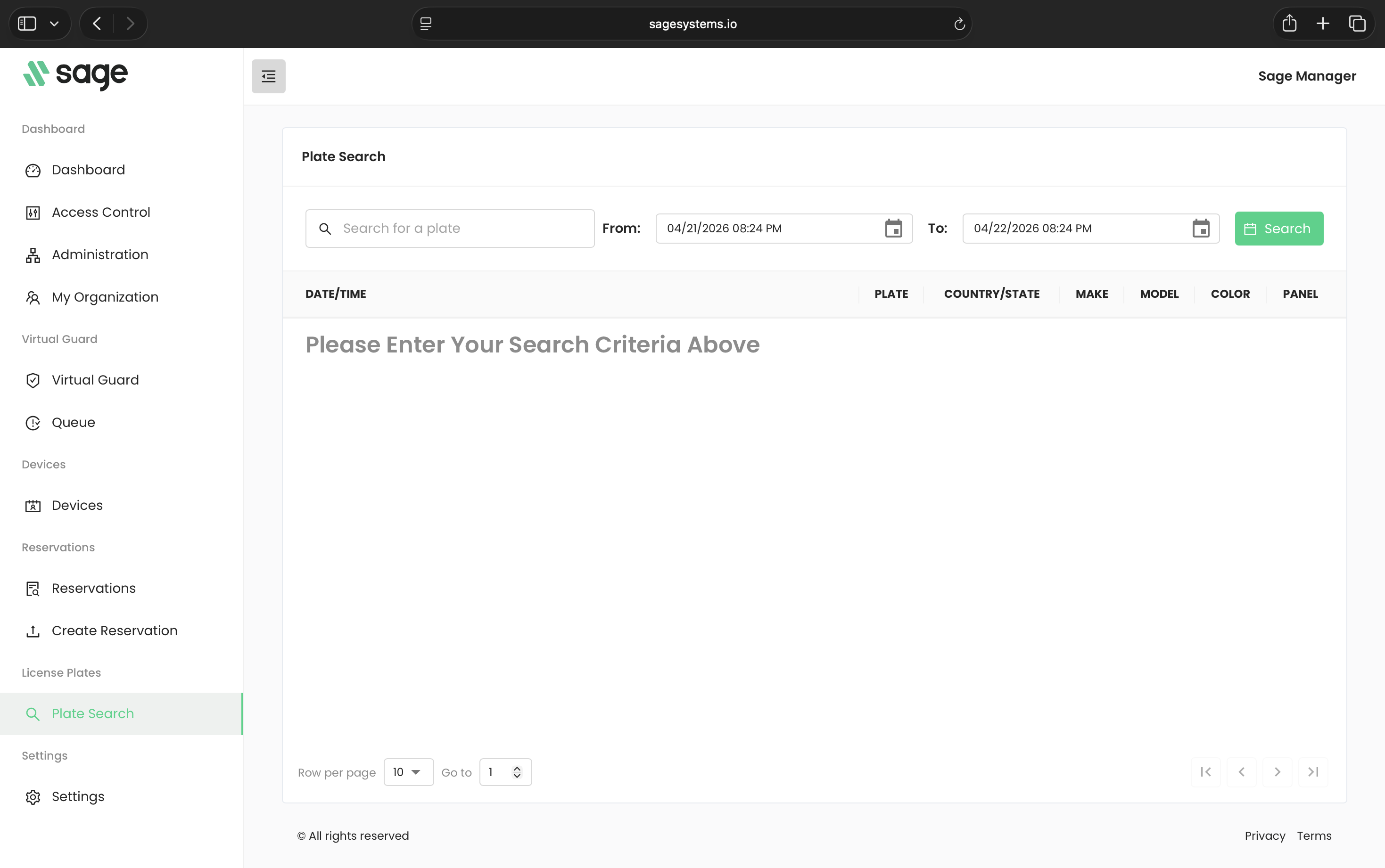
Plate Search shows the license plates your community’s cameras have read, so you can check whether and when a vehicle came through a camera entrance.
It’s under License Plates in the menu. You see it when your community has the license plate module turned on and you have the License Plate Recognition permission.
Search for plate reads
- Set From: and To: to the time range you want. Always check both, especially To.
- Click Search. Every plate read in that range appears, newest first.
- To look for one vehicle, type the full plate in Search for a plate. The list narrows as you type. Results for a single plate aren’t sorted by time.
From: and To: start out covering the hour before you opened the portal (or last switched community), not the time you opened this page. If the portal has been open a while, newer reads fall after To and won’t show until you move To forward.
Each row shows Date/Time, Plate, Country/State, Make, Model, Color and Panel. Click a row to see the camera picture and the vehicle details. Make, model and color are filled in only when SAGE could look them up for that plate. Panel can be blank for some cameras.
The plate must match exactly what the camera read, so a partial plate won’t find anything. If you get No plates matching query, check the plate and widen the time range.
What Plate Search doesn’t show
Plate Search lists what the cameras saw. It doesn’t tell you whether a vehicle is registered in SAGE or whether the gate opened for it.
- To see whether a plate was let in, use the Dashboard. Click Show more and enter the plate under Plate Number.
- To see a resident’s registered vehicles, open their unit’s Vehicles tab. See Vehicles and plate access.
Need help?
Questions? Contact us at support@sagesystems.io.