Vehicles
Add and manage vehicles
Last verified: October 4, 2026This guide is for the SAGE app (version 3) and management portal you use today. See the guide for the new apps.
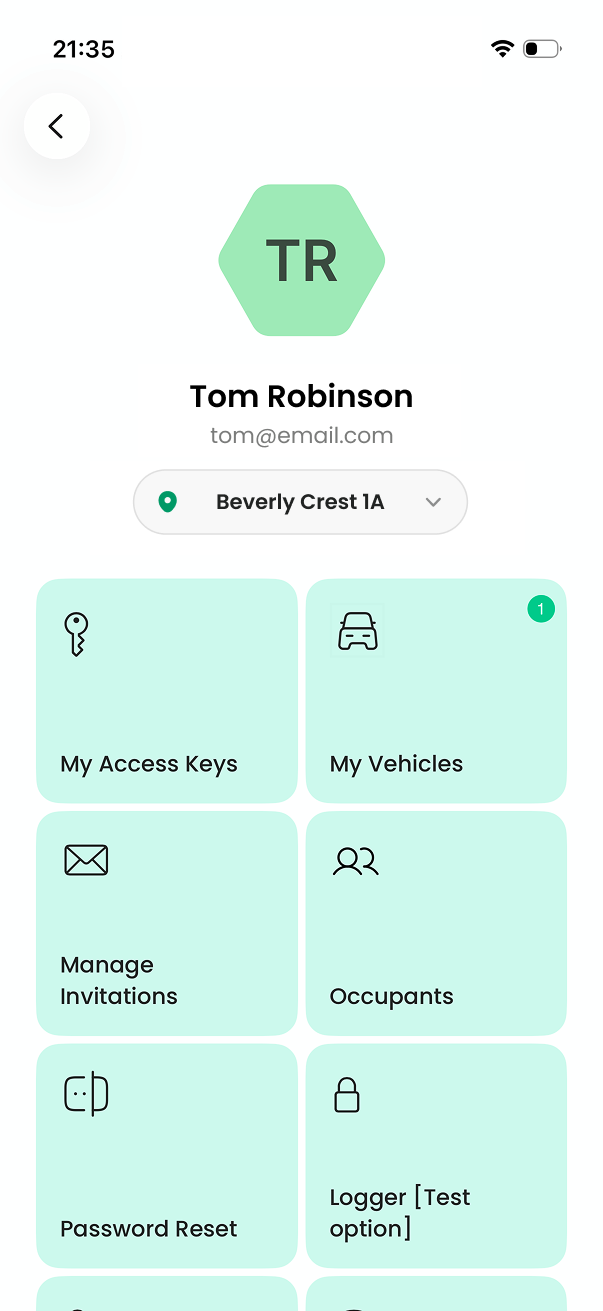
From My Vehicles in your profile, you can add the vehicles you drive so your community has their plates on file.
Before you start
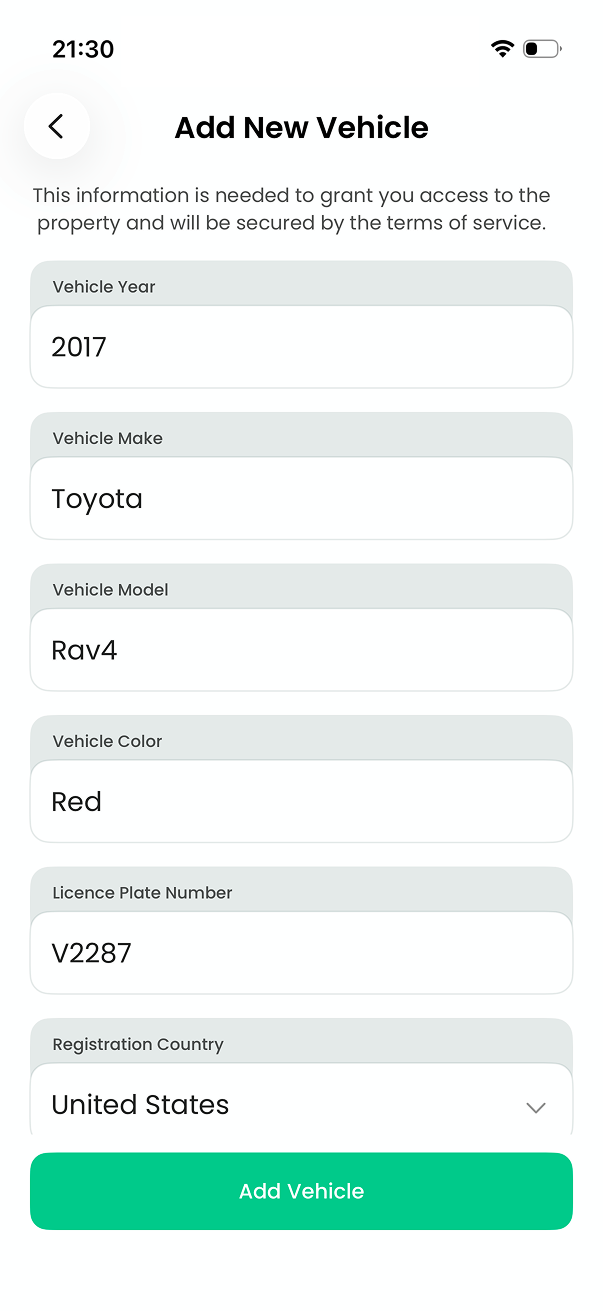
Have these ready: the vehicle’s year, make, model and color, the license plate number, and the state (or province) where it is registered. If the app asks you to verify your identity first, follow those steps, then come back.
If you don’t see My Vehicles, your community hasn’t turned vehicles on for your account.
Add a vehicle
- Open My Vehicles - Tap your profile photo or initials on the home screen, then tap My Vehicles.
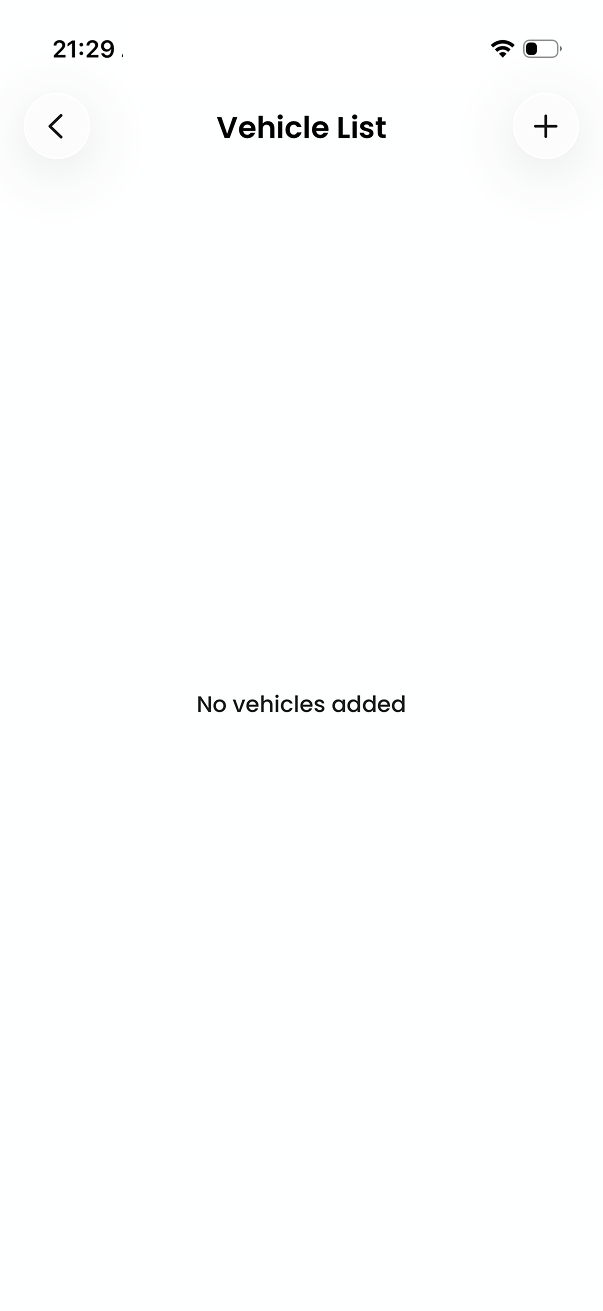
- Add new vehicle - Tap + to add a new vehicle.
- Add vehicle details - Fill in every field: year, make, model, color, license plate number, registration country and state. On iPhone the labels are Vehicle Color and License Plate Number (Licence Plate Number on the older iPhone screen). Tap Add Vehicle. You’ll see “Vehicle Added!” on iPhone or “You have successfully added your vehicle” on Android.
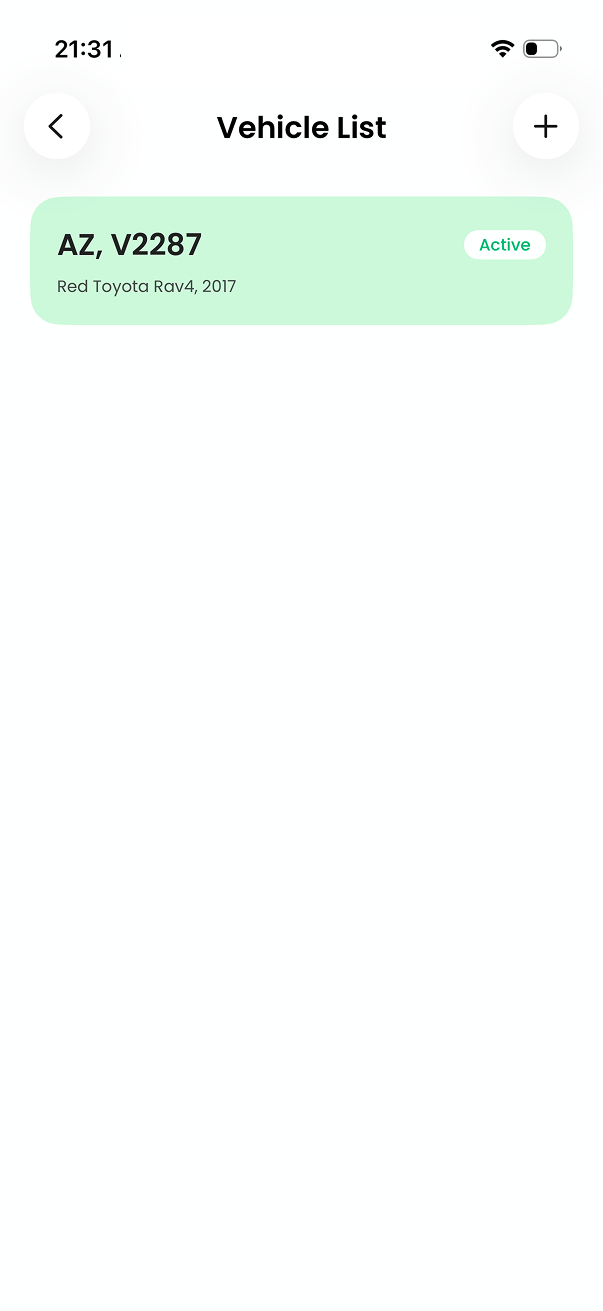
Adding a vehicle puts its plate on file. Depending on your community, plate access starts automatically or is turned on by your property manager. The app shows the vehicle as Active as soon as it’s saved - that doesn’t by itself mean the gate camera knows your plate.
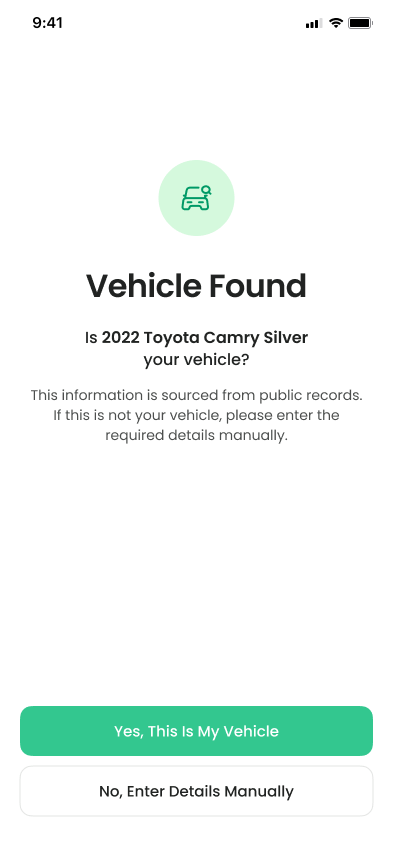
On iPhone, if the app asks you to search for your vehicle instead: choose your registration country and state, type your plate, and tap Search Vehicle. If the app finds your car, tap Yes, This Is My Vehicle or No, Enter Details Manually. If it doesn’t find your car, tap Enter Details Manually. Then fill in the details and tap Confirm Details.
Edit or remove a vehicle
| To | iPhone | Android |
|---|---|---|
| Change details | Tap the vehicle, make your changes, then tap Save Changes | Tap the vehicle, make your changes, then tap Update vehicle |
| Remove the vehicle | Tap the vehicle, then tap Delete Vehicle, then Remove | Tap the vehicle, then tap Remove vehicle, then confirm |
If the vehicle is attached to a device (plate access, a barcode or a fob), you can’t delete it. Ask your property manager to remove the device first.
Plate access at the gate
At entrances with a license plate camera, a registered plate lets you drive in without scanning anything. Entrances without a camera still need your barcode or digital access key, so keep them.
If plate access is turned on by management
Adding your vehicle puts it on file, but your plate won’t open the gate yet. Your property manager turns on plate access for each vehicle. The app shows your vehicle as Active as soon as you add it. That only means it’s saved, not that the gate camera knows your plate. Your manager will confirm when plate access is on.
If plate access is automatic
Once you add your vehicle, its plate is sent to the gate cameras for every property on your account. There’s nothing else to do.
- Keep your barcode - You’ll need it at entrances without a camera, in a car that isn’t registered, or if the camera can’t read your plate because of dirt, weather or a plate frame.
- New car? - Add it as a new vehicle and let your property manager know, so plate access can move to the new plate.
If something goes wrong
Messages you might see when adding a vehicle, and what to do.
| Message | Platform | What it means | What to do |
|---|---|---|---|
| “Verify Your Identity” | iPhone | Your account needs identity verification first. | Follow the prompts, then add the vehicle again. |
| “To access and manage this property please verify your identity.” | Android | Your account needs identity verification first. | Follow the prompts, then add the vehicle again. |
| “Vehicle Already Added” (“It seems like you already added a vehicle with this Licence Plate Number.”) | iPhone (vehicle search) | This plate is already on file — in your own vehicle list, or on another account. | Check the plate. If it’s in your list, nothing to do. If it isn’t yours, contact your property manager. |
| “We noticed that you have already added this vehicle…” | Android | This plate is already on your account. | Edit the vehicle if the details are wrong. |
| “This license plate is already registered” | Android | This plate is already in your own vehicle list. | Check the plate number you typed. If it is the same car, edit the vehicle already in your list. |
| “Invalid License Plate Number” | iPhone (vehicle search) | The plate isn’t in a format the app accepts. | Enter only the plate’s letters and numbers. |
| “Maximum 8 characters allowed” | Android | The plate is longer than 8 characters. | Enter only the plate’s letters and numbers. |
| Add Vehicle button stays gray | Both | A field is empty. | Fill in every field. |
| “This vehicle is assigned to a device…” | Both | The vehicle is attached to a device: plate access, a barcode or a fob. | Ask your property manager to remove the device first, then delete the vehicle. |
Still stuck? Contact your property manager or support@sagesystems.io.
Need help?
Questions? Contact us at support@sagesystems.io.