Get started
Set up your account
Last verified: October 4, 2026This guide is for the SAGE app (version 3) and management portal you use today. See the guide for the new apps.
It all starts with your phone number. Use the same phone number your invitation was sent to. If you haven’t installed the app yet, see Download the app.
Create your account
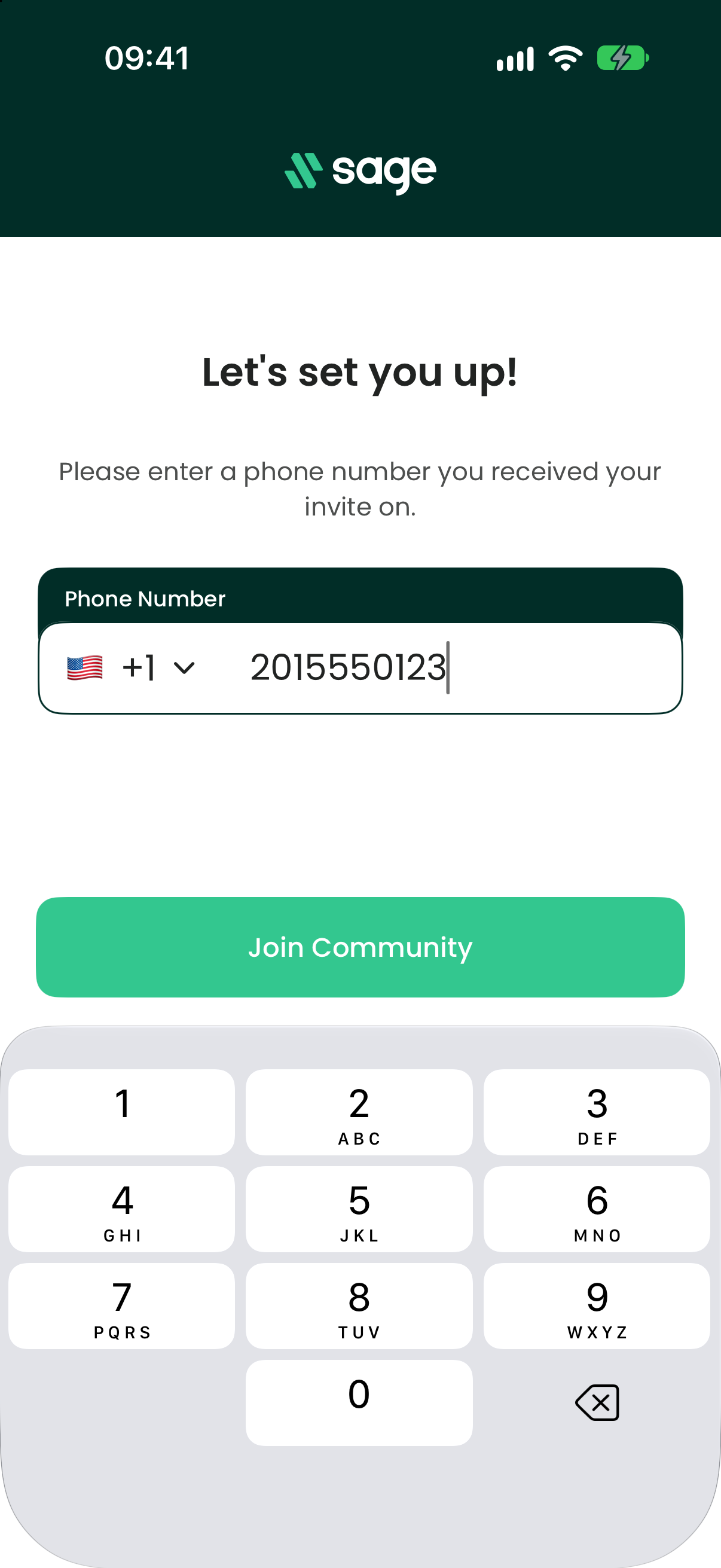
- Enter your phone number - Open the app. On Let’s set you up!, check the country code (it starts on +1 for the United States), enter your phone number, and tap Join Community.
- Check your information - On Account found!, your details from the invitation are already filled in. Check First Name, Last Name and your email address, and fix anything that’s wrong. Vendors also see Company Name. Then accept the terms: on iPhone, tap Continue, read the agreement and tap Agree. On Android, turn on Accept terms of service and tap Continue.
- Set your password - On Set Your Password, enter a password twice and tap Continue. The app lists the password rules and checks them as you type. A password with at least 8 characters, an uppercase letter, a number and a special character works on both iPhone and Android. Don’t use spaces or emoji; the iPhone app only accepts letters, numbers and common symbols. On Android you can also turn on Enable Face ID here to sign in with your fingerprint or face later.
- Follow any other prompts - The app may ask you to verify your identity with a photo of your government-issued ID. If the account is for someone under 16, the app asks you to confirm they have a parent or legal guardian’s permission.
- You’re all set - On iPhone you’ll see “Your SAGE account is ready!”; tap Go To App. On Android you’ll see “You are now a part of the [community] community”; tap Ok.
From now on, sign in with your email address and password.
If something goes wrong
| Message | What it means | What to do |
|---|---|---|
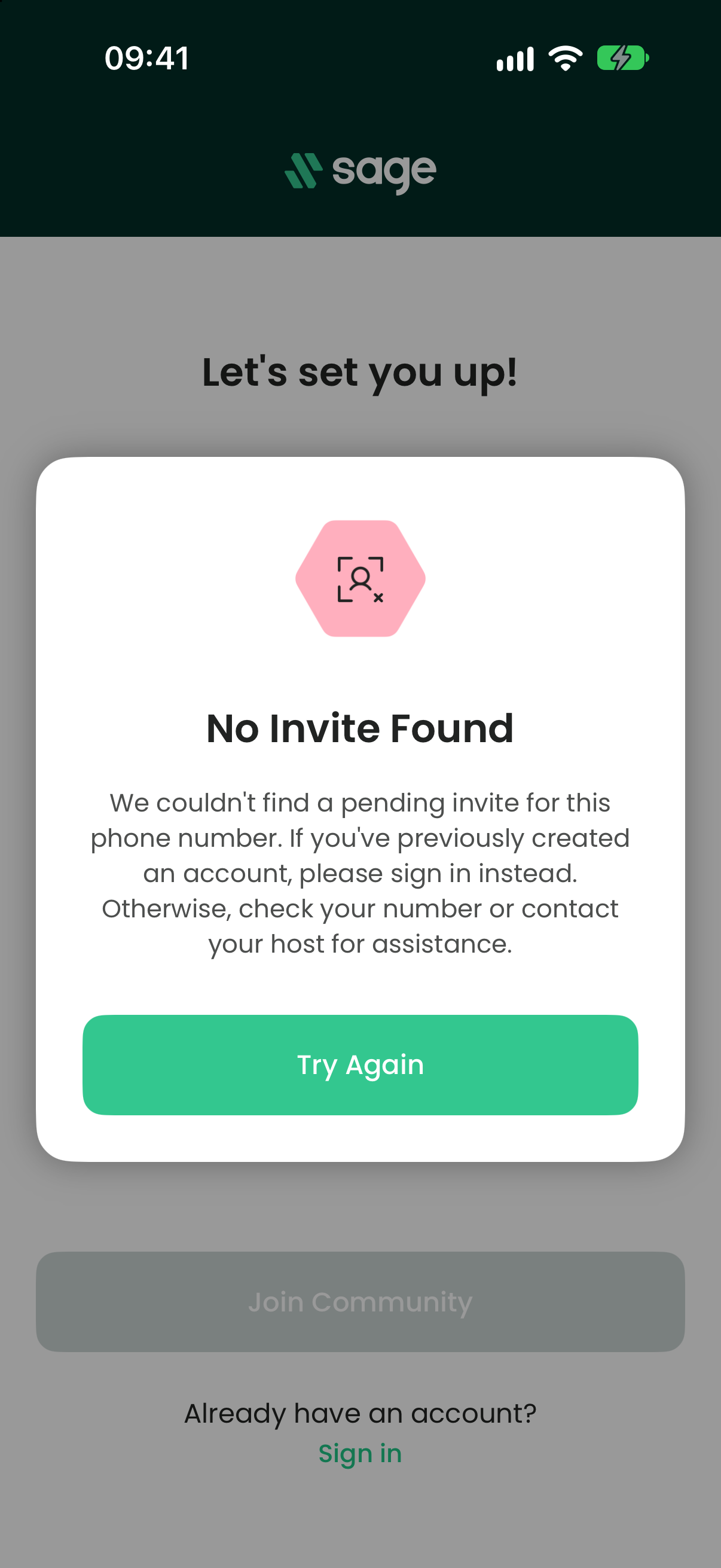
| “No Invite Found” | SAGE has no open invitation for that phone number. Your registration may not be approved yet, the number may not match the one on your invitation, or you may already have a SAGE account with that number. | Check the number and country code. If you already have an account, tap Sign in under Already have an account?, below Join Community. Otherwise wait for approval, or contact your property manager or whoever invited you. |
| “Email Already In Use” (“Email Already in Use” on Android) | Another SAGE account already uses that email address. | Tap Log In (Log in on Android) to sign in with that email, or use a different email address (Use New Email on Android). |
| “An account already exists. Please log in.” (iPhone) | You already have a SAGE account. | Go back and sign in instead. |
| Join Community stays gray | The phone number isn’t valid for the country you picked. | Check the country code and the number. |
Still stuck? Contact your property manager or support@sagesystems.io.
Need help?
Questions? Contact us at support@sagesystems.io.