Administration
Unit occupants
Last verified: October 3, 2026This guide is for the SAGE app (version 3) and management portal you use today. See the guide for the new apps.
The Occupants tab
The Occupants tab on a unit page lists the people who live at the unit, with their Name, Phone and Status. Status is Active, Suspended, or Admin Suspended (suspended by SAGE).
To add or edit occupants you need the Manage Occupants permission.
Add an occupant
Adding an occupant sends them an invitation. They get access to the unit once they accept it in the SAGE app.
- Go to Administration, open the unit and select the Occupants tab.
- Click Add Occupant.
- Enter First Name, Last Name and Phone, and pick the Country Code. Email is optional.
- Set Owner and Minor, and tick Hide from calls or Disable guest invites if needed (see the table below).
- Click Add. The confirmation reads “Invite sent — pending acceptance.”
The person is sent a text message with the invitation, plus an email if you entered one. While they haven’t accepted, they appear on the unit’s Invited tab with the status Invite sent.
If the phone number or email already belongs to someone with a SAGE account, you see Existing Sage Member Found with their details. Click Send Invite to invite them to this unit. They also get a notification in the app, and they still need to accept before they have access.
If the person is already linked to this unit, or already has an open invitation to it, SAGE stops you and shows a message instead of sending a second invitation.
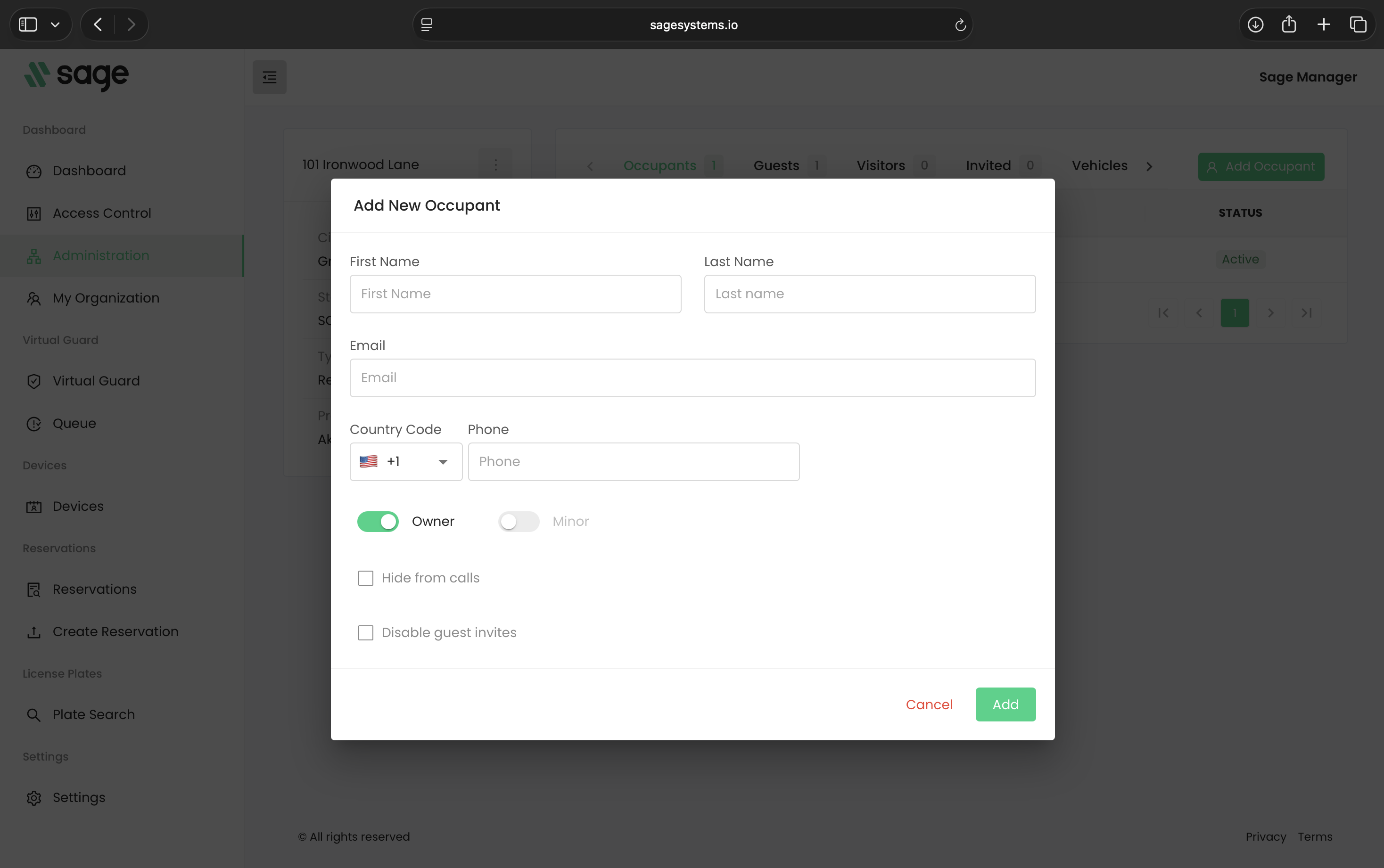
Occupant settings
| Setting | What it does |
|---|---|
| Owner | Marks the occupant as an owner of the unit. On by default for a new occupant. An owner can’t also be a minor. |
| Minor | Marks the occupant as a minor. Minor is grayed out while Owner is on, so switch Owner off first. Once on, Hide from calls and Disable guest invites are switched on and locked. |
| Suspended | (Edit only) Pauses the occupant’s access to this unit. They stay linked to the unit and you can untick it later. |
| Hide from calls | Keeps the occupant out of the call directory, so visitors can’t call them from the gate. |
| Disable guest invites | Stops the occupant from inviting guests. Only shown when guest invites are turned on for your community. |
| Required verification | (Edit only) Only shown when your community requires identity verification. |
On an occupant who hasn’t completed their SAGE identity profile yet, Hide from calls is locked and shows Pending SAGE Identity. It unlocks once they complete their profile. Until then, they can’t receive calls.
Edit an occupant
Click an occupant’s row to open Edit Occupant. You can change their name, phone number and the settings above, then click Update.
- Change email - The email can’t be typed over. Click Change Email, enter the New Email Address and click Confirm. This changes their email everywhere in SAGE, and they then sign in with the new address.
- Violations - In communities with guard reports, people with the Manage Reports permission also see the occupant’s violations here.
Transfer an occupant to another unit
Use this when an occupant was added to the wrong unit or has moved to another unit in your community.
- Open the occupant and click Transfer Occupant.
- Under Transfer To, search for the address and select it. Units they’re already on (Already assigned) and Non-member units can’t be picked.
- Click Transfer, then confirm.
The occupant’s devices, the guests they invited, their pending invitations and their visitors move to the new unit with them.
Remove an occupant
Open the occupant and click the trash icon (Delete Occupant), then Yes, Delete. This removes the occupant’s access to this unit. Their SAGE account stays, along with access to any other units they belong to.
Rental units
On a rental unit, each occupant row has an actions menu with Make Tenant, which turns the occupant into a tenant of the unit. See Notes and tenants.
Need help?
Questions? Contact us at support@sagesystems.io.