Get started
Use SAGE on the web
Last verified: October 3, 2026This guide is for the SAGE app (version 3) and management portal you use today. See the guide for the new apps.
Prefer a web browser? You can sign in at sagesystems.io from any computer or phone with the same email and password you use in the app.
Sign in
- Go to sagesystems.io - The Login page opens.
- Enter your details - Type your email address and password.
- Log in - Click Login.
Forgot your password? Click Forgot Password? on the Login page.
What you can do
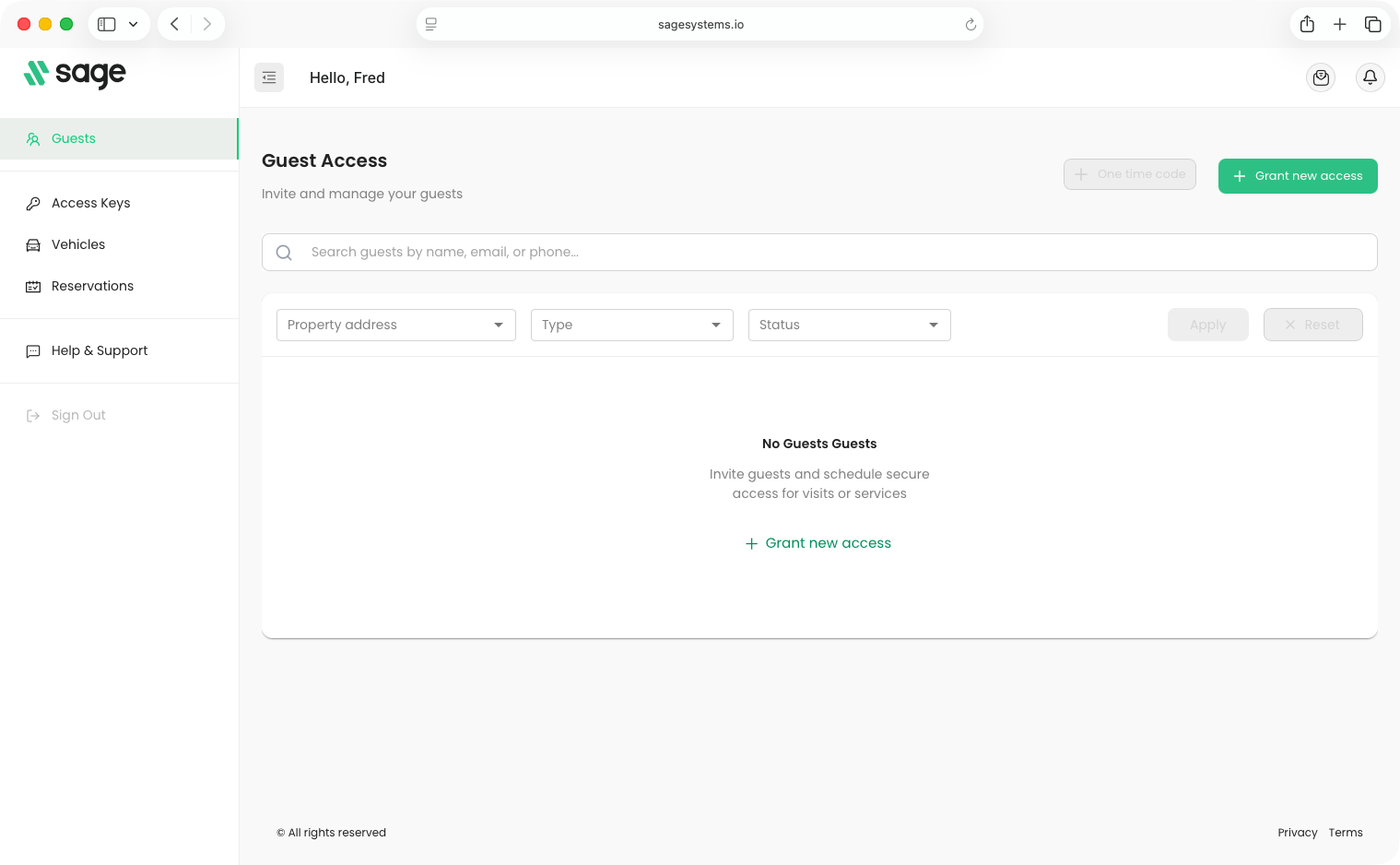
The menu on the left shows the pages available to you:
| Menu item | What it’s for |
|---|---|
| Guests | Invite and manage your guests |
| Access Keys | See the properties you have access to |
| Vehicles | Manage your vehicles |
| Occupants | Manage the people in your household |
| Reservations | Manage rental reservations |
| Help & Support | Get help |
| Sign Out | Sign out |
You only see the pages your role allows. For example, Occupants and Reservations don’t appear for everyone. If your community requires ID verification and you haven’t verified yet, the website may ask you to verify first.
Don’t have an account yet?
If you’ve been invited but can’t install the app, you can create your account on the web.
- Go to sagesystems.io - On the Login page, click Create account.
- Find your invitation - On Confirm Invitation, choose your Country Code, enter the Phone Number your invitation was sent to, and click Find Invitation.
- Finish setting up - Follow the steps to create a password and check your account information.
Your account works in both places. After you set it up on the web, you can sign in to the app with the same email and password.
Need help?
Questions? Contact us at support@sagesystems.io.