Get started
Sign in
Last verified: October 4, 2026This guide is for the SAGE app (version 3) and management portal you use today. See the guide for the new apps.
How you get into the app depends on whether you already have a SAGE account.
- New invitation, no account yet - Enter the phone number you were invited with on Let’s set you up! and tap Join Community. See Set up your account.
- Existing account - If you’ve created a SAGE account before, on the web or on another phone, sign in with your email and password. On Let’s set you up!, tap Sign in under Already have an account?.
Sign in to your account
- Open the app - If you see Let’s set you up!, tap Sign in at the bottom. If you see Welcome back!, you’re already on the sign-in screen.
- Enter your details - Type the email address and password you registered with.
- Sign in - Tap Sign In.
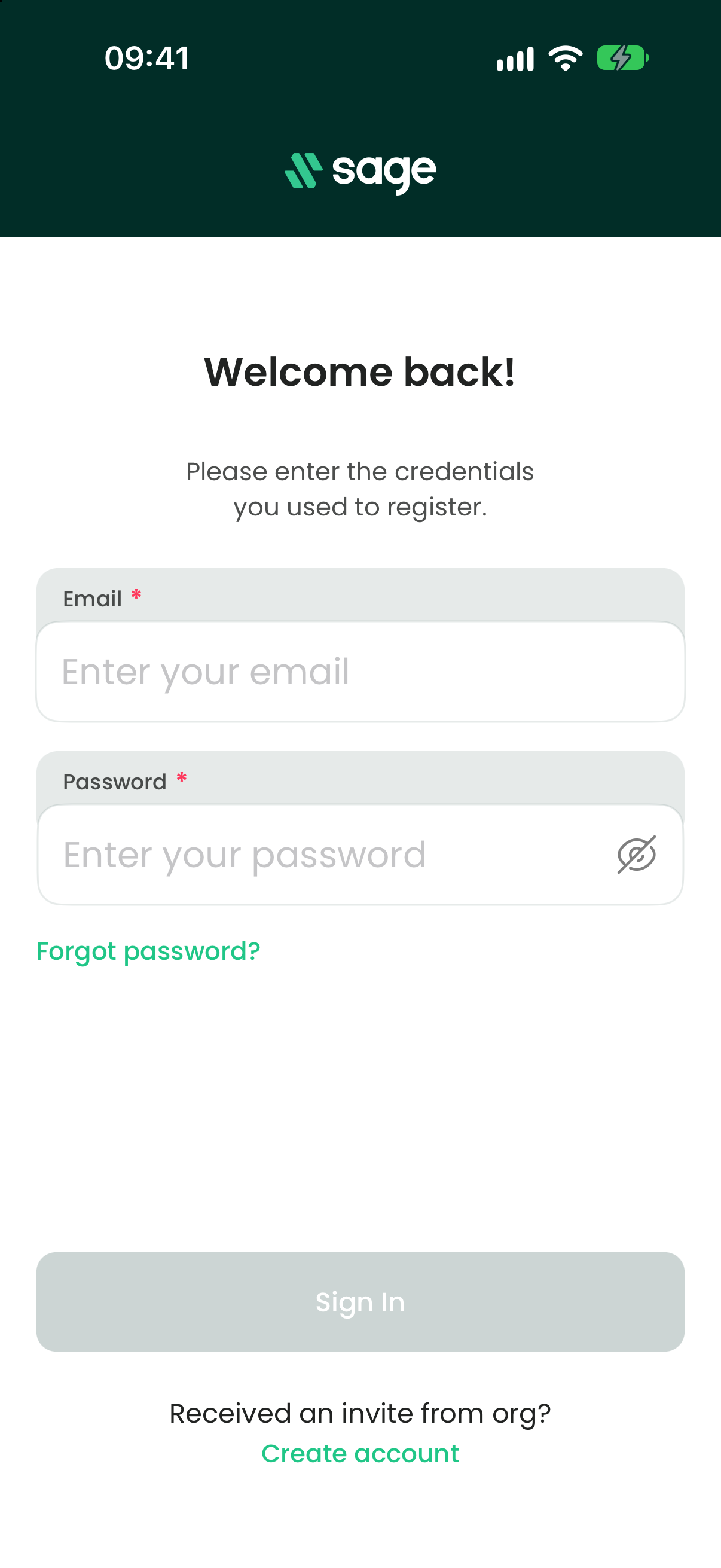
If the email or password is wrong, the iPhone app shows “Invalid Email Or Password”. Check both and try again, or reset your password.
On Android you can turn on Sign in with Biometric on the sign-in screen to sign in with your fingerprint or face next time.
Got a new invitation but no account yet? On Welcome back!, tap Create account under Received an invite from org? to go back to Let’s set you up!.
Forgot your password
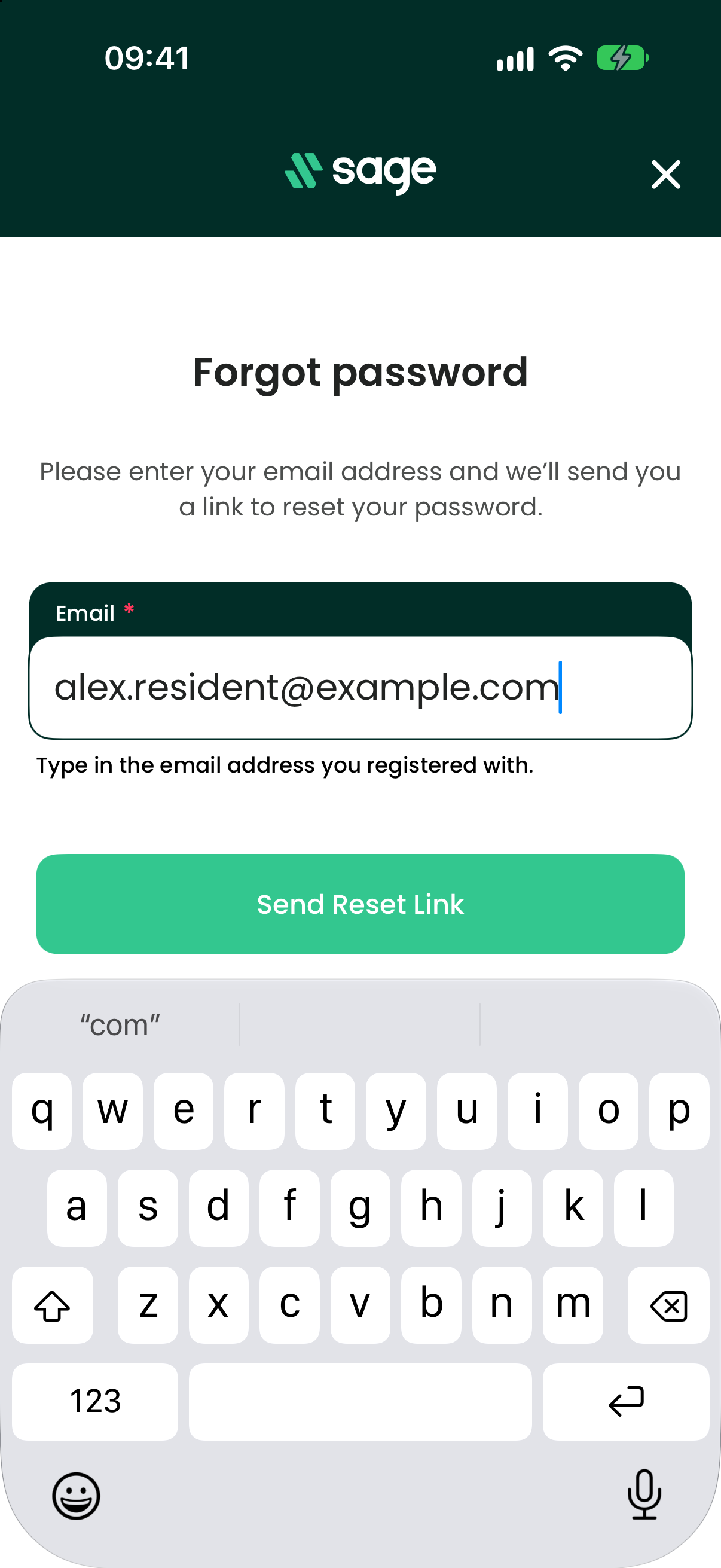
- Open Forgot password - On the sign-in screen, tap Forgot password?.
- Enter your email - Type the email address you registered with. Tap Send Reset Link (iPhone) or Reset Password (Android).
- Check your email - Look for an email with the subject “Your Sage Password Reset Request”. If you don’t see it, check your Spam folder. On iPhone you can tap Resend Link if it doesn’t arrive.
- Choose a new password - Open the link in the email and set a new password.
- Sign in again - Go back to the app and sign in with your new password.
Change your password
If you know your current password, you can change it from your profile.
- Open Password Reset - Tap your initials at the top left of the home screen, then tap Password Reset.
- Enter your passwords - Fill in your current password, then your new password twice. The new password must be different from your current one.
- Save - Tap Save New Password, then confirm (Confirm on iPhone, Reset on Android).
The app signs you out. Sign in again with your new password.
To change your password this way you need your current password. If you can’t remember it, sign out and use Forgot password? instead.
Need help?
Questions? Contact us at support@sagesystems.io.